
How to use this documentation
Use this page as an end-user workflow guide. It explains who should use the page, what setup is needed, what steps to follow, what fields matter, and what to check when something looks wrong.
Who should use it
Before you start
- You can log in to the Petrodweep web dashboard.
- Your user is active and has a role assigned.
- The owner or admin has assigned permissions for the modules you need.
- At least basic setup should be available before using live shift or report pages.
Step-by-step workflow
- 1
Open the dashboard
Start from /dashboard and review the summary cards before opening detailed modules.
- 2
Scan the visible sidebar
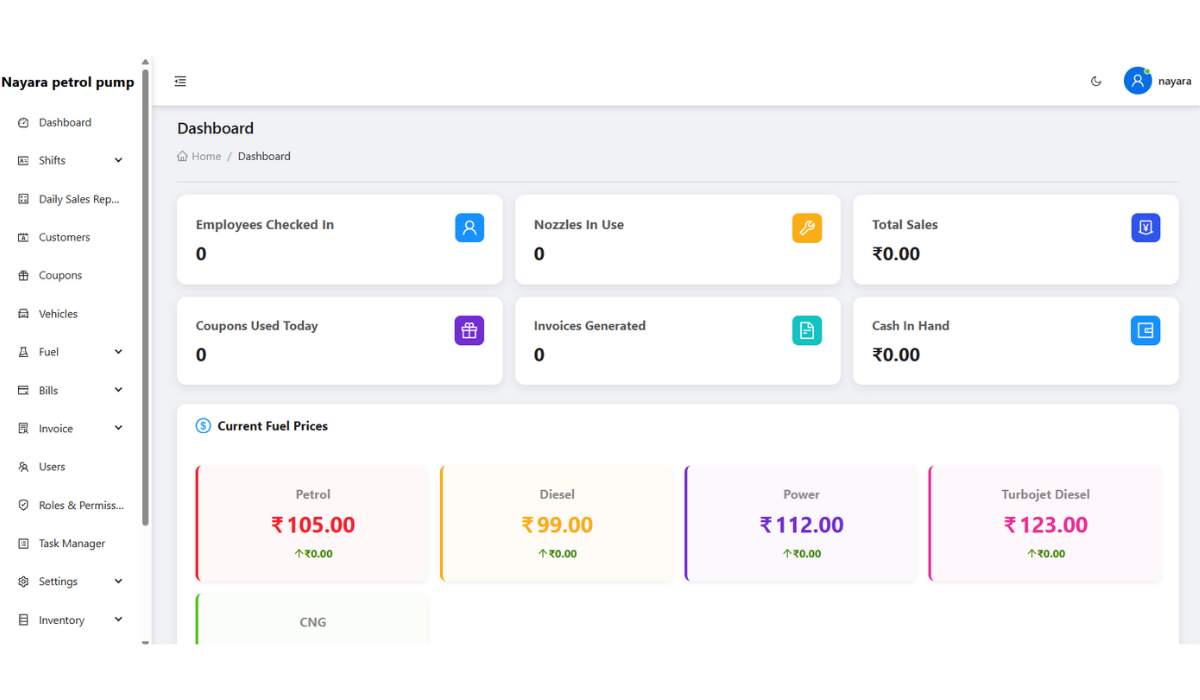
Check which menu groups are visible for your role, including shifts, reports, customers, coupons, fuel, invoices, settings, users, roles, agreements, and profile.
- 3
Open setup before operational work
If you are an admin, complete settings, users, and roles before live shift work begins.
- 4
Open workflow pages from the sidebar
Use each sidebar area for the related task instead of trying to manage everything from the dashboard snapshot.
- 5
Ask an admin when a menu is missing
Missing menu items usually mean your user does not have the required permission or is not active.
Important fields
Dashboard
A summary screen for quick review and follow-up signals.
Sidebar
The main navigation area for modules and grouped workflows.
Settings
The setup area for card machines, fuel types, tanks, nozzles, shift timings, and tankers.
Permissions
The reason different users can see different sidebar items.
Common mistakes
- Assuming a missing menu means the application is broken.
- Starting daily workflows before setup pages are complete.
- Using dashboard cards as final records without opening the source module.
- Giving broad admin access instead of fixing the specific missing permission.
Troubleshooting
The sidebar does not show a module.
Ask an owner or admin to check your active status, role, and permissions for that module.
Dashboard cards are empty.
Confirm that live data exists for shifts, customers, coupons, invoices, or reports.
A page opens but data is missing.
Check the selected date, shift, customer, tank, or filter before changing setup.
Related documentation
Web dashboard docs
Mobile app equivalents
- Mobile bottom tabs and full menu
- Mobile role-based Admin menu
Screenshot note
- Uses the existing dashboard screenshot to show the main web portal starting point.
Start from the dashboard snapshot
The dashboard gives a quick operational snapshot before users open detailed screens. Treat it as a starting point for review rather than a replacement for shift, invoice, customer, or report pages.
- Check sales, cash, staff, nozzles, coupons, invoices, and fuel prices.
- Use unusual values as signals to open the related module.
- Avoid making decisions from one card without checking source records.
Understand the main sidebar areas
The sidebar is grouped by workflow. Daily operations normally use shifts and DSR. Credit workflows use customers, vehicles, coupons, and invoices. Setup work uses settings, users, and roles. Owner review uses reports.
Use role-based visibility correctly
A user only sees the modules allowed by role permissions. Inactive users may see limited access or notices instead of full operational menus. If a menu is missing, check role permissions before assuming the page is broken.
Follow the recommended first-admin path
A new admin should begin with login and profile readiness, then master-data setup, then users and roles, then one test shift. After that, shift, customer, coupon, invoice, DSR, and report workflows can be used more confidently.
Navigation readiness checklist
How Petrodweep organizes portal work
- Petrodweep keeps daily operations, customer billing, setup, reports, users, and roles in predictable sidebar areas.
- Role-based navigation helps each user focus on the workflows they are allowed to perform.
- The dashboard connects owners to the deeper pages needed for verification and follow-up.
Frequently asked questions
Why do different users see different menu items?
Menu visibility depends on the user's role, permissions, and active status. Owners and admins normally see more setup and reporting areas than employees.
Where should a new admin start?
Start with login and profile readiness, then first-time setup, master data, users, roles, and one test shift before live usage.
Is the dashboard the same as reports?
No. The dashboard gives a snapshot. Reports provide deeper review after the relevant operational data has been entered.