
How to use this documentation
Use this page as an end-user workflow guide. It explains who should use the page, what setup is needed, what steps to follow, what fields matter, and what to check when something looks wrong.
Who should use it
Before you start
- A Petrodweep web account has been created for your pump.
- Your user is active and can log in to the web dashboard.
- Your role has permission to view the dashboard and the modules you need.
- Basic pump details should be available before live setup begins.
Step-by-step workflow
- 1
Log in and open the dashboard
Use the portal login and land on the dashboard. Start by checking the summary cards before opening detailed modules.
- 2
Review the sidebar modules
Scan the available menu items for shifts, DSR, customers, coupons, invoices, fuel, inventory, reports, users, roles, and settings.
- 3
Confirm setup readiness
Before daily work starts, confirm that fuel types, tanks, nozzles, card machines, shift timings, users, and roles are ready.
- 4
Open the first workflow you need
New users normally start with setup, then shift check-in, then current shift or daily operations review.
- 5
Use reports for owner review
After live entries are available, use reports and dashboard totals to review daily activity and identify follow-up work.
Important fields
Dashboard cards
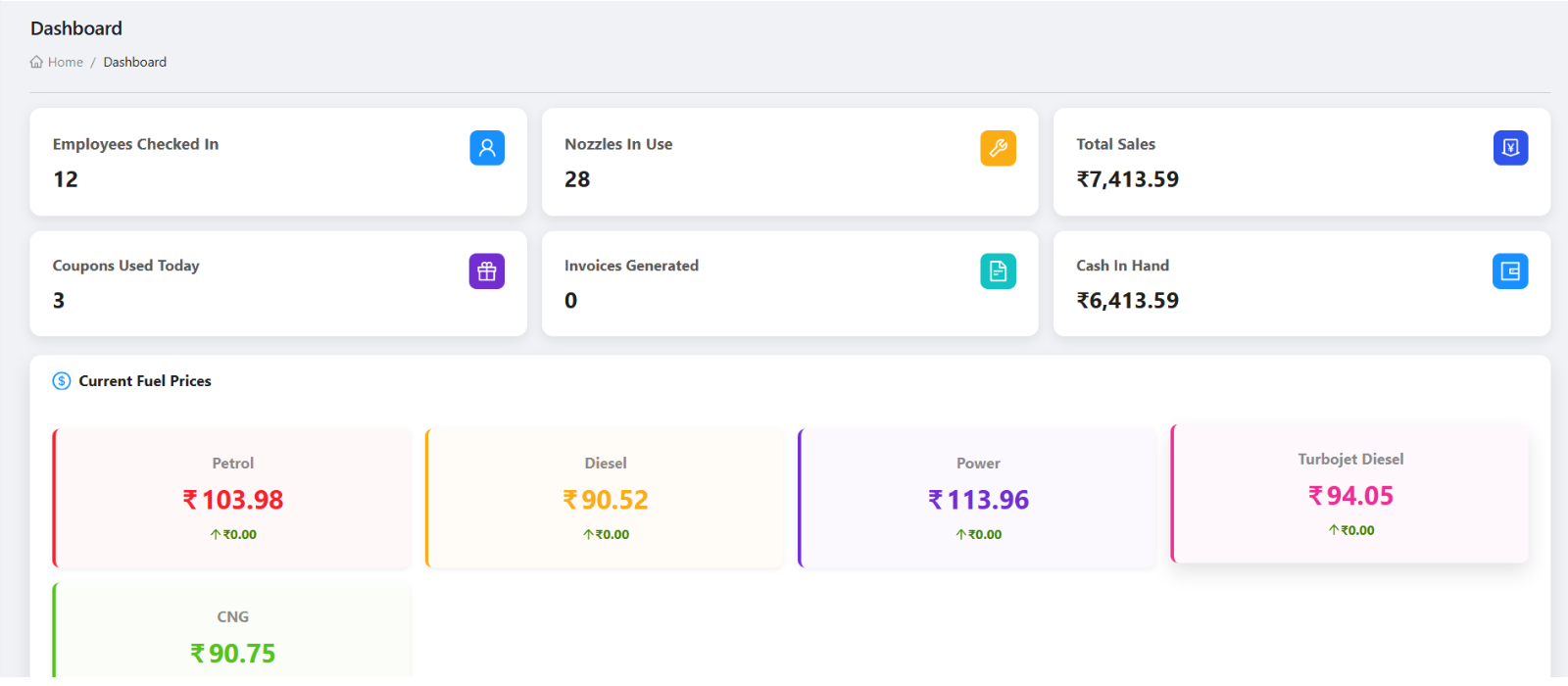
Use cards as quick indicators, not as the only source of review. Open the related module when a number needs checking.
Sidebar visibility
The visible menu depends on your role and permissions. Missing menus usually mean access has not been assigned.
Reports
Reports are most useful after shifts, sales entries, customers, coupons, and invoices are entered consistently.
Common mistakes
- Starting live shift entries before nozzles, tanks, and shift timings are configured.
- Giving every user owner-level access instead of setting role permissions.
- Reviewing dashboard totals without checking the underlying shift or invoice records.
Troubleshooting
A menu item is missing.
Ask an owner or admin to check your role permissions and confirm the module is enabled for your user.
Dashboard numbers look empty.
Confirm that shift, invoice, customer, or report data has been entered for the selected period.
You are unsure where to begin.
Start with the first-time setup checklist, then move to shift check-in and daily operations review.
Related documentation
Web dashboard docs
Mobile app equivalents
- Mobile home/dashboard overview
- Role-based mobile menu
Screenshot note
- Uses the existing dashboard screenshot already available in the static image library.
Understand the dashboard role
The dashboard is designed to show high-level petrol pump activity before users move into detailed modules. Owners can review operational snapshots, while managers can use the sidebar to move into shift, customer, billing, stock, and reporting workflows.
- Use the dashboard for quick operational visibility.
- Use the sidebar for detailed feature workflows.
- Use reports for owner review and audit activity.
- Use roles and permissions to control what each user can access.
Start with setup before live operations
Before using live shift, billing, and stock workflows, admins should complete the basic setup. Fuel types, tanks, nozzles, card machines, shift timings, users, and permissions affect multiple downstream pages.
Use feature areas together
Petrodweep is most useful when features are connected. A shift check-in can lead to nozzle readings, card sales, expenses, products, and current shift reports. Customers can lead to vehicles, coupons, invoices, and payments. Inventory and fuel purchase records support daily sales and stock review.
Review regularly as an owner
Owners should build a daily or weekly review habit around dashboard snapshots, current shift readings, daily operations, DSR, customers, pending invoices, fuel purchase records, and profit or fuel reports.
First login checklist
How Petrodweep helps new dashboard users
- Petrodweep groups petrol pump workflows into clear web dashboard modules for shifts, customers, billing, stock, users, roles, and reports.
- Role-based sidebar visibility helps owners keep the portal focused for each user type.
- The same business data can support both operational work and owner-level reporting.
Frequently asked questions
Who should use the Petrodweep web dashboard?
The web dashboard is mainly for owners, admins, managers, auditors, and office users who need a larger screen for setup, review, reporting, and administration.
Should setup be completed before the first shift?
Yes. Fuel types, tanks, nozzles, card machines, shift timings, users, and roles should be configured before live shift entries begin.
Can employees use only limited dashboard areas?
Yes. Roles and permissions can restrict visible menu items and feature access based on each user's responsibility.