
How to use this documentation
Use this page as an end-user workflow guide. It explains who should use the page, what setup is needed, what steps to follow, what fields matter, and what to check when something looks wrong.
Who should use it
Before you start
- The user has the correct portal URL.
- The user has a registered phone or email available for verification or reset.
- An owner or admin is available to approve or activate access when required.
- Roles and permissions are ready before the user starts live work.
Step-by-step workflow
- 1
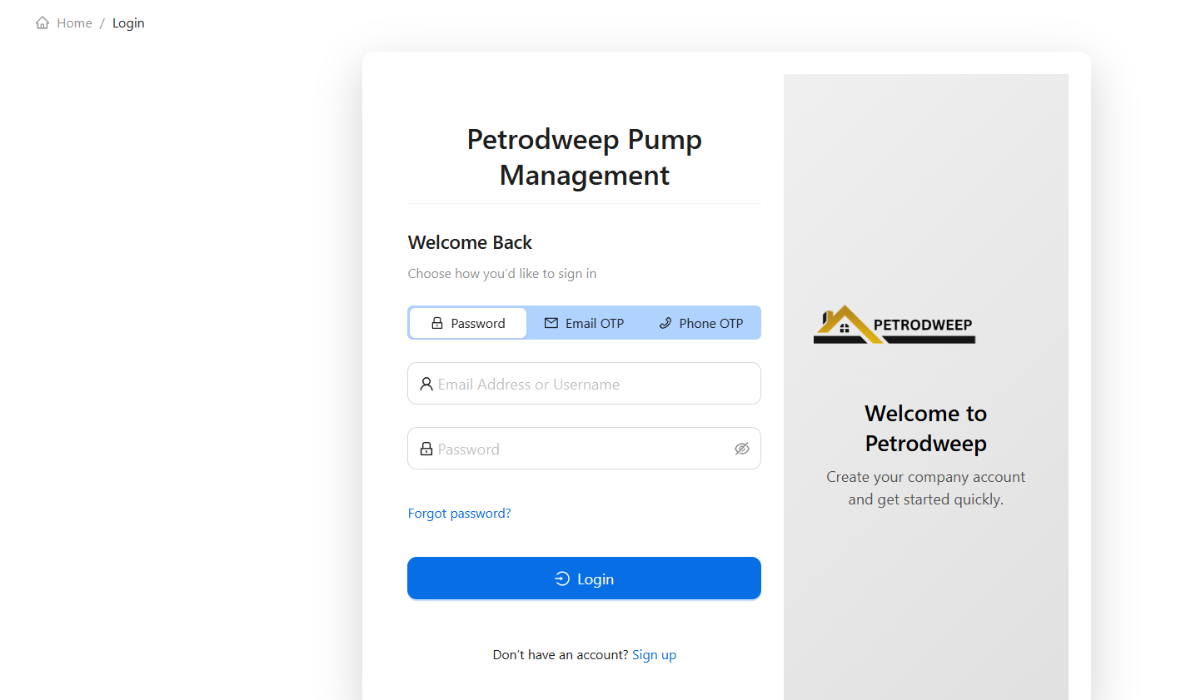
Use login for existing users
Existing users should sign in from /login with their registered credentials.
- 2
Use signup for new users
New users should register from /signup and complete the verification-code step.
- 3
Review status and role
After signup, the owner or admin should review whether the user is active and has the correct role.
- 4
Assign permissions before live work
Give only the permissions needed for the user's real responsibilities.
- 5
Use password reset when needed
Use the forgot-password flow when a user cannot sign in instead of creating a duplicate account.
Important fields
Login
The normal entry point for existing approved users.
Signup
The registration flow for new users who need a new account.
Verification code
The confirmation step that helps prove the user controls the registered contact method.
Inactive status
A status that can restrict access until the user is ready or approved.
Common mistakes
- Creating duplicate accounts when password reset should be used.
- Allowing a new user into live workflows before role review.
- Assigning owner/admin permissions to a user who only needs one module.
- Ignoring inactive-user status when troubleshooting missing menus.
Troubleshooting
A user completed signup but cannot work in the portal.
Check user status, role, permissions, and whether verification was completed.
A user forgot the password.
Use the password reset flow tied to the registered contact method.
A user can log in but sees only limited pages.
Review inactive status and permissions before changing any business data.
Related documentation
Web dashboard docs
Mobile app equivalents
- Mobile login
- Mobile role-based menu after login
Screenshot note
- Uses the existing portal access image for login, signup, and access-control documentation.
Use login for existing users
Existing users should enter through the login page. If the user cannot access expected modules after login, the owner or admin should check the user's status, role, and permissions.
Use signup for new users
New users can register from signup and complete the verification-code step. New registrations should be reviewed by the pump admin before the user is trusted with live workflows.
Understand inactive or pending access
Inactive or not-yet-approved users should not be treated as fully operational users. They may see a limited notice or reduced menu access until the owner or admin completes the required approval, role, or profile steps.
Use password reset before creating duplicate users
If a user forgets a password, use the password reset flow instead of creating a second account for the same person. Duplicate accounts make permissions, activity history, and approvals harder to manage.
Access setup checklist
How Petrodweep keeps web access controlled
- Petrodweep separates login, signup, user status, roles, and permissions so access can be controlled step by step.
- Admins can use user and role workflows to decide what each person should see after login.
- Inactive-user handling helps prevent unapproved users from using operational screens too early.
Frequently asked questions
What should a new user do after signup?
Complete the verification step, then wait for the pump owner or admin to confirm status, role, and permissions before using live workflows.
What should I do if a user cannot see menus after login?
Check whether the user is active and whether the correct role permissions have been assigned.
Should I create a new user when someone forgets a password?
No. Use the password reset flow so the same account, permissions, and history remain consistent.