
How to use this documentation
Use this page as an end-user workflow guide. It explains who should use the page, what setup is needed, what steps to follow, what fields matter, and what to check when something looks wrong.
Who should use it
Before you start
- The user can log in or has completed signup.
- The user knows which phone, email, and profile details should be used.
- The owner or admin has defined which agreements are required.
- The user's role and permissions are ready to be reviewed.
Step-by-step workflow
- 1
Open the profile page
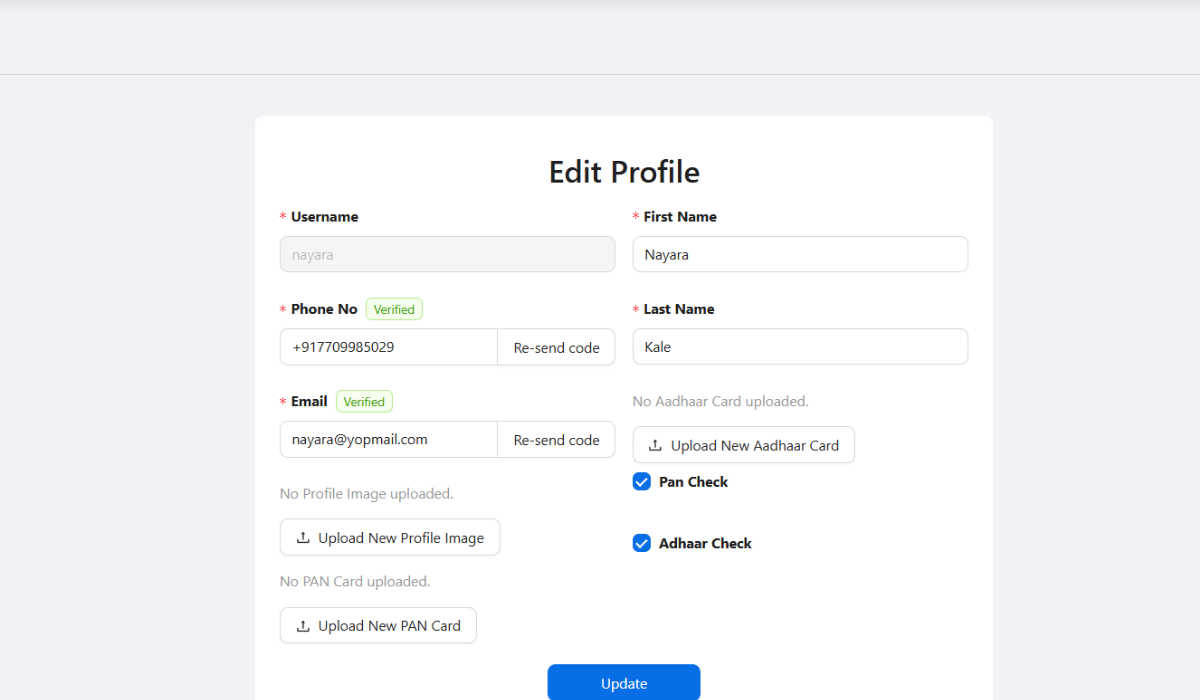
Use /profile to review the user's name, contact details, and account context.
- 2
Confirm verification readiness
Check whether phone or email verification is complete where required by the access process.
- 3
Review active status and role
If the user is inactive or missing role assignment, resolve that before expecting full menu access.
- 4
Open agreement records
Use /agreements where agreement acceptance or policy records are part of the pump process.
- 5
Refresh access after updates
After profile, agreement, or access changes, the user should refresh or log back in.
Important fields
Profile
The user's identity and contact context inside the portal.
Verification
A confirmation that the user controls the registered phone or email.
Agreements
Formal records or acceptance items connected to user, customer, or pump processes.
Active status
A key access flag that can affect whether the user sees operational menus.
Common mistakes
- Assigning permissions before confirming who owns the account.
- Skipping agreement requirements when the pump expects acceptance.
- Troubleshooting menus without checking active status.
- Forgetting to refresh or log back in after access changes.
Troubleshooting
Profile details are wrong.
Correct profile details first, then ask an admin to recheck status and role if needed.
A user accepted an agreement but still cannot access menus.
Check role permissions and active status; agreement acceptance is only one access requirement.
Updated access is not visible immediately.
Refresh the page or log out and log back in so the latest user data is loaded.
Related documentation
Web dashboard docs
Mobile app equivalents
- Mobile profile
- Mobile login state and permissions
Screenshot note
- Uses the existing portal access image until a dedicated profile or agreement screenshot is added.
Keep profile information current
The profile page should reflect the correct user, contact, and pump context. Owners and admins should ask users to correct incomplete or outdated details before relying on approvals or reports.
Treat verification as an access checkpoint
Phone or email verification helps confirm that the account belongs to the intended person. If verification is incomplete, admins should resolve it before assigning sensitive permissions.
Use agreements for formal acceptance
Agreement pages support formal records that may be needed for users, customers, or operating policies. The exact agreement content depends on the pump's process, but users should not ignore agreement acceptance when it is required.
Connect profile readiness with user status
If a user is inactive, pending, or missing required profile details, the admin should correct the status or profile before expecting the user to see the full dashboard.
Profile readiness checklist
How Petrodweep supports profile readiness
- Petrodweep keeps profile, status, role, and permission checks connected to portal access.
- Agreement records give owners a place to manage important acceptance workflows.
- Clear user readiness reduces confusion when a user cannot see or use a feature.
Frequently asked questions
Why can profile details affect access?
Admins need to know who the account belongs to before assigning operational or financial permissions.
Where are agreements managed?
Agreement records are managed from the web dashboard agreement area, depending on the user's permissions.
What should a user do after an admin changes access?
The user should refresh or log out and log back in so the updated access and menu visibility are loaded.