
How to use this documentation
Use this page as an end-user workflow guide. It explains who should use the page, what setup is needed, what steps to follow, what fields matter, and what to check when something looks wrong.
Who should use it
Before you start
- The user has the Petrodweep mobile app installed.
- The user has login credentials or an approved signup path.
- The mobile device has internet access.
Step-by-step workflow
- 1
Open the mobile app
Start from the welcome or login screen and choose the login method provided by your pump admin.
- 2
Sign in with the right method
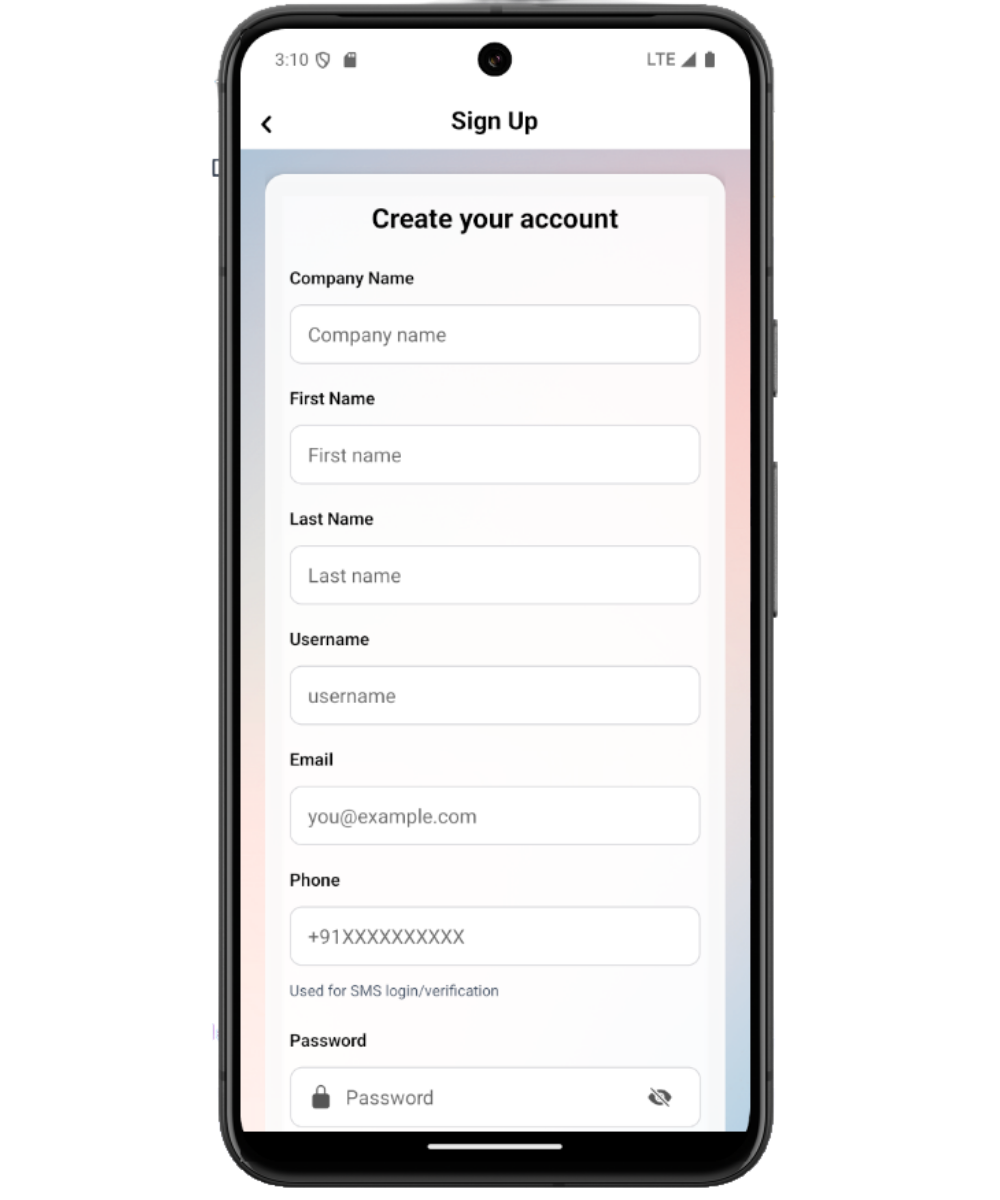
Use email or username with password, or use phone OTP if your account supports mobile number login.
- 3
Wait for setup data
After sign-in, the app loads company details, user information, permissions, policy, and setup records.
- 4
Start from Home
Home is the role-specific starting point for daily review, setup notices, approvals, agreements, and operational actions.
- 5
Use Admin and Menu for the rest of the app
Admin shows shortcut tiles, while Menu provides the full role-based module list.
Important fields
Base data
The shared app data loaded after login, including company, user, policy, permissions, pending approvals, and setup lists.
Home
The first main dashboard after login. It changes based on user role and policy.
Admin
A shortcut tile screen for role-based operational modules.
Menu
The full module list, including nested groups and sign out.
Common mistakes
- Assuming the app is empty before base data has finished loading.
- Expecting every user to see the same tabs and menu items.
- Looking only at the bottom tabs instead of opening Admin or Menu.
- Not asking an admin to activate or permission a new user.
Troubleshooting
The app stays on setup loading.
Use Try Again if shown, check internet access, and contact support if base data continues to fail.
A screen is missing.
Check Admin and Menu first, then ask an admin to review role permissions and active status.
The user signed up but cannot work yet.
The account may still need administrator activation or permission assignment.
Related documentation
Web dashboard docs
Mobile app equivalents
- Mobile login and signup
- Mobile dashboard
- Mobile navigation
Screenshot note
- Uses mobileApp1, the existing mobile welcome/login screenshot from static assets.
Open the app and choose the correct login path
Most users start from the login screen. Use the email/password login if your account was created with credentials, or phone OTP login if your pump uses mobile number sign-in.
Wait for base data to load
After login, the app loads the latest company data, user details, permissions, policy, pending approvals, fuel setup, and other shared values. Do not assume the app is empty until this loading step finishes.
Start from Home
The Home tab shows the role-specific dashboard. Owners and admins see broader pump summaries, employees see work relevant to their shift, customers see account context, and tanker employees see tanker-specific actions.
First-use checklist
How Petrodweep supports mobile onboarding
- Petrodweep checks authentication, then loads company and permission data before routing users into the app.
- The mobile experience changes by role so users see only the screens they need.
- Hidden screens stay accessible through Admin or Menu when the user has the correct permission.
Frequently asked questions
Why do I see fewer tabs than another user?
Tabs and menu items depend on your role, permissions, active status, and customer or employee scope.
What should I do if the app shows a loading error?
Use Try Again on the base data loading screen. If it keeps failing, check internet access and contact your pump admin or support.
Where should a new user begin?
Start with Home, then open Admin or Menu to reach the workflow assigned to your role.