
How to use this documentation
Use this page as an end-user workflow guide. It explains who should use the page, what setup is needed, what steps to follow, what fields matter, and what to check when something looks wrong.
Who should use it
Before you start
- The user is signed in.
- Base data has loaded permissions and policy.
- The user is active for operational navigation.
Step-by-step workflow
- 1
Use the bottom tabs
Start with Home, then use Shift, Coupons, Admin, or Menu depending on what your role shows.
- 2
Open Admin for shortcut tiles
Admin tiles provide quick access to assigned workflows such as shifts, coupons, fuel, bills, invoices, users, settings, inventory, reports, tasks, agreements, and profile.
- 3
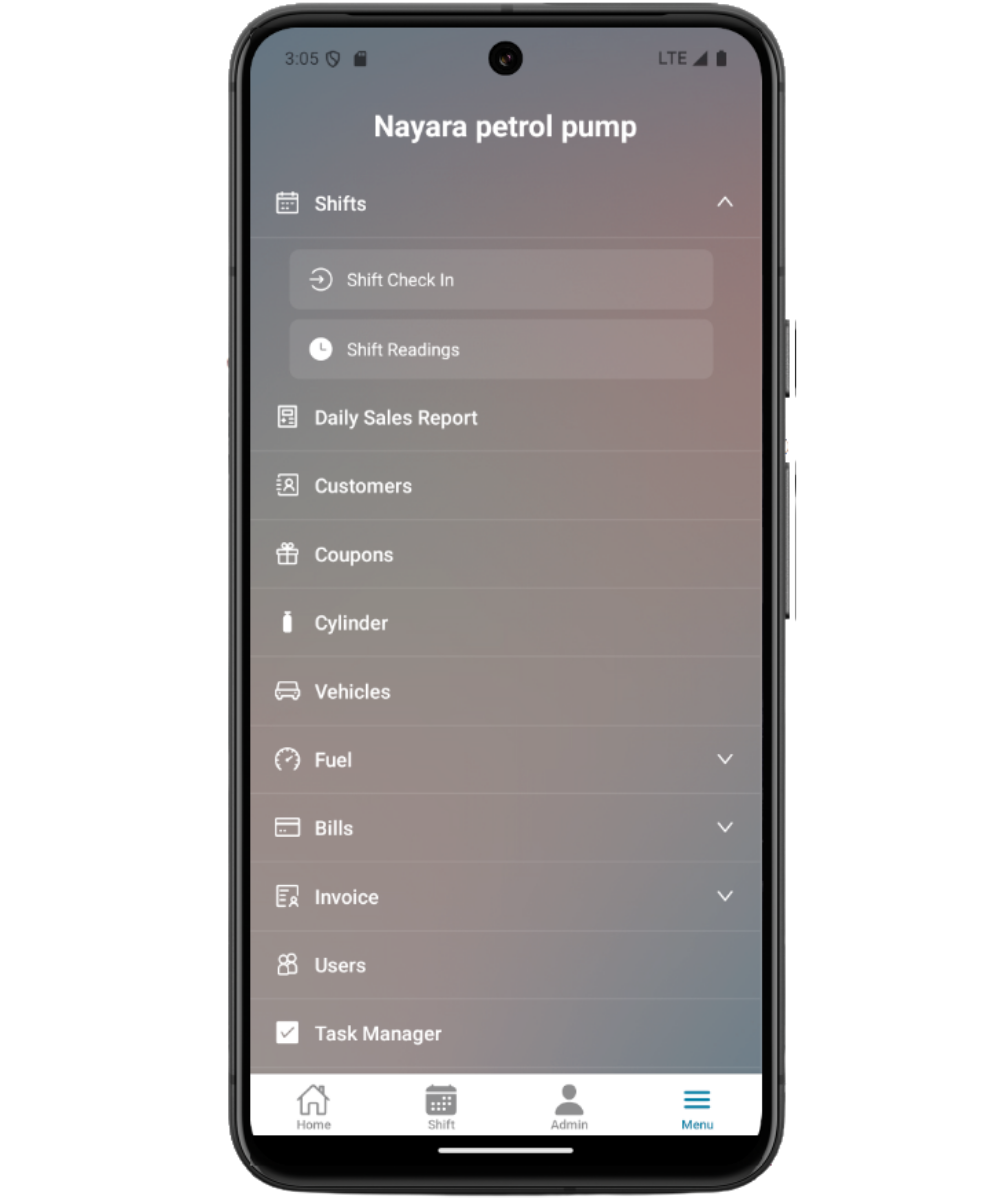
Open Menu for the full list
Menu shows the complete available module list, including nested groups and Sign Out.
- 4
Use hidden routes through navigation screens
Detailed pages are intentionally hidden from the tab bar and opened through Admin tiles or Menu links.
- 5
Sign out when finished
Use Sign Out from Menu or Logout from Profile settings when changing users on a device.
Important fields
Home tab
The main role-specific dashboard after login.
Shift tab
Visible only when the user has shift access and is active.
Coupons tab
Visible for customer-scope users with coupon permission.
Admin tab
A shortcut screen for allowed operational tiles.
Menu tab
The full list of available modules and sign out.
Common mistakes
- Expecting every module to be a bottom tab.
- Missing nested menu groups because the user did not expand them.
- Thinking hidden tab routes are unavailable even though they open from Admin or Menu.
- Forgetting that inactive status can hide operational navigation.
Troubleshooting
The Shift tab is missing.
Check shift permissions, user active status, and whether the role is expected to use shift workflows.
The Coupons tab is missing.
Check customer role scope and coupon permissions.
An Admin tile is missing.
Check role policy, permissions, active status, and whether the workflow belongs in Menu instead.
Related documentation
Web dashboard docs
Mobile app equivalents
- Mobile Home
- Mobile role-based access
- Mobile profile settings
Screenshot note
- Uses mobileApp3 as a mobile navigation workflow visual. Dedicated Admin and Menu screenshots can be added later.
Use Admin for fast operational tiles
Admin displays a grid of tiles such as Shifts, Current Shift, Daily Sales Report, Coupons, Fuel Purchase, Density Check, Bills, Invoices, Users, Settings, Inventory, Reports, Task Manager, Agreements, and Profile when allowed.
Navigation checklist
How Petrodweep keeps mobile navigation clear
- Petrodweep keeps the bottom tab bar short and uses role-aware Admin and Menu screens for deeper workflows.
- Admin tiles and Menu links are filtered from the same permission and policy context used after base data loading.
- Hidden routes reduce clutter while still allowing authorized users to open detailed workflows.
Frequently asked questions
Why is a screen not visible in the bottom tabs?
Most screens are intentionally hidden from tabs and opened through Admin or Menu when your role allows access.
Why does the Coupons tab show for some users only?
Coupons in the bottom tab is shown for customer-scope users with coupon permissions.
Where do I sign out?
Use Sign Out in the Menu, or Logout from Profile settings.