
How to use this documentation
Use this page as an end-user workflow guide. It explains who should use the page, what setup is needed, what steps to follow, what fields matter, and what to check when something looks wrong.
Who should use it
Before you start
- The user is signed in.
- Profile access is visible through Admin or Menu.
- The device has permission to select images when uploading profile or document files.
Step-by-step workflow
- 1
Open Profile
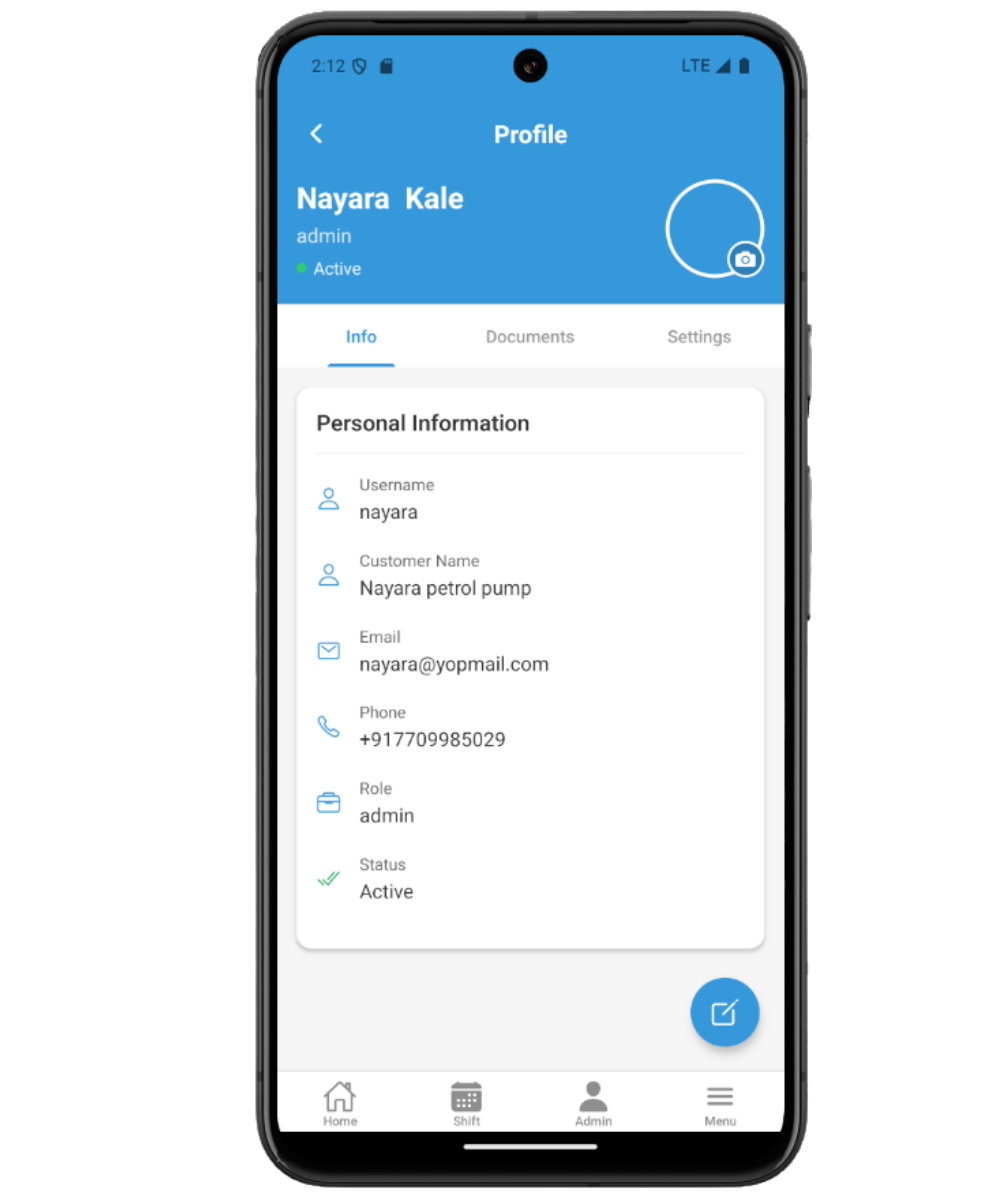
Open Profile from Admin or Menu to review personal information, documents, and settings.
- 2
Review Info
Check username, name, customer name where relevant, phone, email, status, role, and active status.
- 3
Upload documents
Use the Documents tab to upload PAN and Aadhar images. Use the profile header to update the profile image.
- 4
Accept agreements when prompted
Read the agreement document, enter your full name, and accept it when the app shows a pending agreement.
- 5
Reset password or log out
Use Settings to reset your password or log out. Logout clears local user and base data and returns to login.
Important fields
Info tab
Shows user identity and account fields.
Documents tab
Supports PAN card and Aadhar card image upload.
Settings tab
Contains reset password and logout actions.
Agreement acceptance
A required flow for pending company agreements, completed by typing the user's full name.
Common mistakes
- Uploading unclear document photos that cannot be verified.
- Forgetting to grant media library permission before document upload.
- Entering different password and confirm password values.
- Ignoring pending agreements and expecting full normal access.
Troubleshooting
Document upload fails.
Grant media library permission, choose a clear image, and try again with internet access.
Password reset fails.
Confirm both password fields match and try again. Contact support if the API returns an error.
Agreement PDF does not open.
The app may fall back to a web viewer. If the file still fails, contact the admin or support.
Related documentation
Web dashboard docs
Mobile app equivalents
- Mobile getting started
- Mobile login and signup
- Mobile role-based access
Screenshot note
- Uses mobileApp15 as an existing mobile visual until dedicated profile and agreement screenshots are added.
Review profile information
The Info tab shows identity and account fields such as username, name, customer name where relevant, phone, email, status, role, and active status.
Edit and save profile details
Use the edit action to update allowed profile fields, then save. Profile changes are sent with the user details and any selected file uploads.
Upload profile and document images
The Documents tab supports PAN card and Aadhar card uploads. The profile header also supports profile image upload. The app asks for media library permission before selecting images.
Accept pending agreements
When pending agreements exist, the mobile app displays the agreement file, asks the user to enter their full name, and records acceptance before normal work continues.
Reset password or sign out
The Settings tab lets users reset their password by entering and confirming a new password. Logout clears local user and base data and returns to login.
Profile checklist
How Petrodweep supports mobile account maintenance
- Petrodweep separates profile info, document uploads, and settings into clear mobile tabs.
- Agreement acceptance is shown when required and records the user's typed name against the agreement.
- Password reset and logout are available from Profile settings so users can manage access from mobile.
Frequently asked questions
Which documents can be uploaded from mobile profile?
The profile supports PAN card and Aadhar card images, and the profile image can be updated from the profile header.
Why am I being asked to accept an agreement?
Your company has a pending agreement for your user. Read the document, enter your full name, and accept it to continue.
Where can I reset my password?
Open Profile, go to Settings, choose Reset Password, enter the new password and confirmation, then submit.