
How to use this documentation
Use this page as an end-user workflow guide. It explains who should use the page, what setup is needed, what steps to follow, what fields matter, and what to check when something looks wrong.
Who should use it
Before you start
- The user is signed in.
- Base data has loaded successfully.
- The user has an active role and permissions for the dashboard actions they expect.
Step-by-step workflow
- 1
Open Home after login
The app routes authenticated users to Home after base data succeeds.
- 2
Review role-specific content
Read the Home dashboard based on your role, such as admin summaries, employee work, customer account context, or tanker actions.
- 3
Handle setup notices
Admins should complete missing setup such as nozzles, tanks, and shift timings when prompted.
- 4
Review pending approvals
Admin users can review pending signup approvals and approve or edit user details.
- 5
Accept agreements when prompted
If pending agreements are shown, read the document, type your full name, and accept before continuing.
Important fields
Dashboard variant
The role-policy value that changes Home behavior for admin, manager, employee, customer, auditor, and tanker users.
Setup notice
A prompt shown to admins when important pump setup is incomplete.
Pending signup approvals
New signup users waiting for admin activation.
Agreement prompt
A required document acceptance flow shown when pending agreements exist.
Common mistakes
- Ignoring setup notices and starting live operations with incomplete pump setup.
- Approving signup users without checking name, role, email, and phone.
- Assuming customer, employee, and admin dashboards should show the same content.
- Skipping agreement acceptance and then expecting normal access.
Troubleshooting
Home does not show expected admin totals.
Confirm dashboard permissions, role policy, source data, and whether base data refreshed successfully.
Setup prompt keeps showing.
Complete required setup such as nozzles, tanks, and shift timings, then refresh Home.
Pending agreements do not load.
Check internet connection and retry. If the agreement file fails to load, contact support or the admin.
Related documentation
Web dashboard docs
Mobile app equivalents
- Mobile login and base data
- Mobile navigation
- Mobile role-based access
Screenshot note
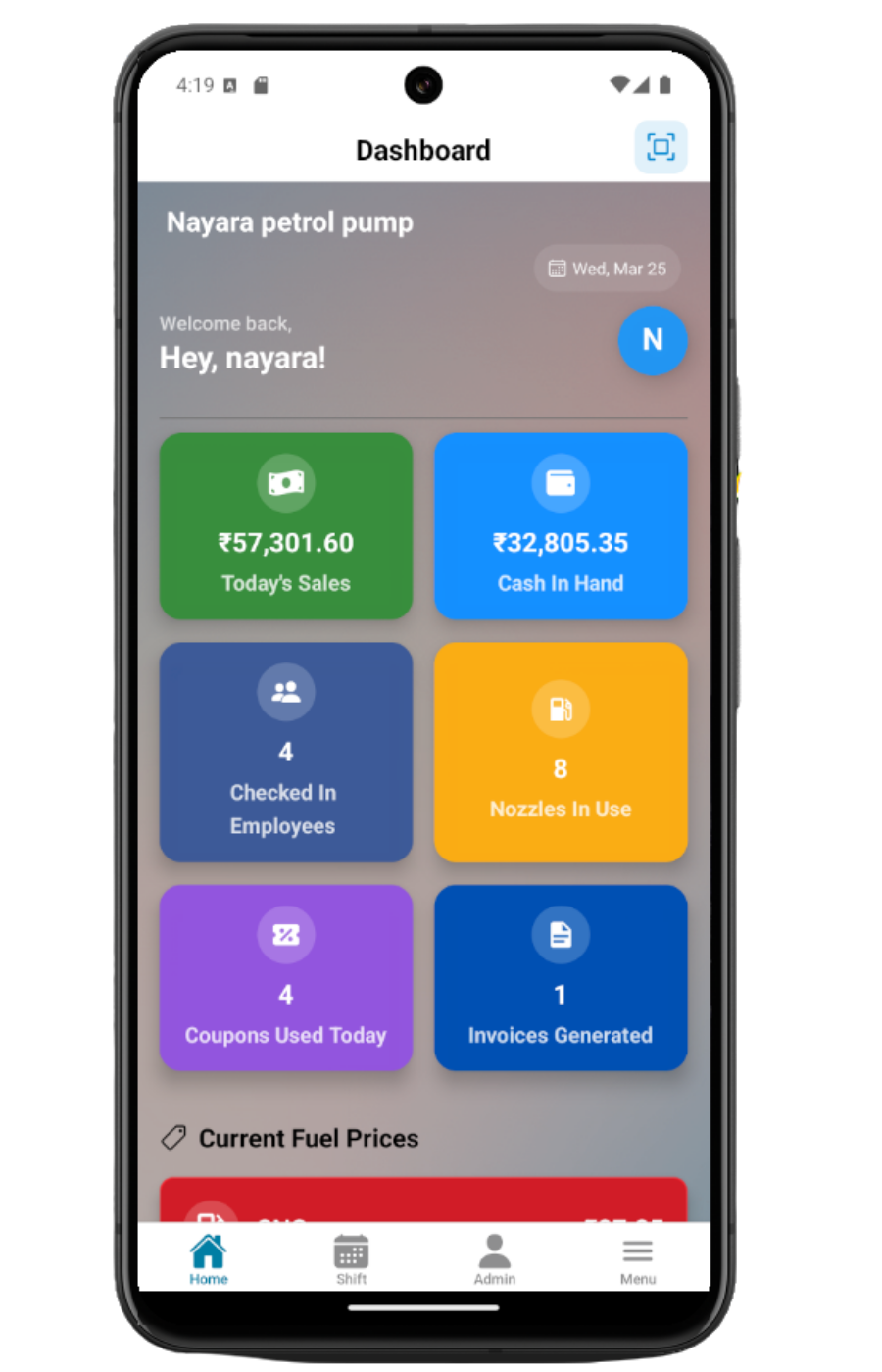
- Uses mobileApp2, the existing dashboard overview screenshot from static assets.
Read Home based on your role
Admins and owners can see broader pump summaries and setup notices. Managers and employees see operational actions. Customers see customer-related account context. Tanker employees see tanker check-in and delivery actions where assigned.
Check setup notices
If the company is missing key setup such as nozzles, tanks, or shift timings, admins may see prompts to complete setup before live operations are reliable.
Review pending signup approvals
Admins can see pending signup approval rows with user, role, email, phone, edit, and approve actions. This is how new self-signup users become active.
Accept required agreements
If pending agreements exist for the user, Home can show the agreement acceptance flow before the user continues normal work.
Refresh when data looks old
Use pull-to-refresh or reopen the screen when dashboard values seem stale. The dashboard depends on latest base data and dashboard API results.
Home review checklist
How Petrodweep supports mobile dashboard review
- Petrodweep uses the user's policy and role to decide what the Home dashboard should show.
- Setup notices help admins complete required pump setup before daily operations depend on it.
- Pending signup approvals and agreement acceptance are surfaced where users naturally start after login.
Frequently asked questions
Why does my Home screen look different from the owner's screen?
Home changes based on role, permissions, active status, and dashboard policy.
Why do I see a setup notice?
The pump may still need nozzles, tanks, or shift timings configured before normal operation.
Can pending signups be approved from mobile?
Yes. Admin users can review pending signup details and approve users where they have access.