
How to use this documentation
Use this page as an end-user workflow guide. It explains who should use the page, what setup is needed, what steps to follow, what fields matter, and what to check when something looks wrong.
Who should use it
Before you start
- The user knows whether they should use password login or phone OTP login.
- Signup users have access to the email or phone used during registration.
- An owner or admin is available to approve pending signup users when required.
Step-by-step workflow
- 1
Use password login when credentials are assigned
Enter the email, username, or assigned login identifier and password on the login screen.
- 2
Use phone OTP when enabled
Enter a valid Indian mobile number, request the OTP, enter the code, and wait for the app to finish sign-in.
- 3
Complete signup verification
Signup users enter required details, verify the code, and then wait for approval if the pump requires activation.
- 4
Load base data after sign-in
The app loads company, user, permissions, policy, pending approvals, and setup records before routing to the dashboard.
- 5
Retry if loading fails
Use the Try Again action on the base data loading screen when the app cannot fetch required setup data.
Important fields
Email login
Password-based access using the user's email, username, or assigned login identifier.
Phone login
OTP-based access that normalizes Indian mobile numbers to the expected phone format.
Pending approval
Signup state where an administrator must activate the user before full access is available.
Inactive user
A user whose operational navigation can be restricted even if authentication succeeds.
Retry
The recovery action shown when base data fails to load after authentication.
Common mistakes
- Using phone OTP for an account that was not configured for phone login.
- Entering a phone number that is not a valid Indian mobile number.
- Assuming verified signup means the account is already active.
- Closing the app during base data loading and then thinking permissions are missing.
Troubleshooting
Phone OTP does not arrive.
Confirm the mobile number is correct, use the resend option where available, and check whether the account supports phone login.
Signup verification fails.
Confirm the verification code, request a new code if needed, and make sure the username matches the signup entry.
Login succeeds but the app does not open the dashboard.
Wait for base data to load or use Try Again if the loading screen shows an error.
A new user is still restricted.
Ask an admin to approve the signup and assign the required role permissions.
Related documentation
Web dashboard docs
Mobile app equivalents
- Mobile getting started
- Mobile role-based access
- Mobile profile settings
Screenshot note
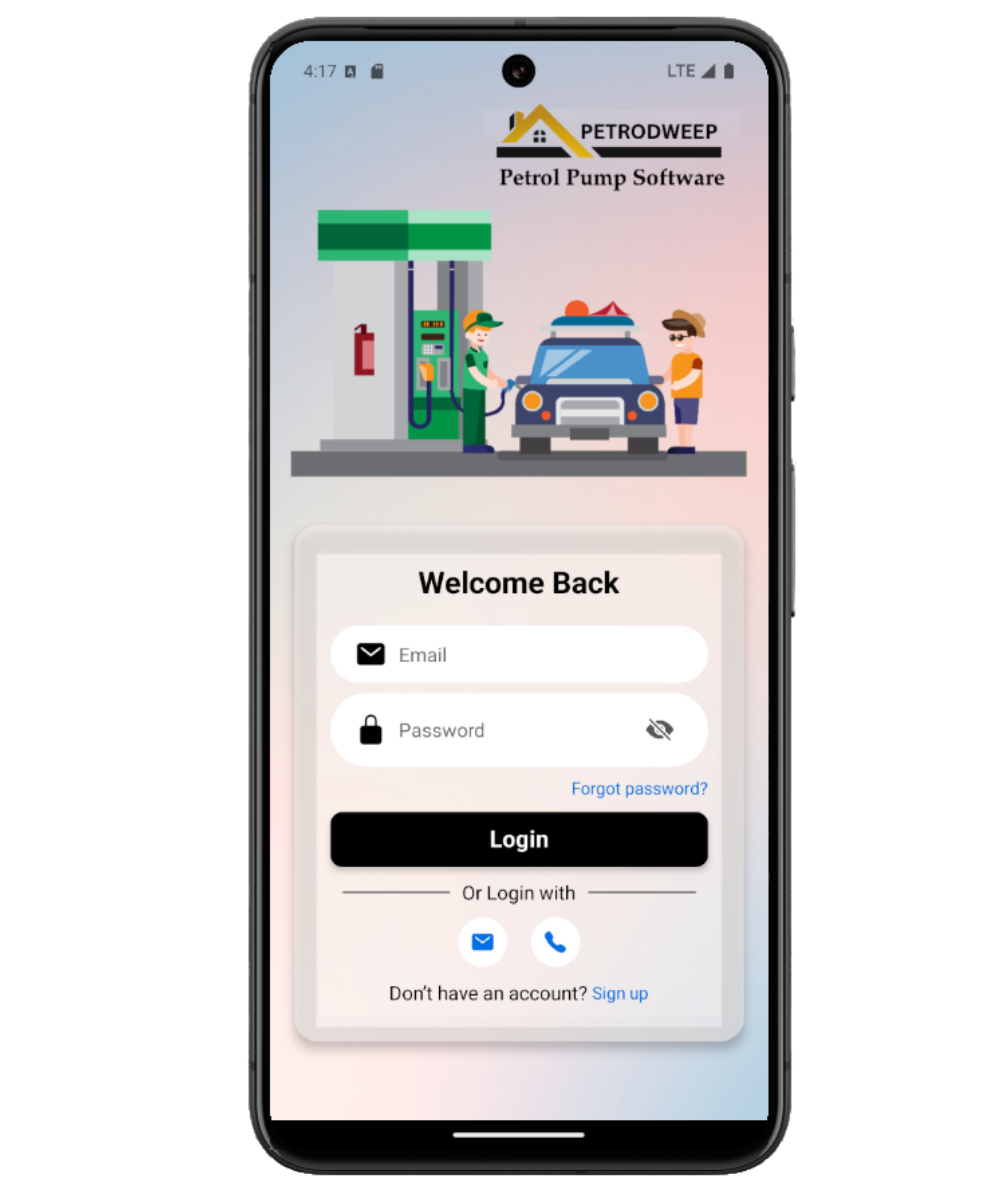
- Uses mobileApp1 for login. Dedicated phone OTP and signup screenshots can be added later without creating separate pages.
Use email or username with password
The main login screen accepts the user's login identifier and password. Indian phone-shaped values are normalized when needed, but users should normally use the credential method given by the pump admin.
Use phone OTP when available
Phone Login accepts a 10-digit Indian mobile number, sends an OTP, then verifies the code. After verification, the app loads base data and routes the user to the correct screen.
Complete signup and verification
Signup collects name, username, email, phone, password, and company fields where required. The user verifies the code sent during signup before the account can proceed.
Understand pending approval and inactive access
A successful signup may still require administrator activation. Inactive users can have restricted navigation, and some tabs or admin actions are hidden until the user is active.
Use base data retry if loading fails
After sign-in, the app loads base data. If loading fails, the retry screen lets the user try again instead of showing an empty dashboard.
Login troubleshooting checklist
How Petrodweep handles mobile access
- Petrodweep supports password login, email login entry points, phone OTP login, signup verification, and forgot-password access.
- After authentication, base data loads user, company, policy, permissions, pending approvals, and setup records.
- Pending approval and inactive status are documented so end users understand why access may be limited.
Frequently asked questions
Why did signup succeed but I still cannot use everything?
Your account may be waiting for administrator activation or may not have permissions assigned yet.
Why does the app show Try Again after login?
Authentication succeeded, but base data did not load. Retry after checking internet connectivity.
Can I log in with phone number?
Yes, when phone OTP login is enabled for your account. Enter a valid Indian mobile number and verify the OTP.