
How to use this documentation
Use this page as an end-user workflow guide. It explains who should use the page, what setup is needed, what steps to follow, what fields matter, and what to check when something looks wrong.
Who should use it
Before you start
- The user has an assigned role.
- The user's role has permissions configured by an owner or admin.
- The user's status is active for operational modules.
Step-by-step workflow
- 1
Identify the user's role
Start by checking whether the user is an admin, manager, employee, customer user, auditor, or tanker employee.
- 2
Check active status
Inactive users can have operational tabs and menu items hidden even after successful authentication.
- 3
Check permissions
Permissions decide whether modules such as shifts, coupons, invoices, reports, users, settings, and inventory appear.
- 4
Check role scope and dashboard policy
Customer scope, employee scope, auditor access, and tanker employee policy can change Home, tabs, Admin tiles, and Menu links.
- 5
Refresh after access changes
After an admin changes permissions, refresh or sign in again so mobile base data reloads the latest access rules.
Important fields
Role
The user's position, such as admin, manager, employee, customer, auditor, or tanker employee.
Permission
A module-level access rule that controls whether a screen or action is visible.
Dashboard variant
The mobile policy used to choose role-specific dashboard behavior.
Role scope
Scope such as customer or employee context that affects visible tabs and modules.
Common mistakes
- Changing a role but forgetting to assign the needed permissions.
- Assuming customer users should see admin operating screens.
- Assuming auditors should edit the same records as admins.
- Not refreshing after an admin updates permissions.
Troubleshooting
A user cannot see Admin.
Check active status, dashboard policy, and whether the role should access Admin tiles.
A user can open Menu but not a module.
The module may require a permission that the role does not have.
Access changed but the mobile app still looks old.
Refresh the app, sign out and sign in again, or use base data retry if loading fails.
Related documentation
Web dashboard docs
Mobile app equivalents
- Mobile login and base data
- Mobile navigation
- Mobile Home dashboard
Screenshot note
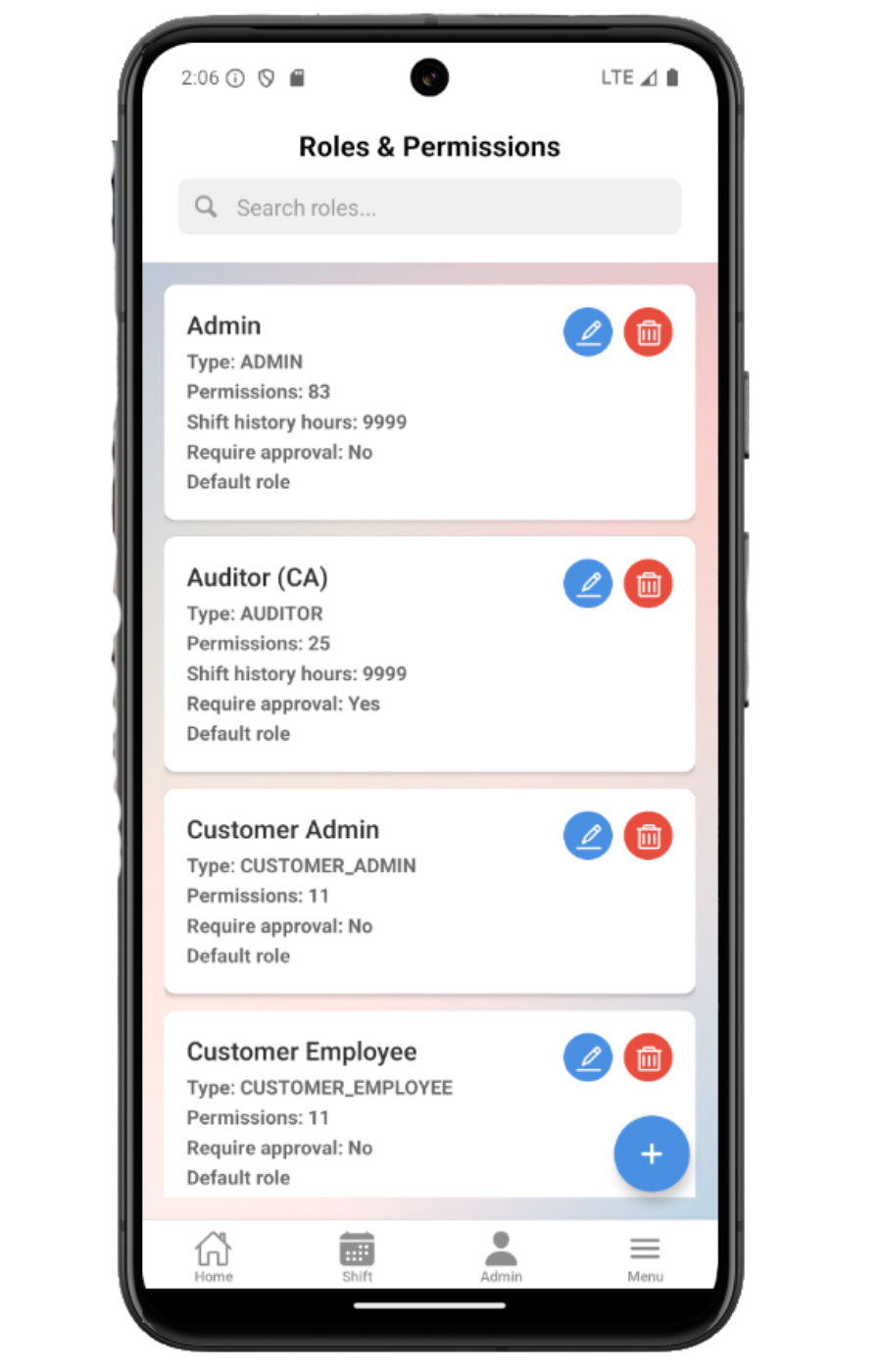
- Uses mobileApp9, the existing mobile reports access image, as a role-based access visual.
Understand role and permission together
A role gives a user a general position, but individual permissions decide whether specific modules such as shifts, coupons, invoices, reports, users, settings, or inventory appear.
Know the main role experiences
Admin users see broader setup and management tools. Managers see operational work assigned to them. Employees see shift and task-related flows. Customers see account, coupons, and invoices where allowed. Auditors see review-oriented access. Tanker employees see tanker and fuel delivery actions.
Use active status as an access signal
If a user is inactive, the app can hide Shift, Admin, and other operational actions even though the account exists.
Ask an admin to update permissions
If a module should be visible but is missing, an owner or admin should review the user's role and permissions in the management workflow.
Role access checklist
How Petrodweep supports mobile role access
- Petrodweep filters bottom tabs, Admin tiles, and Menu items using loaded role policy and permissions.
- The app supports admin, manager, employee, customer, auditor, and tanker employee experiences without making every screen visible to everyone.
- Inactive status is documented so users understand why operational access may disappear.
Frequently asked questions
Why can another employee see a screen that I cannot?
Their role, permissions, active status, or scope may be different from yours.
Can an inactive user still log in?
They may authenticate, but operational tabs and actions can be restricted by inactive status.
Who changes mobile access?
An owner or admin should review roles and permissions for the user.