
How to use this documentation
Use this page as an end-user workflow guide. It explains who should use the page, what setup is needed, what steps to follow, what fields matter, and what to check when something looks wrong.
Who should use it
Before you start
- The user has bill or voucher permissions.
- Products are available when creating bill item rows.
- The user knows whether the work should be recorded as a bill or voucher.
Step-by-step workflow
- 1
Review the bill list
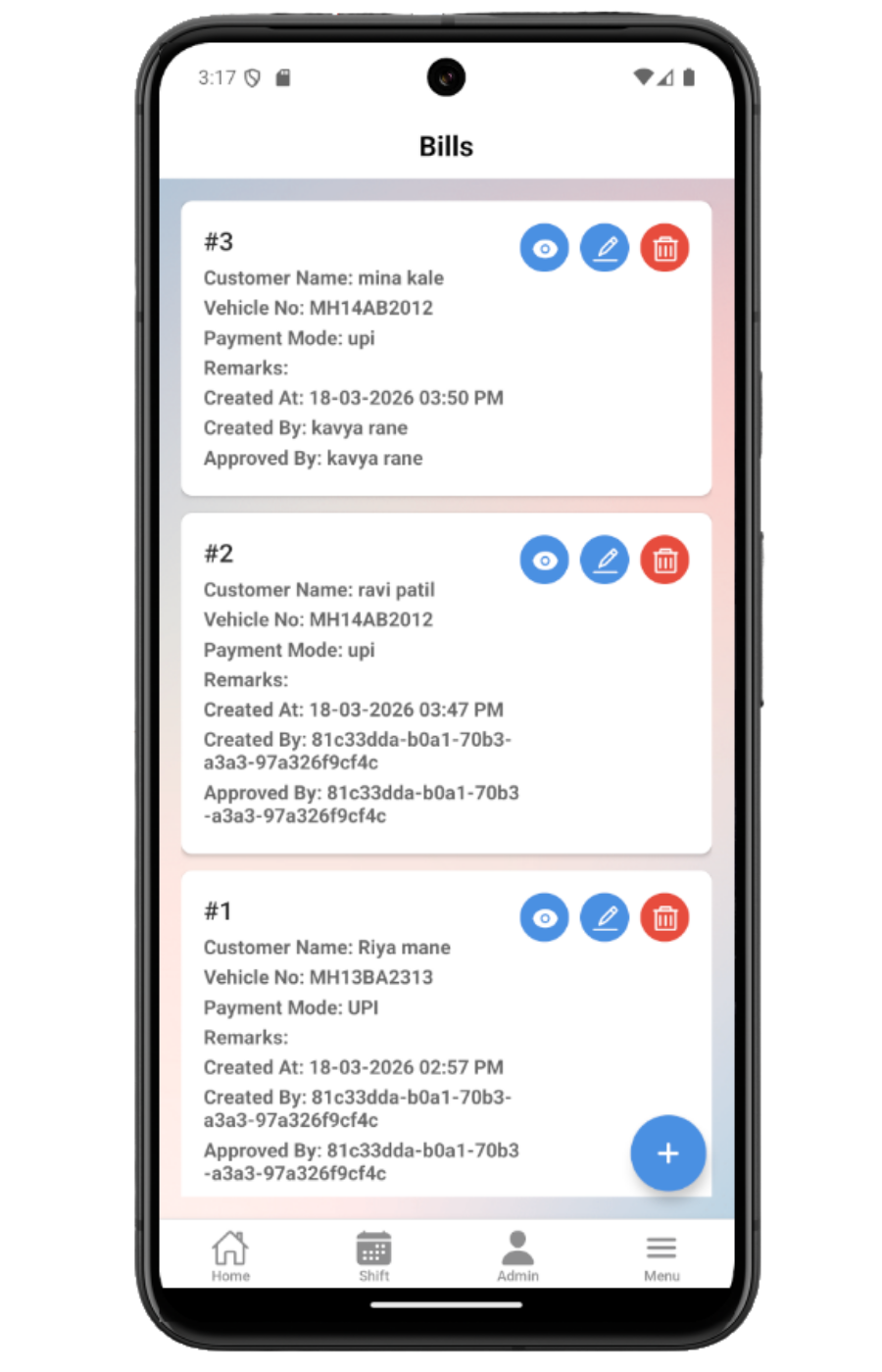
Open Bills to see bill number, customer name, vehicle number, payment mode, created time, created by, and approved by.
- 2
Create or edit a bill
Enter customer name, vehicle number, payment mode, remarks, and bill items. Add, edit, or remove item rows before saving.
- 3
Approve or reject a bill
Open Bill Detail to review status, QR, customer, vehicle, remarks, payment mode, items, grand total, creator, and approvers before approving or rejecting.
- 4
Review the voucher list
Open Voucher to see voucher number, customer name, voucher type, payment mode, amount, employee, and approved by.
- 5
Create, approve, or reject a voucher
Enter customer, voucher type, amount, payment mode, received by, and comments. Open Voucher Detail to approve or reject when permitted.
Important fields
Bill items
Item rows on a bill with product or fuel, quantity, price, and total.
Payment mode
The payment method recorded on the bill or voucher, such as cash, UPI, or card.
Received by
Voucher field that records who received the voucher amount.
Approver names
Names shown after approval so users can see who approved the bill or voucher.
Common mistakes
- Using a voucher when itemized bill rows are required.
- Saving a bill without all item rows.
- Approving before checking customer, amount, and payment mode.
- Deleting records that should instead remain for audit review.
Troubleshooting
Bill item totals look wrong.
Edit the item row and confirm quantity and price before saving the bill.
Approve buttons are missing.
Check whether the role has bill approval or voucher approval permission.
QR detail does not open from scan.
Use a QR code generated from the bill or voucher detail page, and confirm the scanned URL contains the detail identifier.
Related documentation
Web dashboard docs
Mobile app equivalents
- Mobile Customers and Vehicles
- Mobile Send Invoice
- Mobile Invoice Detail
Screenshot note
- Uses mobileApp12 from the existing static mobile screenshot set.
Use Bills for bill print records
The Bills list shows bill number, customer name, vehicle number, payment mode, created time, created by, and approved by. Users can view, edit, delete, or create a new bill.
Create or edit bill items
The bill form captures customer name, vehicle number, payment mode, remarks, and item rows. Each bill item can be added, edited, or removed before saving.
Approve or reject bills from detail
The bill detail page shows status, QR code, customer, vehicle, remarks, payment mode, item table, grand total, created by, and approvers. Users with approval permission can approve or reject the bill.
Use vouchers for received or adjustment records
The Voucher list shows voucher number, customer name, voucher type, payment mode, amount, employee, and approved by. Users can create, edit, view, or delete vouchers.
Approve or reject vouchers from detail
The voucher detail page shows status, QR code, customer, voucher type, comments, amount, employee, approvers, payment mode, and received by. Users with approval permission can approve or reject the voucher.
Bills and vouchers checklist
How Petrodweep supports mobile bills and vouchers
- Petrodweep documents bills and vouchers together because the mobile action pattern is almost identical.
- The guide focuses on end-user decisions: bill versus voucher, item rows versus amount, and approval status.
- QR detail behavior is included inside the workflow instead of becoming a separate thin QR page.
Frequently asked questions
What is the main difference between a bill and a voucher?
A bill records itemized bill print details such as vehicle, payment mode, and bill items. A voucher records a voucher type, amount, payment mode, received by, and comments.
Why can I not approve a bill or voucher?
Your role may not have bill or voucher approval permission, or the record may already be approved or rejected.
Should bills and vouchers be separate mobile docs?
Not at this stage. One grouped page is more useful because the mobile list, view, QR, and approval behavior is shared.