
How to use this documentation
Use this page as an end-user workflow guide. It explains who should use the page, what setup is needed, what steps to follow, what fields matter, and what to check when something looks wrong.
Who should use it
Before you start
- The user has customer and vehicle permissions.
- Customer credit limits and contact details are available.
- Customer document files are ready if agreement, PAN, or Aadhar uploads are required.
Step-by-step workflow
- 1
Find the customer
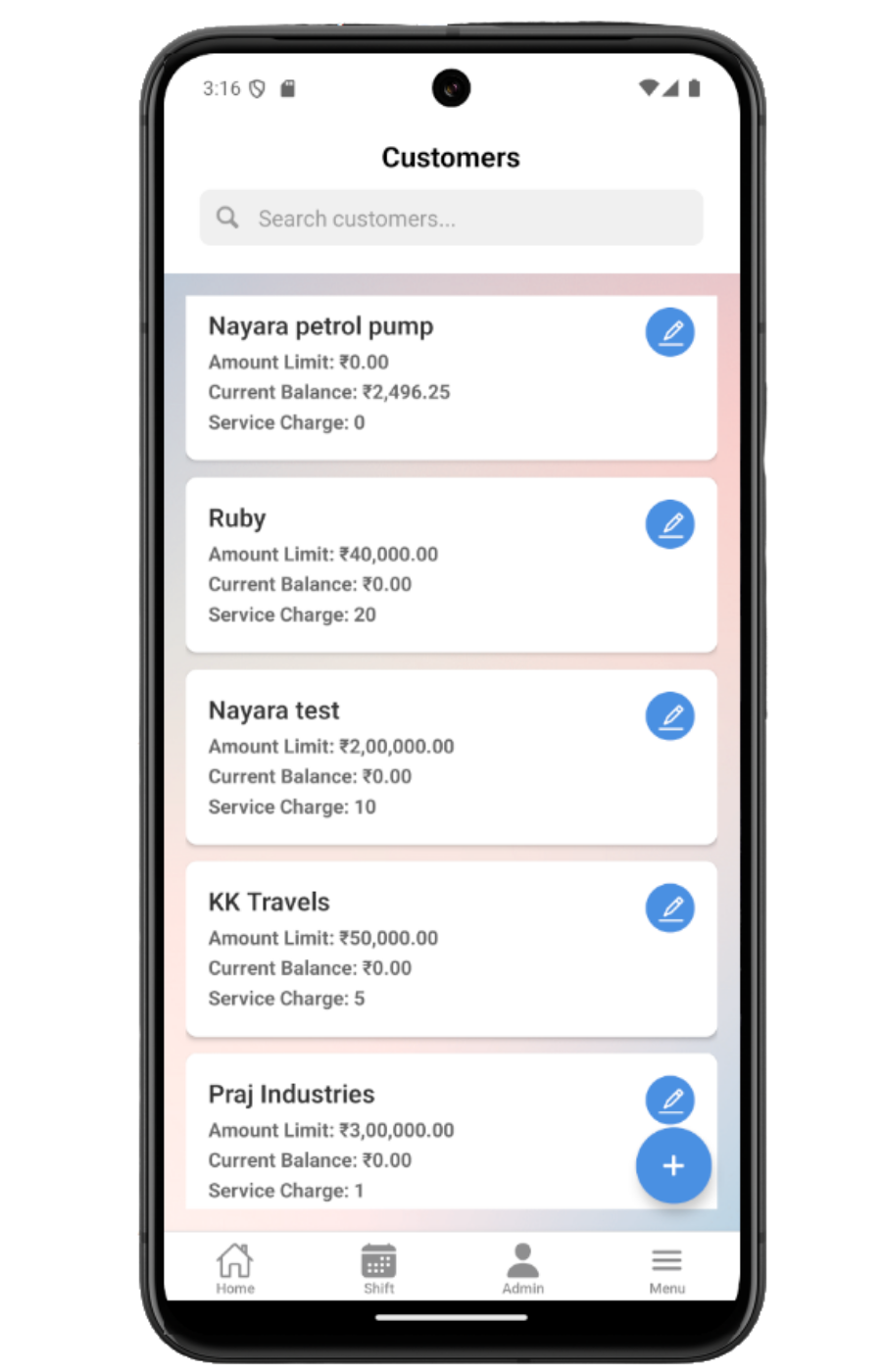
Open Customers, search by customer name or customer ID, and pull to refresh if a recently added customer is missing.
- 2
Review limits and balance
Check amount limit, current balance, and service charge before allowing new coupon or billing activity.
- 3
Create or update customer details
Use Create Customer or Edit Customer to update company name, customer type, address, GST, PAN, phone, email, day limit, deposit, service charge, amount limit, and coupon value change setting.
- 4
Upload or review documents
Upload agreement, PAN, and Aadhar files from the customer form, or open existing uploaded files when the app shows them.
- 5
Add or update vehicles
Open Vehicles, search or refresh the list, view details, then add or edit customer-linked vehicle number, driver name, make, model, date, and status.
Important fields
Amount limit
The maximum customer exposure allowed before more credit work should be reviewed.
Current balance
The customer's current outstanding balance shown on the mobile customer card.
Allow coupon value change
Customer setting that controls whether coupon value changes are allowed for that customer.
Vehicle status
Use active status for vehicles that should remain available for customer workflows.
Common mistakes
- Creating a duplicate customer instead of searching first.
- Leaving phone or email blank and then expecting invoice communication to work.
- Uploading documents to the wrong customer profile.
- Entering a vehicle number that does not match the required Indian vehicle number format.
Troubleshooting
A customer is not visible.
Clear the search, pull to refresh, and confirm customer-list permission for the current role.
A document will not open.
Confirm the file URL is still accessible and that the device has network access.
Vehicle save fails.
Check the customer selection, required driver fields, vehicle number format, and status.
Related documentation
Web dashboard docs
Mobile app equivalents
- Mobile Coupons and QR
- Mobile Bills and Vouchers
- Mobile Send Invoice
Screenshot note
- Uses mobileApp6 from the existing static mobile screenshot set.
Search and review customers
The mobile customer list supports search by customer name or customer ID, pull-to-refresh, and quick review of amount limit, current balance, and service charge.
Create or edit a customer profile
The customer form captures company name, customer type, address, state, city, postcode, GST number, PAN number, phone, email, day limit, customer deposit, service charge, amount limit, and whether coupon value change is allowed.
Manage customer documents
Users can upload new agreement, PAN, and Aadhar documents. Existing uploaded documents can be opened from the form when the file is available.
Review vehicles from the mobile list
The vehicle list supports search and refresh. Vehicle cards show vehicle number, customer name, status, created time, and quick view or edit actions.
Add or edit customer vehicles
The vehicle form links the vehicle to a customer and records vehicle number, driver first and last name, make, model, date, and active status.
Customer and vehicle checklist
How Petrodweep supports mobile customers and vehicles
- Petrodweep keeps customer limits, billing contact details, documents, and vehicles in one practical mobile guide.
- Vehicle documentation stays with customer documentation because vehicles are mainly used during customer coupon and billing workflows.
- The mobile guide links forward to coupon, bill, voucher, and invoice workflows instead of repeating the same customer setup on every billing page.
Frequently asked questions
Why can I not find a customer on mobile?
Clear the search, pull to refresh, and confirm your role has permission to view the customer list.
Can I update customer documents from the app?
Yes. The customer form supports agreement, PAN, and Aadhar upload, and can open existing uploaded documents when they are accessible.
Why is vehicle setup included with customers?
Vehicles are tied to customer coupon and billing work, so keeping them together is clearer for end users than creating a separate thin page.