
How to use this documentation
Use this page as an end-user workflow guide. It explains who should use the page, what setup is needed, what steps to follow, what fields matter, and what to check when something looks wrong.
Who should use it
Before you start
- The customer exists and has the correct credit setup.
- Fuel types and current prices are loaded in base data.
- The user has the coupon permission needed for list, create, edit, accept, or cancel actions.
- Camera permission is available when scanning QR codes.
Step-by-step workflow
- 1
Open and filter coupons
Use the Coupons list to filter by customer, coupon code, or date. Customer-scope users see the customer-level experience allowed by their role.
- 2
Create the coupon
Select customer where required, enter vehicle number, first name, last name, fuel type, email, phone, validity, and comments.
- 3
Choose amount or litres
Select Amount or Litres. The app calculates equivalent litres or equivalent amount when the selected fuel has a current price.
- 4
Use vehicle selection for transport customers
Search existing vehicle options or add a valid vehicle number directly from the coupon form when the transport customer workflow requires it.
- 5
Open, accept, deny, cancel, or scan
Open coupon detail from the list, QR scan, or Accept By ID. Accepting requires a nozzle selection and may require check-in. Users can deny on detail or cancel unused coupons from the list.
Important fields
Coupon code
Unique coupon identifier used for search, Accept By ID, QR links, and invoice references.
Choose
The stored coupon value mode: amount or litres.
Nozzle
Required when accepting a coupon so the fuel issue is tied to the correct nozzle activity.
Expiry date
Coupon detail shows expiry and prevents normal acceptance of expired coupons.
Invoice link
Used coupons may show an invoice number that opens the related invoice detail.
Common mistakes
- Creating the coupon for the wrong customer.
- Selecting amount when litres were intended, or litres when amount was intended.
- Using a vehicle number that is not normalized or valid.
- Trying to accept a coupon before check-in or without a valid nozzle.
- Creating a separate documentation page for vehicle selection or amount/litre mode.
Troubleshooting
QR scan does not open the coupon.
Confirm the QR contains a coupon view URL or coupon identifier and that camera permission is granted.
Accept fails because of nozzle selection.
Select a nozzle that matches the coupon fuel type and is checked in for the user.
Coupon cannot be cancelled.
Check coupon status and permission. Used or already cancelled coupons should not be treated like active unused coupons.
Related documentation
Web dashboard docs
Mobile app equivalents
- Mobile Customers and Vehicles
- Mobile Send Invoice
- Mobile Invoice Detail
Screenshot note
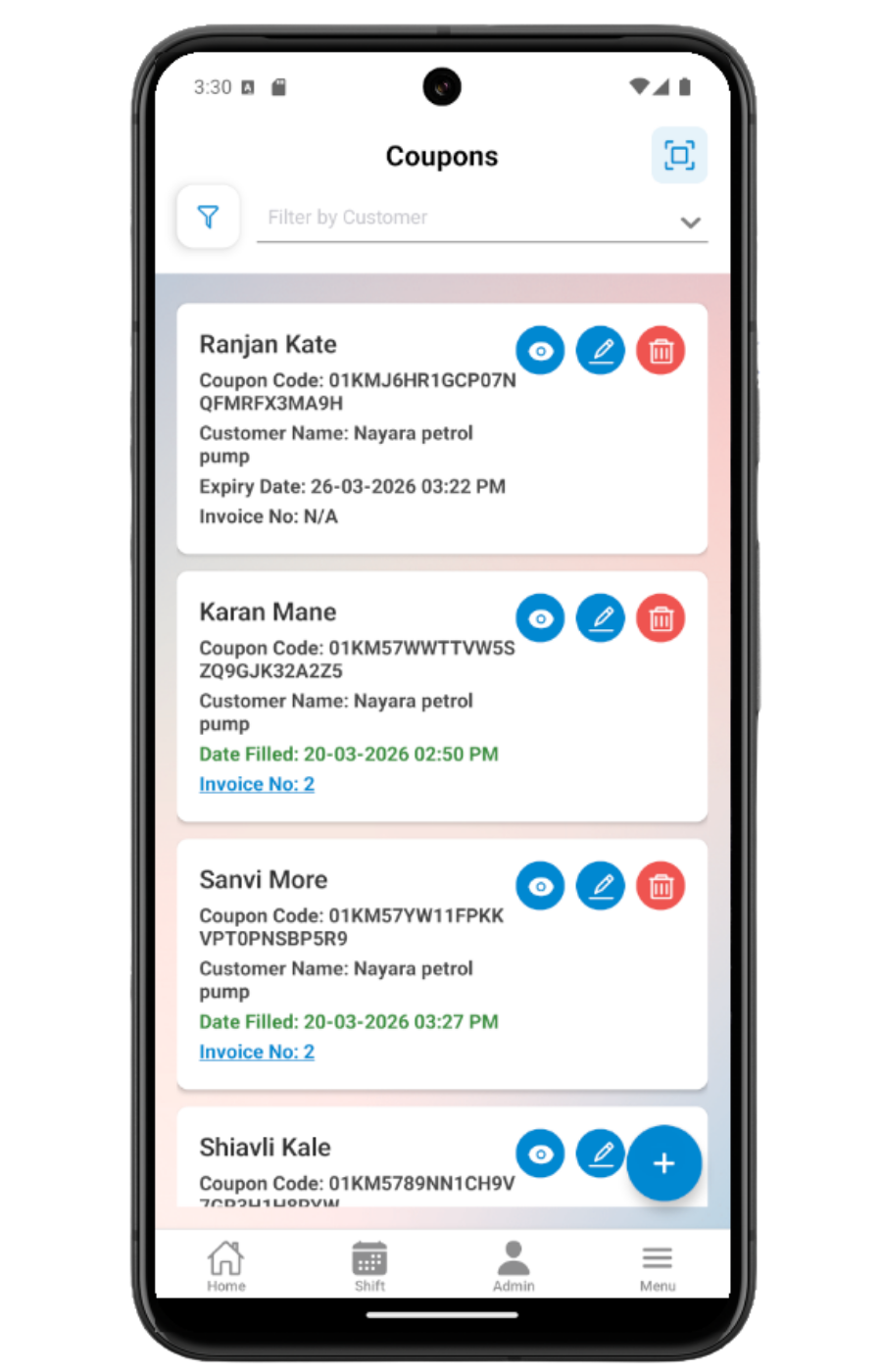
- Uses mobileApp7 from the existing static mobile screenshot set.
Use the coupon list for search and control
The coupon list supports customer filtering, coupon-code search, date filtering, refresh, edit, view, invoice link opening, and cancellation of unused coupons.
Create or edit a coupon
The coupon form captures customer, vehicle number, first name, last name, fuel type, amount or litres, email, phone, validity, and comments.
Choose amount or litres
Users can switch between amount and litres. When a current fuel price is available, the app shows the equivalent litres or equivalent amount so the user understands the coupon value.
Select or add vehicle numbers
For transport customers, the app can load vehicle options, search by vehicle number, and add a valid Indian vehicle number when the vehicle is not already listed.
Accept, deny, cancel, or scan coupons
Coupon detail shows the QR code and coupon fields. Users with accept permission choose a nozzle before accepting, can deny a coupon, and may be sent to check-in if they have not checked in. The Coupons page also supports Accept By ID, QR scan, and cancellation from the list.
Mobile coupon checklist
How Petrodweep supports mobile coupons
- Petrodweep keeps amount/litre mode, vehicle selector, QR scan, accept, deny, cancel, and sharing in one coupon guide.
- The guide is role-aware, covering customer-scoped coupon access as well as staff actions such as accept by ID and nozzle selection.
- Coupon documentation links naturally to invoice generation because used coupons become invoice inputs.
Frequently asked questions
Why do I need to select a nozzle before accepting a coupon?
The app records the nozzle used for the coupon. If the nozzle is not checked in for the user, the app warns before acceptance.
Can a customer use the coupon page too?
Yes, customer-role access is supported, but customer-scoped users see only the actions allowed by their role and permissions.
Should amount/litre mode have its own documentation page?
No. It is part of coupon creation and is more useful when explained inside the full coupon workflow.