
How to use this documentation
Use this page as an end-user workflow guide. It explains who should use the page, what setup is needed, what steps to follow, what fields matter, and what to check when something looks wrong.
Who should use it
Before you start
- Customer records are complete and active.
- Coupon or pending billing records exist for the selected customer and period.
- The user has permission to generate invoices.
- Billing mode and date range are known before generation.
Step-by-step workflow
- 1
Select the customer
Choose the customer first so pending coupons and invoice rows load for the correct account.
- 2
Choose billing mode and date range
Set the billing mode, start date, and end date based on the customer billing cycle.
- 3
Review pending coupon rows
Check coupon ID, description, quantity, rate, amount, customer context, and date range before generation.
- 4
Check pending invoices or previous records
Review existing pending invoice information to avoid duplicate billing or missing carry-forward context.
- 5
Generate and open invoice detail
Generate the invoice only after review, then open the invoice detail page for print, email, payment, or correction actions.
Important fields
Customer
Controls which pending coupons and invoice rows are available for generation.
Billing mode
Defines how the invoice period or customer billing logic should be applied.
Date range
Limits the records included in invoice generation.
Pending rows
Rows should be checked for quantity, rate, amount, and customer context before generation.
Common mistakes
- Generating an invoice before confirming customer and date range.
- Ignoring pending invoices that may duplicate or affect billing.
- Creating invoices before coupon statuses are reviewed.
- Using the invoice detail page only after sharing, instead of reviewing it before sharing.
Troubleshooting
No pending records appear for the customer.
Check the selected date range, billing mode, coupon status, and whether records were already invoiced.
The generated amount looks wrong.
Review coupon rows, quantities, rates, pending invoice rows, and customer billing settings.
The invoice needs correction after generation.
Open invoice detail and use the available correction or undo workflow only if your role permits it.
Related documentation
Web dashboard docs
Mobile app equivalents
- Mobile invoice detail
- Mobile invoice PDF sharing
Screenshot note
- Uses the existing send invoice image from static assets.
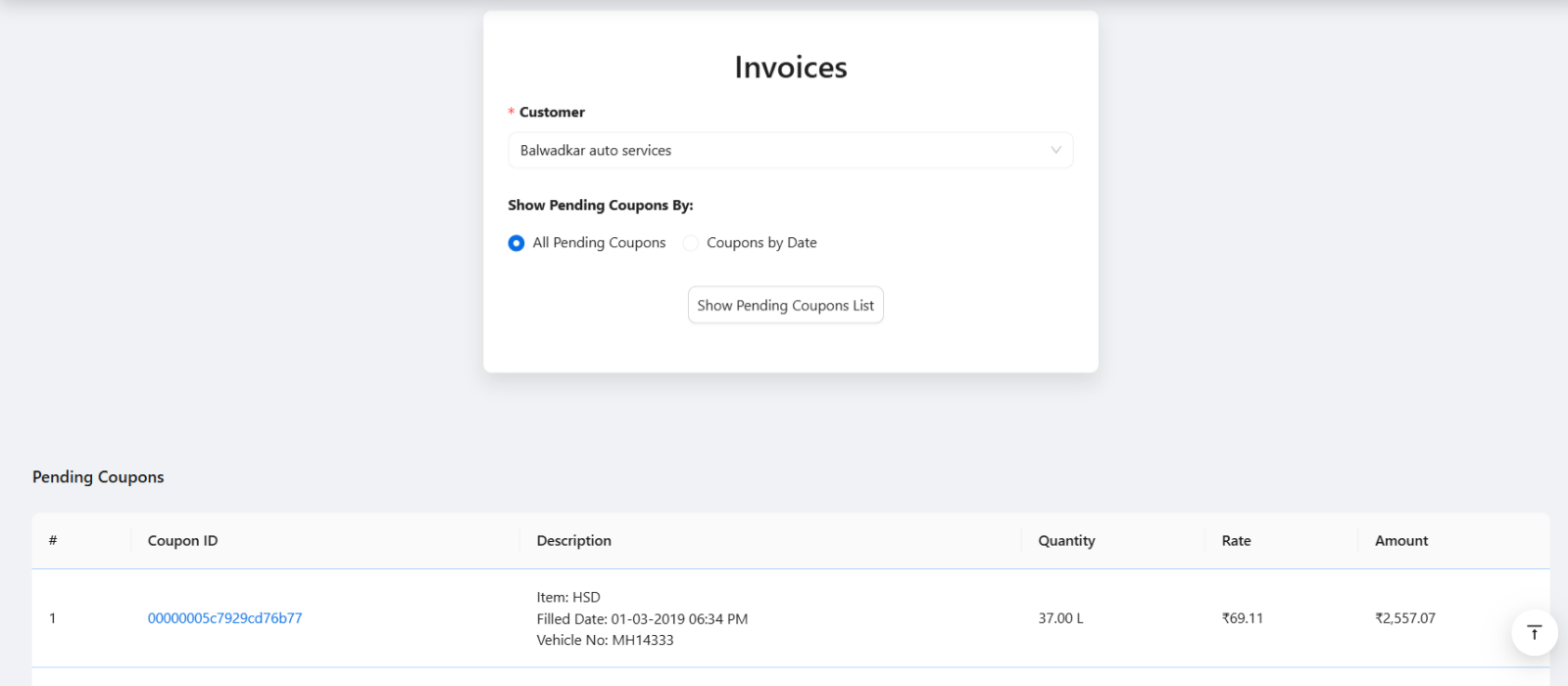
Select the customer first
Invoice generation should begin with the correct customer. The selected customer controls which pending coupons and invoices appear for review.
Choose billing mode and date range
Billing mode and date range help define what should be included in the invoice. Users should confirm the billing period before generating the invoice, especially for customers with monthly or custom billing cycles.
Review pending coupons
The pending coupon table helps staff confirm coupon ID, description, quantity, rate, and amount before invoice generation. This step reduces customer billing disputes.
- Coupon ID and customer context.
- Fuel or item description.
- Quantity or litres.
- Rate and amount.
- Selected date range.
Check existing pending invoices
Existing pending invoices may be shown during invoice generation. Users should review them so customer billing remains accurate and duplicate billing is avoided.
Invoice generation checklist
How Petrodweep supports invoice generation
- Petrodweep brings pending customer coupon and invoice data into the Send Invoice workflow.
- The workflow reduces manual invoice preparation for credit customer billing.
- Generated invoices can be reviewed, printed, emailed, paid, or corrected from invoice detail pages.
Frequently asked questions
What should I check before generating an invoice?
Check the customer, billing period, pending coupons, pending invoices, quantity, rate, amount, and billing mode before generating.
Can an invoice include coupon records?
Yes. Petrodweep can use pending coupon rows during invoice generation for credit customer billing.
What happens after invoice generation?
Users can open the invoice detail page to review line items, print, email, add payments, or correct issues where permitted.