
How to use this documentation
Use this page as an end-user workflow guide. It explains who should use the page, what setup is needed, what steps to follow, what fields matter, and what to check when something looks wrong.
Who should use it
Before you start
- An invoice has already been generated.
- The user can access the all-invoices list or the specific invoice detail URL.
- The user has permission to view invoices and perform print, email, payment, or correction actions as needed.
- Customer, coupon, and payment context is available for review.
Step-by-step workflow
- 1
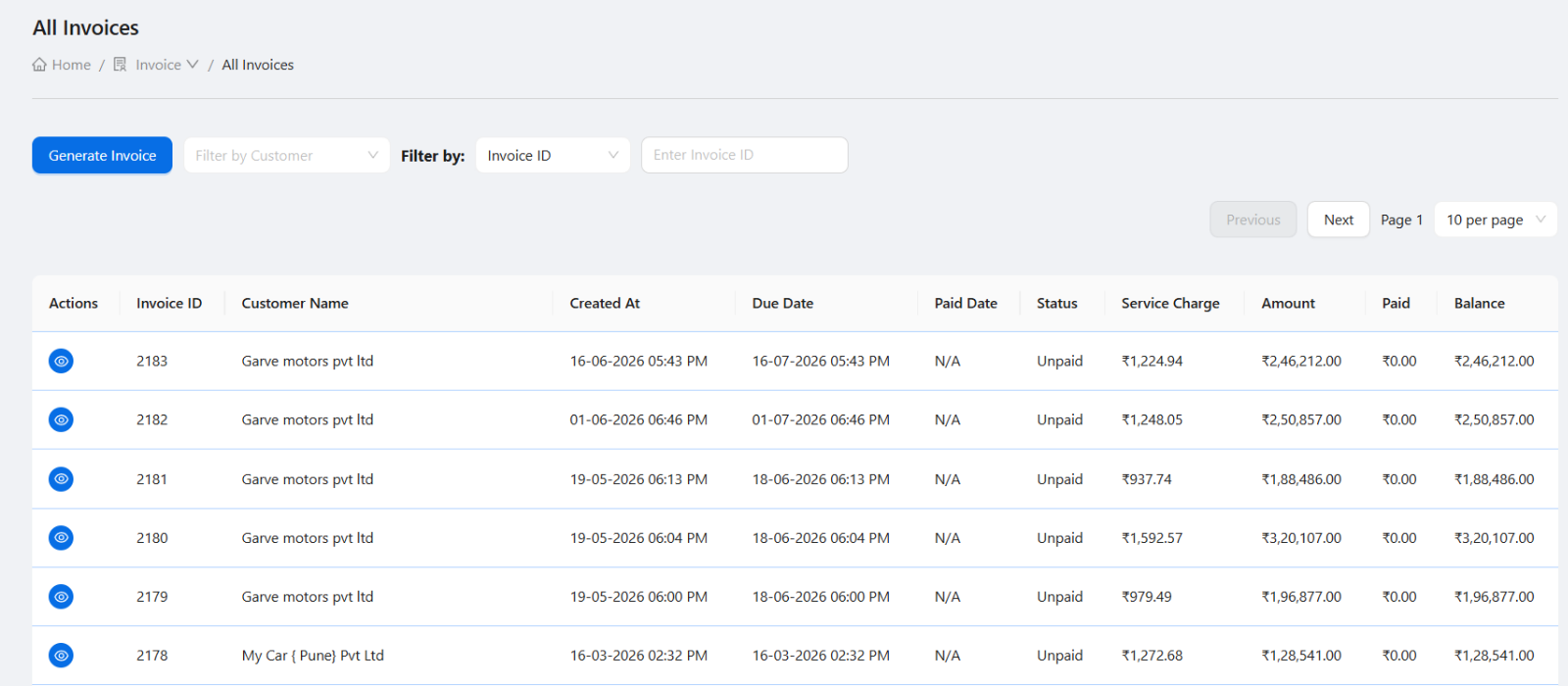
Find the invoice from the list
Use the all-invoices area to find the customer invoice before opening the detail page.
- 2
Confirm header details
Check customer, invoice number, invoice date, billing period, and linked customer records before sharing.
- 3
Review line items and coupon references
Confirm descriptions, quantities, rates, amounts, coupon references, and pending invoice context.
- 4
Check totals and payment history
Review invoice totals, paid amounts, payment mode, payment date, comments, and outstanding balance.
- 5
Print or email after review
Share the invoice only after header, line items, totals, and payment context are checked.
- 6
Use correction actions carefully
Delete payment records or undo invoices only when the record was created incorrectly and the user has permission.
Important fields
Invoice header
Identifies the customer, invoice number, invoice date, and billing period.
All invoices
The list view used to find generated invoices before opening detail records.
Line items
Show billed descriptions, quantities, rates, amounts, and linked coupon or billing references.
Payments
Track collections against the invoice with amount, mode, date, and comments.
Undo
Use only for correction scenarios because it changes billing history.
Common mistakes
- Emailing or printing before reviewing customer and line item details.
- Adding payment under the wrong invoice.
- Deleting payment records without recording why the correction was made.
- Undoing invoices that should remain as issued customer records.
Troubleshooting
A payment is missing from the invoice.
Confirm the payment was added against this invoice and saved with the correct date and mode.
The customer says the invoice is wrong.
Review customer, billing period, coupon references, quantity, rate, amount, and previous pending invoices.
Print or email is not available.
Check your role permissions and confirm customer email or invoice details are complete.
Related documentation
Web dashboard docs
Mobile app equivalents
- Mobile invoice detail
- Mobile payment entry and PDF sharing
Screenshot note
- Uses the existing invoice detail image from static assets.
Review invoice header and customer details
Start by confirming that the invoice belongs to the correct customer and billing period. Header details should be checked before printing, emailing, or recording payments.
Check line items and linked coupon data
Invoice lines should reflect the customer usage being billed. Coupon rows, quantities, rates, and totals should be reviewed carefully before sharing the invoice.
- Customer and invoice number.
- Invoice date and billing period.
- Line item description.
- Quantity, rate, and amount.
- Linked coupon or pending invoice details.
Record payments against the invoice
Payment history helps owners understand whether the invoice is unpaid, partly paid, or fully paid. Users can add payment records with amount, payment mode, paid date, and comments.
Use print, email, and undo actions carefully
The invoice page supports operational actions such as print and email. If the invoice was generated incorrectly, authorized users can use correction workflows such as deleting payment records or undoing the invoice where appropriate.
Invoice review checklist
How Petrodweep supports invoice review
- Petrodweep keeps invoice details, line items, coupons, totals, payment history, print, email, and correction actions in one invoice view.
- Payment records help owners track customer collections after invoice generation.
- Invoice detail pages connect customer billing with coupon and credit workflows.
Frequently asked questions
Can payments be added from the invoice detail page?
Yes. Authorized users can add payment records with amount, payment mode, payment date, and comments.
Can an invoice be printed or emailed?
Yes. The invoice detail workflow includes print and email actions for customer communication.
When should an invoice be undone?
Undo should be used only when an invoice was generated incorrectly and the user has permission to correct it.