
How to use this documentation
Use this page as an end-user workflow guide. It explains who should use the page, what setup is needed, what steps to follow, what fields matter, and what to check when something looks wrong.
Who should use it
Before you start
- The customer exists.
- There are uninvoiced coupons or pending invoice balances for the customer.
- The user has permission to create or view invoices.
Step-by-step workflow
- 1
Select customer on Send Invoice
Choose the customer whose pending coupons or invoice balances need to be billed.
- 2
Choose pending scope
Use All Pending Coupons for the full pending set or Coupons by Date for a date-bounded preview.
- 3
Fetch and review preview
Fetch uninvoiced coupons and pending invoices. Open coupon or invoice links from the preview if a row needs checking.
- 4
Select pending invoices
Use select all or individual checkboxes to decide which pending invoice balances should be carried forward.
- 5
Generate and find invoices
Confirm Generate Invoice to create the invoice and open Invoice Detail. Use All Invoices later to filter by customer, invoice ID, or date and reopen detail.
Important fields
All Pending Coupons
Preview mode that loads all pending coupons for the selected customer.
Coupons by Date
Preview mode that limits pending coupon lookup to the selected date range.
Pending invoices
Older unpaid or partly paid invoices that can be carried into the new invoice.
All Invoices filter
Mobile filter for invoice ID or date, with optional customer filtering where permitted.
Common mistakes
- Generating before fetching the latest preview.
- Forgetting to check selected pending invoice balances.
- Using date filters that exclude expected coupons.
- Looking for email or PDF controls on Send Invoice instead of Invoice Detail.
Troubleshooting
No uninvoiced coupons are found.
Check customer selection, date range, coupon status, and whether coupons are already invoiced.
A pending invoice should not be included.
Unselect it before generating the invoice.
All Invoices does not show a new invoice.
Refresh the list, clear filters, and search by invoice ID or customer.
Related documentation
Web dashboard docs
Mobile app equivalents
- Mobile Coupons and QR
- Mobile Invoice Detail
- Mobile Bills and Vouchers
Screenshot note
- Uses mobileApp12 from the existing static mobile screenshot set.
Select the customer and preview data
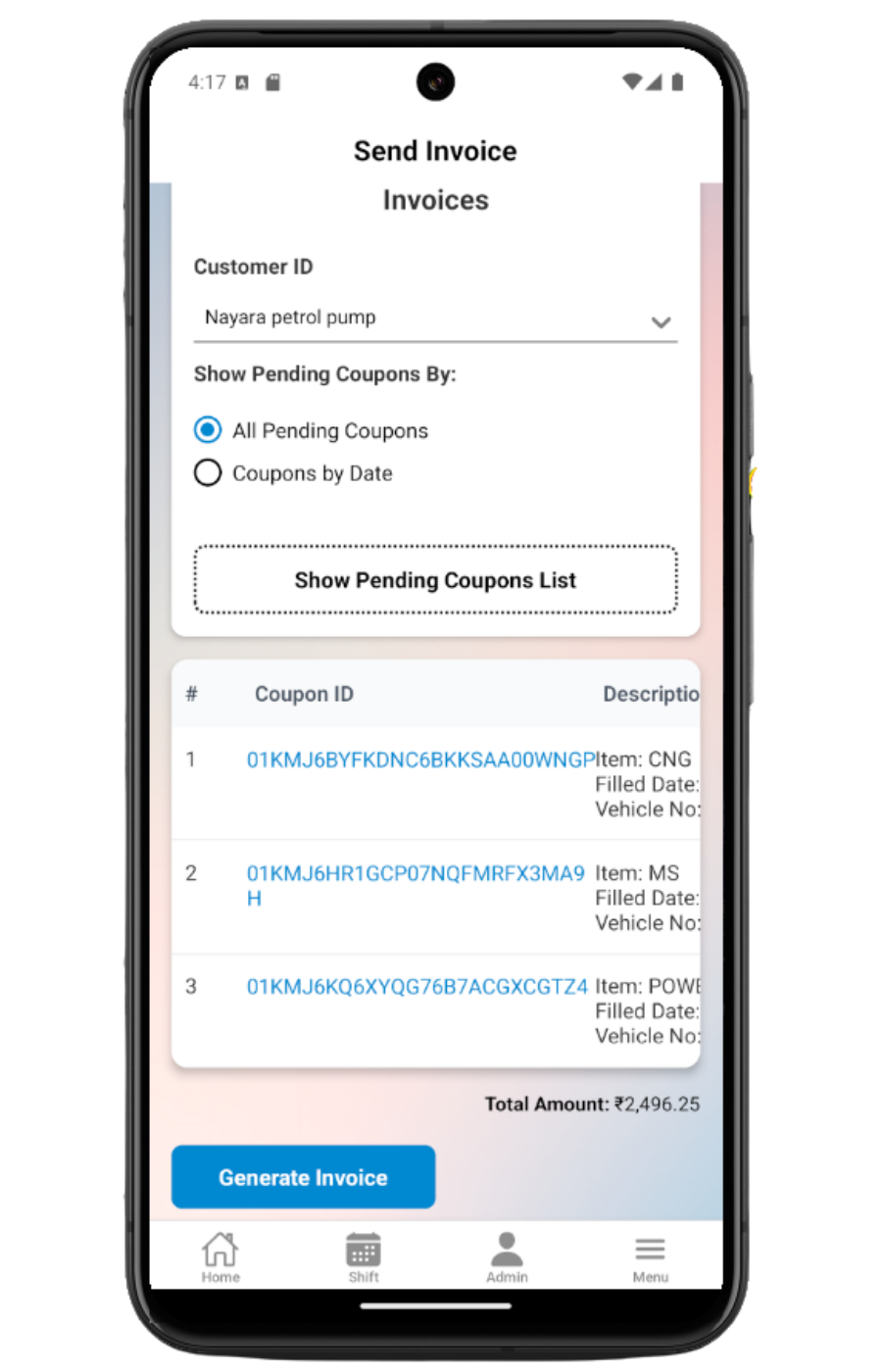
Send Invoice starts with customer selection. Users can preview all pending coupons or use Coupons by Date with a start and end date.
Review uninvoiced coupons
The preview table shows coupon rows and totals. Users can tap a coupon code to open the coupon detail before generating the invoice.
Choose pending invoice balances
When pending invoices exist, the app lists them with pending amount and lets users select all or choose individual invoices to carry forward.
Generate the invoice
After checking coupon totals and selected pending balances, the app asks for confirmation and then opens the generated Invoice Detail page.
Use All Invoices to find existing invoices
All Invoices supports customer filtering for users with create access, invoice ID search, date filtering, pagination, refresh, and quick navigation to invoice detail.
Send invoice checklist
How Petrodweep supports mobile invoice generation
- Petrodweep documents Send Invoice and All Invoices together because generation and lookup are one billing workflow.
- Pending coupon and pending invoice selection stay on one page rather than becoming separate thin docs.
- The page points to Invoice Detail for payments, PDF sharing, email, QR, and undo so users know where to continue.
Frequently asked questions
Why does Send Invoice say no uninvoiced coupons were found?
The selected customer and date range may not have pending coupons or pending invoice balances. Clear the date filter or check coupon status.
Can I exclude a pending invoice from the new invoice?
Yes. Pending invoice rows can be selected or unselected before generating the invoice.
Where do I send email or share the invoice PDF?
Generate or open the invoice first, then use the Invoice Detail page for email, PDF sharing, payment records, QR, and undo actions.