
How to use this documentation
Use this page as an end-user workflow guide. It explains who should use the page, what setup is needed, what steps to follow, what fields matter, and what to check when something looks wrong.
Who should use it
Before you start
- The invoice exists and can be opened from generated invoice, All Invoices, coupon invoice link, pending invoice link, or QR scan.
- The user has payment, email, edit, or sharing permissions for the actions they need.
- Device sharing and network access are available for PDF or QR sharing.
Step-by-step workflow
- 1
Review invoice status and totals
Check status, customer, invoice number, sent date, due date, paid date, QR code, coupon items, pending invoice items, totals, paid amount, and balance.
- 2
Add or delete payments
Use the payment form to add amount, payment mode, payment date, and comments. Delete incorrect payment rows only when correction is needed.
- 3
Send email
Use Send Email when permitted. If customer email is missing, update the customer profile before trying again.
- 4
Share PDF or QR
Use PDF share to fetch a signed PDF URL, download and validate the PDF, then open device sharing. Use QR share to share the invoice QR image.
- 5
Undo or reopen by QR
Use Undo Invoice only after confirming the invoice should be reverted. Scanned invoice URLs and invoice identifiers open the same detail screen from the dashboard scanner.
Important fields
Coupon items
Invoice rows created from uninvoiced coupons.
Pending invoice items
Invoice rows carried from selected pending invoice balances.
Signed PDF URL
Temporary backend URL used by the app to download the invoice PDF before sharing.
Last email requested
Timestamp updated after the app requests invoice email sending.
Undo invoice
Correction action that reverts invoice status and related calculations when permitted.
Common mistakes
- Adding a payment before confirming the customer and invoice total.
- Sending email before the customer email is stored.
- Treating QR share and PDF share as the same action.
- Undoing an invoice when only a payment correction was needed.
- Creating separate documentation pages for PDF share, email, or QR links.
Troubleshooting
Email cannot be sent.
Check invoice email permission and confirm the customer has an email address.
PDF share fails.
Confirm network access, signed PDF URL response, valid PDF download, and device sharing availability.
Invoice QR does not open the detail page.
Scan an invoice view URL or invoice identifier from a Petrodweep QR code, then confirm the invoice still exists.
Undo invoice is unavailable.
Check invoice edit permission and whether the invoice state allows undo.
Related documentation
Web dashboard docs
Mobile app equivalents
- Mobile Send Invoice
- Mobile Coupons and QR
- Mobile Bills and Vouchers
Screenshot note
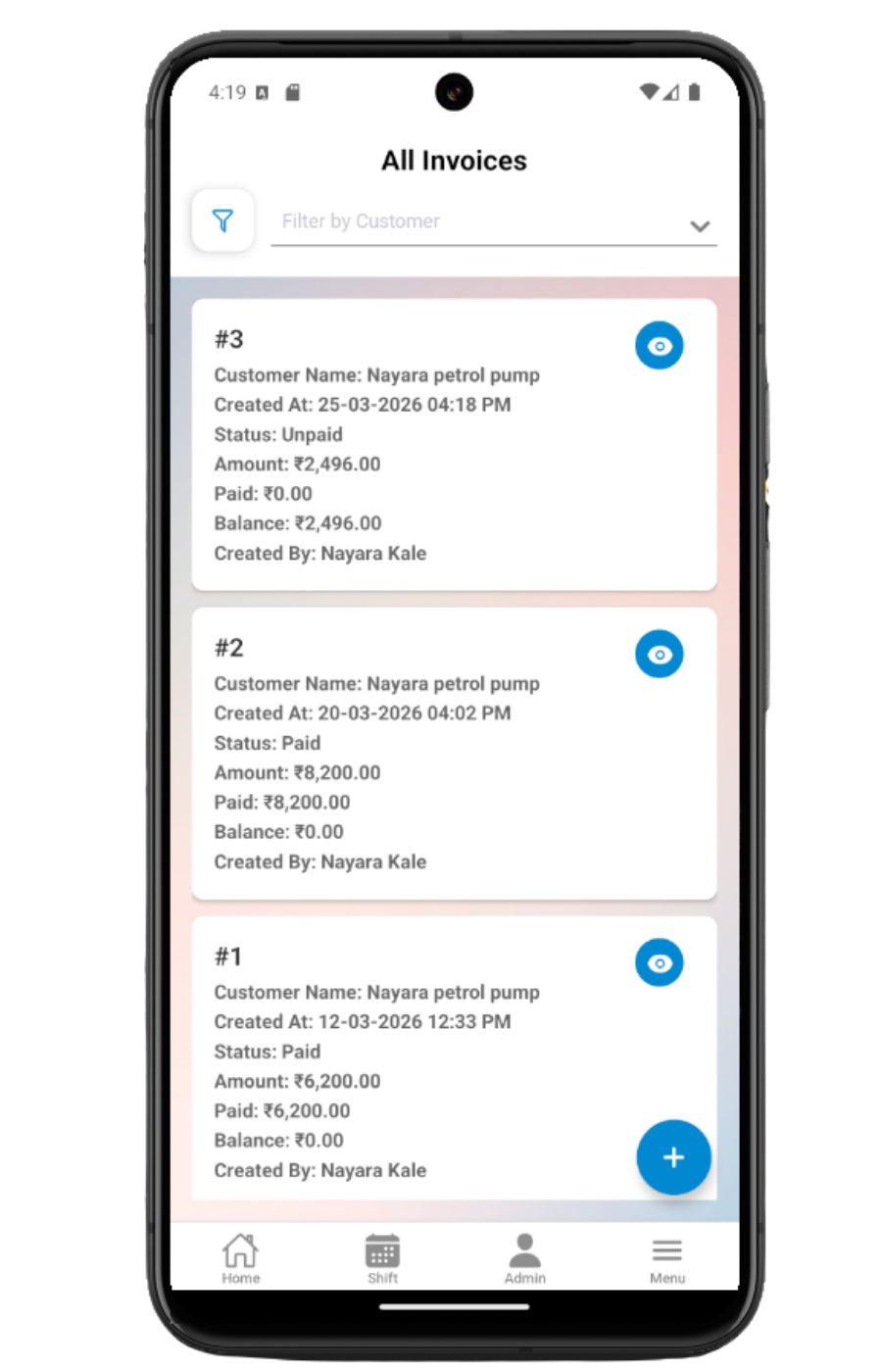
- Uses mobileApp15 from the existing static mobile screenshot set.
Review invoice header and line items
Invoice Detail shows invoice status, customer details, invoice number, sent date, due date, paid date, QR code, coupon items, pending invoice items, totals, and amount breakdowns.
Add and manage payment records
Users with payment permission can add amount, payment mode, payment date, and comments. Existing payment rows show date, mode, amount, and comments, and can be deleted when correction is allowed.
Send invoice email
Users with email permission can send the invoice to the customer email on file. If the customer email is missing, the app asks the user to update customer details first.
Undo invoice or open scanned invoice links
Users with invoice edit permission can undo an invoice after confirmation. QR links from invoice detail or the dashboard scanner open the same Invoice Detail page when the scanned URL or code includes an invoice identifier.
Invoice detail checklist
How Petrodweep supports mobile invoice detail actions
- Petrodweep keeps payment records, PDF sharing, email, QR, and undo together because they are all invoice detail actions.
- The mobile doc explains signed-URL PDF sharing and QR deep links without creating separate pages for each button.
- Invoice correction is documented carefully so users understand that undo is a deliberate billing correction action.
Frequently asked questions
Why can I not send an invoice email?
Your role may not have invoice email permission, or the customer email may be missing from customer details.
Why can PDF sharing fail?
The app needs to fetch a signed PDF URL, download a valid PDF, and open device sharing. Network, permission, or invalid PDF responses can block sharing.
Should QR deep links have a separate page?
No. QR links are useful as part of invoice detail and scanner behavior, so they are covered inside this invoice detail guide.