
How to use this documentation
Use this page as an end-user workflow guide. It explains who should use the page, what setup is needed, what steps to follow, what fields matter, and what to check when something looks wrong.
Who should use it
Before you start
- The user has DSR view access.
- Tanks are configured and available in base data.
- Shift and tank readings exist for calculated DSR values.
Step-by-step workflow
- 1
Select tank and period
Choose the tank, month, and year before loading or editing DSR rows.
- 2
Open the date row
Open the row for the date that needs review or correction.
- 3
Calculate values
Use Calculate to pull available opening, receipt, sales, testing, rate, and density values for the tank and date.
- 4
Review and update
Check opening stock, receipt, total stock, sales by meter, pump test, density, and rate before saving.
- 5
Export after review
Use export only after the monthly data is reviewed. The app writes an Excel file and opens device sharing when available.
Important fields
Tank
The selected tank for which monthly DSR rows are loaded.
Opening stock
Starting stock for the date row.
Receipt
Fuel received during the day.
Pump test
Testing litres deducted from sales by meter.
Export
Creates a Daily Sales Report Excel file for sharing.
Common mistakes
- Editing the wrong tank or month.
- Saving without running Calculate or reviewing source shift values.
- Exporting before corrections are complete.
- Assuming empty rows mean no sales without checking source shift entries.
Troubleshooting
DSR rows are not loading.
Select a tank and period, then confirm DSR permission and internet access.
Calculated values look empty.
Check whether shift readings and tank data exist for the selected date.
Excel sharing does not open.
The file is still generated. Check whether sharing is available on the device.
Related documentation
Web dashboard docs
Mobile app equivalents
- Mobile Current Shift
- Mobile Reports
Screenshot note
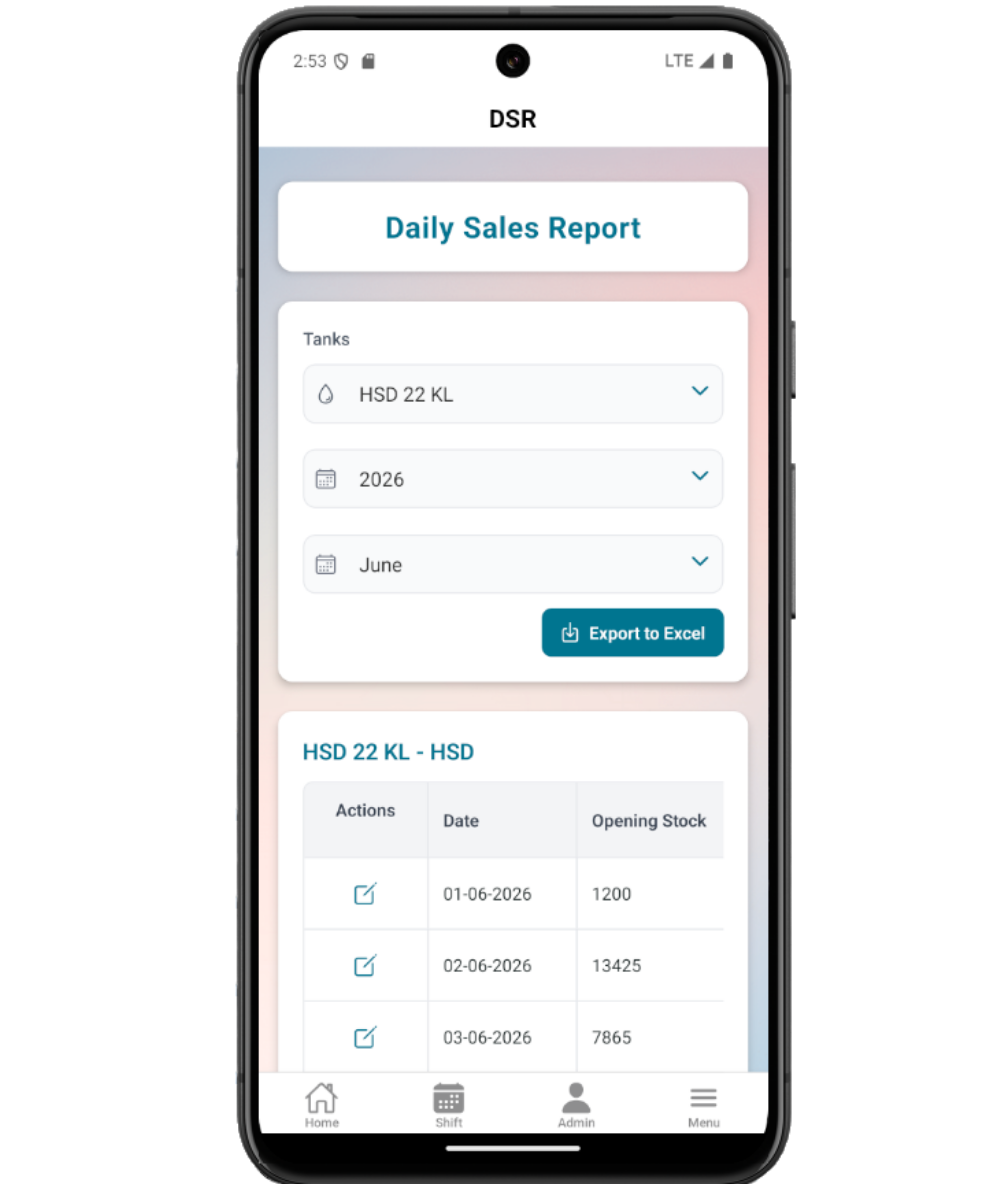
- Uses mobileApp5 from the existing static mobile screenshot set.
Select tank, month, and year
Start by selecting the tank, then choose the month and year. The app creates rows for all dates in the selected month and merges saved DSR data where available.
Open a row for update
Each DSR row can be opened for editing. Updated rows load saved values, while new rows can fetch calculated values from shift and tank data.
Review calculated and manual fields
DSR fields include opening stock, receipt, total stock, sales by meter, pump test, density, rate, and derived net sales by meter. Users should calculate first, then review before saving.
Update the DSR row
After review, save the row so the monthly list reflects the corrected Daily Sales Report data for the tank and date.
Daily Sales Report checklist
How Petrodweep supports mobile DSR
- Petrodweep mobile generates monthly DSR rows and merges saved data for the selected tank.
- Calculated values help users reduce manual entry, while edit mode still allows authorized correction.
- Excel export and sharing are documented inside the DSR guide instead of as a separate thin page.
Frequently asked questions
Why is the DSR list empty?
Select a tank and period first. Also check whether the role has DSR access.
What does Calculate do?
It fetches calculated data for the selected tank and date, including shift-driven sales and testing values where available.
Should Excel export be a separate page?
No. It is a supporting action inside the Daily Sales Report workflow.