
How to use this documentation
Use this page as an end-user workflow guide. It explains who should use the page, what setup is needed, what steps to follow, what fields matter, and what to check when something looks wrong.
Who should use it
Before you start
- Your role can access Density Check.
- Fuel, shift, tank, and tanker setup are available for the check you are recording.
- Density readings and test report files are ready before saving.
- For tanker unloading density, the related fuel purchase should be saved first when the check is opened from fuel purchase.
Step-by-step workflow
- 1
Open Density Check
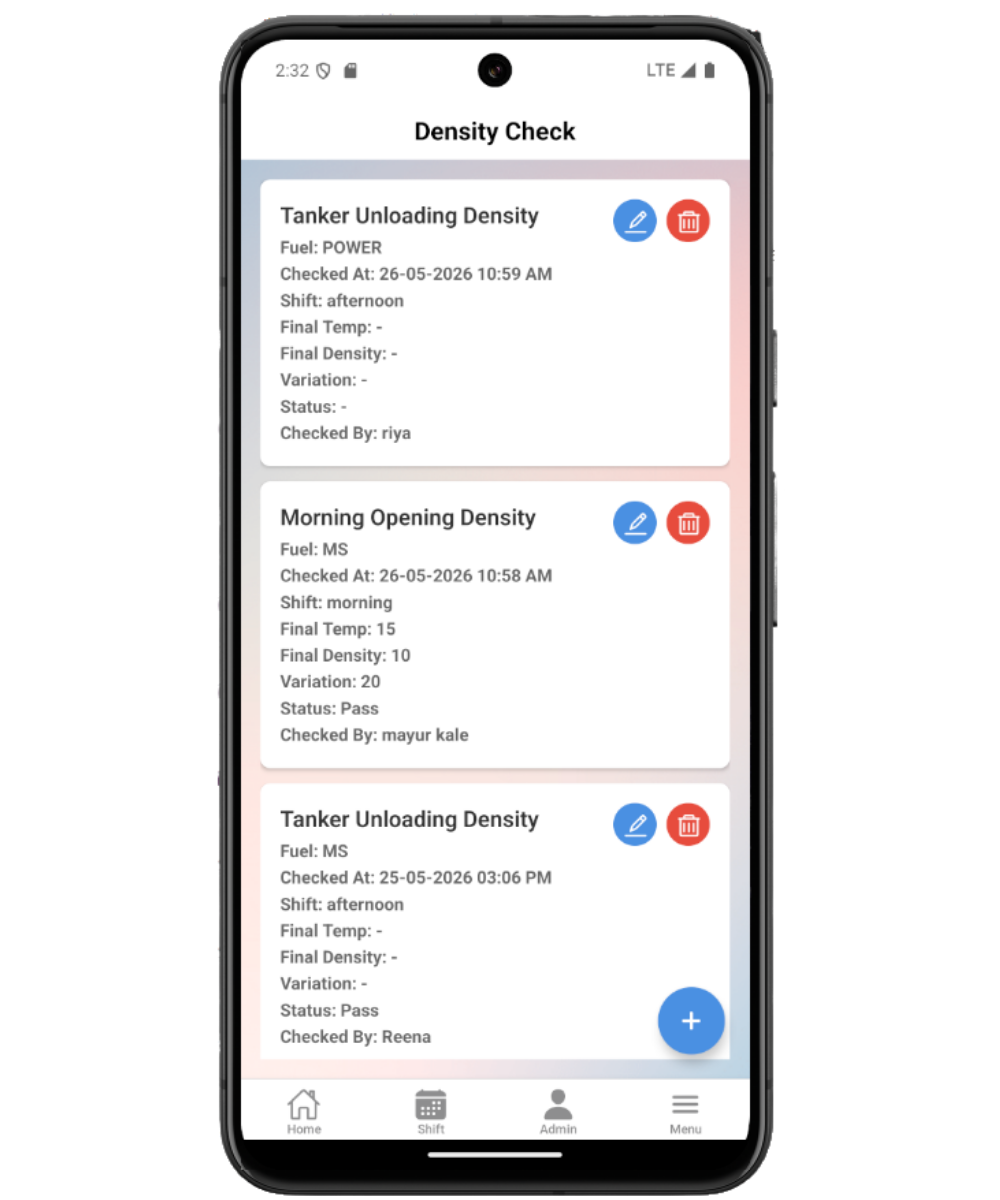
Review saved checks by checked time, density type, final reading, and variation observed.
- 2
Select the density type
Choose morning opening density, current or regular density, manual inspection, or tanker unloading density based on the work being performed.
- 3
Enter tank readings
For tank-based checks, enter fuel, shift, samples, final reading, variation observed, checker, and remarks.
- 4
Enter tanker sections and compartments
For tanker checks, capture tanker, fuel, shift, receipt observations, final reading, variation, remarks, and compartment sample rows.
- 5
Attach reports and save
Upload density test reports where available, save the check, and return to the list or linked fuel purchase.
Important fields
Density type
Controls whether the form captures opening, current, manual, or tanker unloading details.
Final reading
The final density value used for review after samples are entered.
Variation observed
Difference or observation recorded during the density check.
Tanker compartments
Compartment-level sample rows used during tanker unloading checks.
Test report uploads
Files attached to support the density reading and later review.
Common mistakes
- Choosing the wrong density type before entering readings.
- Saving tanker density without compartment details when the pump process requires them.
- Forgetting to upload test reports before saving the check.
- Creating a separate density check instead of opening tanker density from the saved fuel purchase when linkage is needed.
Troubleshooting
The latest density check is missing from the list.
Use pull-to-refresh or return through the save flow that reloads the density list.
Report upload fails.
Check network access, choose a supported file, and attach it before saving the density check.
Tanker density is not linked to a purchase.
Open tanker unloading density from the saved fuel purchase rather than creating an unrelated density check.
Related documentation
Web dashboard docs
Mobile app equivalents
- Mobile Fuel Purchase
- Mobile Settings
- Mobile Troubleshooting
Screenshot note
- Uses mobileApp5 from the existing static mobile screenshot set.
Review density check history
The Density Check list shows saved checks with checked time, density type, final density, variation observed, and edit or delete actions. Refresh the list after saving from another screen.
Choose the right density type
Use morning opening density for opening checks, current or regular density for tank-level review, and tanker unloading density when fuel is being received from a tanker.
Record tank samples and final readings
Tank-based checks capture fuel, shift, sample readings, temperature or observed values where applicable, final reading, variation observed, checked by, and remarks.
Record tanker sections and compartments
Tanker density supports tanker details, fuel name, shift, receipt observations, final reading, variation, checker, remarks, and compartment-level sample rows.
Upload density test reports
Attach test report files when available. The app sends density details and uploaded reports together so the office team can review both readings and evidence.
Density check checklist
How Petrodweep supports mobile density work
- Petrodweep separates density type selection from the reading sections so users can capture the right data for each operational situation.
- Tanker unloading density can be linked back to fuel purchase, making receipt and quality review easier.
- Uploads are documented inside the density workflow because they support the density record rather than forming a separate end-user feature.
Frequently asked questions
Which density type should I use for tanker unloading?
Use tanker unloading density when the reading is part of receiving fuel from a tanker, especially when it should connect to a fuel purchase.
Can I attach reports after entering readings?
Yes, attach available report files before saving the density check so the reading and evidence are stored together.
Why is a saved density check not visible immediately?
Return to the Density Check list and refresh it. Some flows use route refresh after save, and manual refresh confirms the latest list data.