
How to use this documentation
Use this page as an end-user workflow guide. It explains who should use the page, what setup is needed, what steps to follow, what fields matter, and what to check when something looks wrong.
Who should use it
Before you start
- The user has permission to view or manage density checks.
- Fuel type, tanker, tank, or purchase context is available for the check being recorded.
- Supporting readings and uploads are ready where the pump requires proof.
Step-by-step workflow
- 1
Open Density Check
Use Fuel > Density Check to review existing density records before creating or editing a check.
- 2
Select the check type
Choose tanker unloading, morning opening, or manual density based on why the check is being recorded.
- 3
Enter readings and context
Record fuel type, date, tanker or tank details, readings, remarks, and any required supporting information.
- 4
Attach uploads where required
Upload supporting files or images when the pump wants proof for delivery, quality, or exception review.
- 5
Review before editing history
Edit density records only for correction scenarios because they are part of fuel quality history.
Important fields
Tanker unloading
Used when fuel arrives and delivery density needs to be captured with tanker context.
Morning opening
Used for daily opening density checks before or during operating review.
Manual density
Used when a direct density entry is needed outside the fixed unloading or opening routines.
Uploads
Supporting files that help managers or owners verify the reading history.
Common mistakes
- Adding a manual density record when a tanker unloading check is the right workflow.
- Leaving tanker or fuel context blank for delivery-related checks.
- Uploading unclear proof that cannot be reviewed later.
- Editing density history without a correction reason.
Troubleshooting
A density check is not visible.
Check date filters, check type, role permissions, and whether the record was saved under the expected fuel.
A reading looks abnormal.
Confirm the entered reading, temperature or sample context if used, and escalate to the manager before accepting the delivery.
Upload is missing.
Open the saved record and confirm whether the file was attached before saving.
Related documentation
Web dashboard docs
Mobile app equivalents
- Mobile density check workflow
- Mobile tanker delivery follow-up
Screenshot note
- Uses the existing density tracking screenshot from static assets.
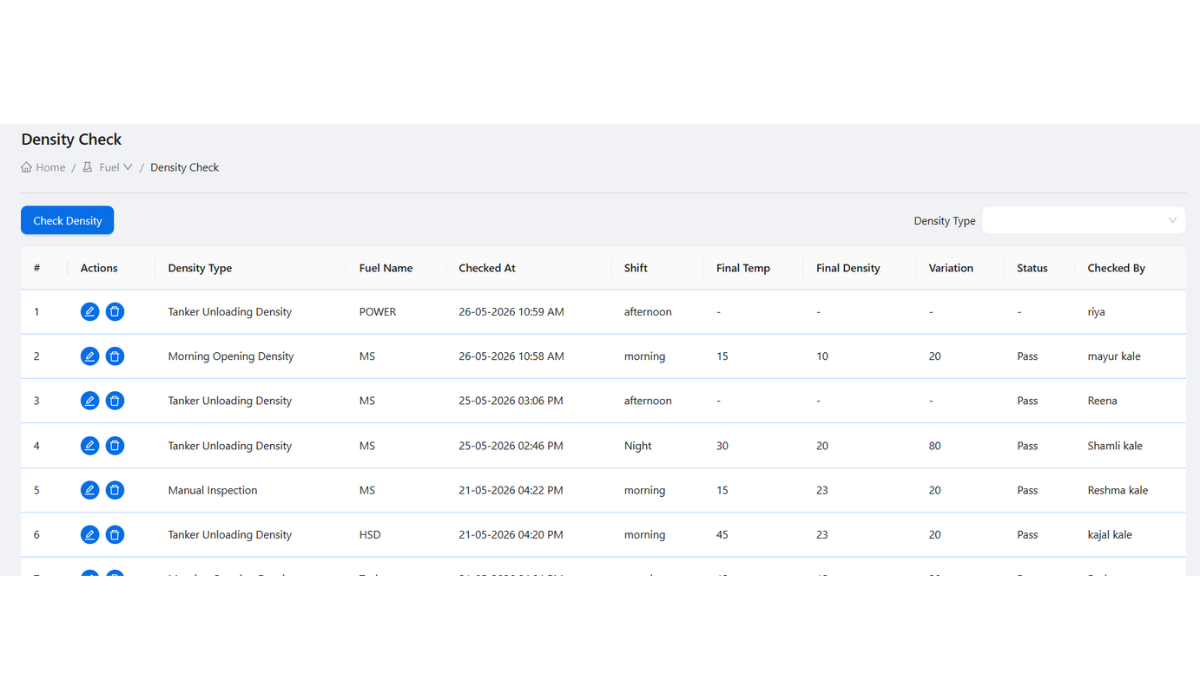
Review the density check list
The density check list shows previously saved records. Start here to confirm whether a check already exists for the date, fuel, tanker, or operational event.
Choose the correct density workflow
Use tanker unloading density when fuel arrives, morning opening for daily opening checks, and manual density when the pump needs a direct entry outside those fixed routines.
Enter readings and supporting context
Density entries should include fuel type, date, tanker or tank context where applicable, readings, temperature or sample context if used, and any remarks needed for review.
Upload proof and edit carefully
Supporting documents or images should be uploaded when required. Edits should be limited to correction scenarios because density records are part of fuel quality history.
Density check checklist
How Petrodweep supports density control
- Petrodweep keeps density check list, create, and edit flows together so fuel quality history is easier to review.
- Tanker unloading, morning opening, and manual density entries are documented as one operational workflow.
- Uploads and remarks help owners review density exceptions with supporting proof.
Frequently asked questions
Should tanker unloading density be a separate page?
No. It is more useful for end users as a section inside the density check workflow.
When should density records be edited?
Only edit when the saved record has a correction requirement and the user has permission to change it.
Why are uploads included?
Uploads provide supporting proof for fuel quality checks, especially during delivery or exception review.