
How to use this documentation
Use this page as an end-user workflow guide. It explains who should use the page, what setup is needed, what steps to follow, what fields matter, and what to check when something looks wrong.
Who should use it
Before you start
- The user has permission to view and manage fuel purchase records.
- Fuel types, supplier or party details, and tanker context are available where the pump uses them.
- The user has the invoice, quantity, and delivery details needed for the purchase entry.
Step-by-step workflow
- 1
Open the fuel purchase list
Start from Fuel > Fuel Purchase to check whether the purchase already exists before creating a new entry.
- 2
Create or edit the purchase
Enter purchase date, fuel type, supplier context, tanker details, quantity, rate, invoice information, and remarks.
- 3
Review invoice items
Compare invoice items and received quantities before saving or treating the entry as final.
- 4
Check delivery follow-up
Use tanker and density context where required so purchase records can be reconciled with fuel quality checks.
- 5
Review price and current level
Where enabled, use current price and fuel current level pages as supporting checks for owner or manager review.
Important fields
Fuel Purchase
The main list and create/edit workflow for incoming fuel stock records.
Tanker
The delivery vehicle context used to connect purchase, unloading, and density follow-up.
Invoice items
The purchase line context that should match quantity, rate, and amount expectations.
Current fuel level
A supporting review page for stock visibility where the pump has enabled it.
Common mistakes
- Creating duplicate purchase entries instead of checking the list first.
- Saving a purchase before comparing invoice quantity with received quantity.
- Leaving tanker or supplier context incomplete.
- Treating current fuel price or current level as unrelated to purchase review.
Troubleshooting
A fuel purchase entry is missing.
Check filters, date range, role permissions, and whether the entry was saved under the expected fuel type.
The received quantity does not match the invoice.
Review invoice items, tanker delivery details, and density or unloading follow-up before final owner review.
A user cannot edit a purchase.
Check fuel purchase permissions and confirm the record is not locked by your operating process.
Related documentation
Web dashboard docs
Mobile app equivalents
- Mobile fuel purchase review when available
- Mobile density check and fuel delivery follow-up
Screenshot note
- Uses the existing fuel purchase screenshot from static assets.
- Current price and current level screenshots can remain supporting images unless those workflows become larger.
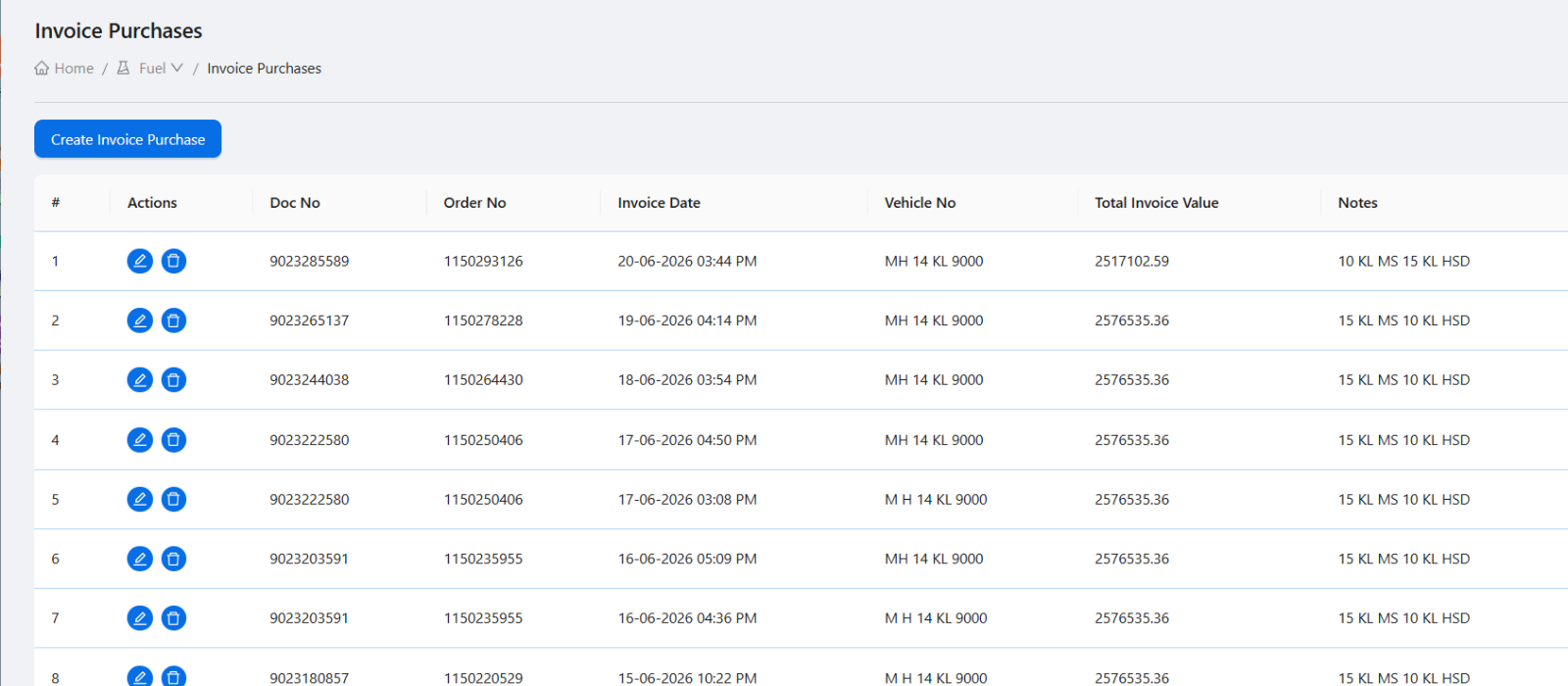
Start from the fuel purchase list
The fuel purchase list is the review point for purchase entries. Users should use it to find existing purchases, confirm dates and tanker context, and decide whether a new purchase or edit is needed.
Create or edit purchase with tanker context
A fuel purchase entry should identify the fuel type, purchase date, supplier or party context, tanker details, quantity, rate, and any invoice-related information the owner needs for later reconciliation.
Review invoice items and received quantity
Invoice item details should be checked against actual receipt and tanker delivery information. Differences between invoice quantity and received stock should be reviewed before the record is treated as final.
Use price and current level as supporting checks
Current price and fuel current level are supporting fuel workflows. They should be reviewed with fuel purchase activity when the pump uses them for rate control, stock visibility, or owner reporting.
Fuel purchase checklist
How Petrodweep supports fuel purchase control
- Petrodweep keeps fuel purchase list, create, and edit workflows connected to tanker and invoice context.
- Fuel purchase documentation stays grouped with stock and density workflows so users understand the full delivery cycle.
- Current price and current level are treated as supporting controls, not separate documentation journeys.
Frequently asked questions
Should current fuel price be a separate documentation page?
No. For end users, current fuel price is best explained as part of fuel purchase and stock review unless it becomes a large independent workflow.
When should a fuel purchase be edited?
Edit only when a purchase detail was entered incorrectly or supporting invoice and tanker information needs correction.
How is this different from daily sales?
Fuel purchase records incoming stock. Daily sales and shift readings record outgoing fuel sale activity.