
How to use this documentation
Use this page as an end-user workflow guide. It explains who should use the page, what setup is needed, what steps to follow, what fields matter, and what to check when something looks wrong.
Who should use it
Before you start
- You know which user, module, and action had the issue.
- The user can identify the message shown by the app.
- Network and device permissions can be checked on the phone.
- An owner or admin is available for permission-related issues.
Step-by-step workflow
- 1
Check user access
Confirm the user is active and the assigned role includes the menu or action permission.
- 2
Refresh before duplicating work
Use pull-to-refresh or reopen the module if a saved record does not appear immediately.
- 3
Check uploads
Confirm the file was selected, the network is stable, and the upload belongs to the record being saved.
- 4
Check sharing and exports
For invoice PDFs, QR images, barcode Excel files, and cylinder CSV exports, confirm the file can be created or downloaded and the device supports sharing.
- 5
Read alerts and toasts
Use toast and alert messages to decide whether the issue is validation, permission, network, or device capability.
Important fields
Permission issue
Missing menu or disabled action caused by role permission or inactive user status.
Refresh
Pull-to-refresh or route refresh used after saving, editing, or deleting records.
Upload
Document, image, or report file attached to a related record such as user or density check.
Share
Device-level sharing for invoice PDF, QR image, barcode Excel, or cylinder CSV files.
Scanner permission
Camera access needed for QR and barcode scanning workflows.
Common mistakes
- Creating duplicate records before refreshing the list.
- Assuming every missing menu is an app bug instead of checking permissions.
- Trying to upload files after leaving the form.
- Using sharing actions while offline or before the file is generated.
- Ignoring the app's alert or toast message before retrying.
Troubleshooting
Menu or button is missing.
Ask an admin to check active status and the role permission for that module or action.
A saved item is not visible.
Refresh the list, return from the form again, or reopen the module.
Upload fails.
Check network, selected file type, and whether the file is attached before saving the form.
PDF, QR, Excel, or CSV sharing fails.
Check network, file generation, download response, and whether device sharing is available for that file type.
Related documentation
Web dashboard docs
Mobile app equivalents
- Mobile Users and Roles
- Mobile Fuel Purchase
- Mobile Density Check
- Mobile Task Manager
Screenshot note
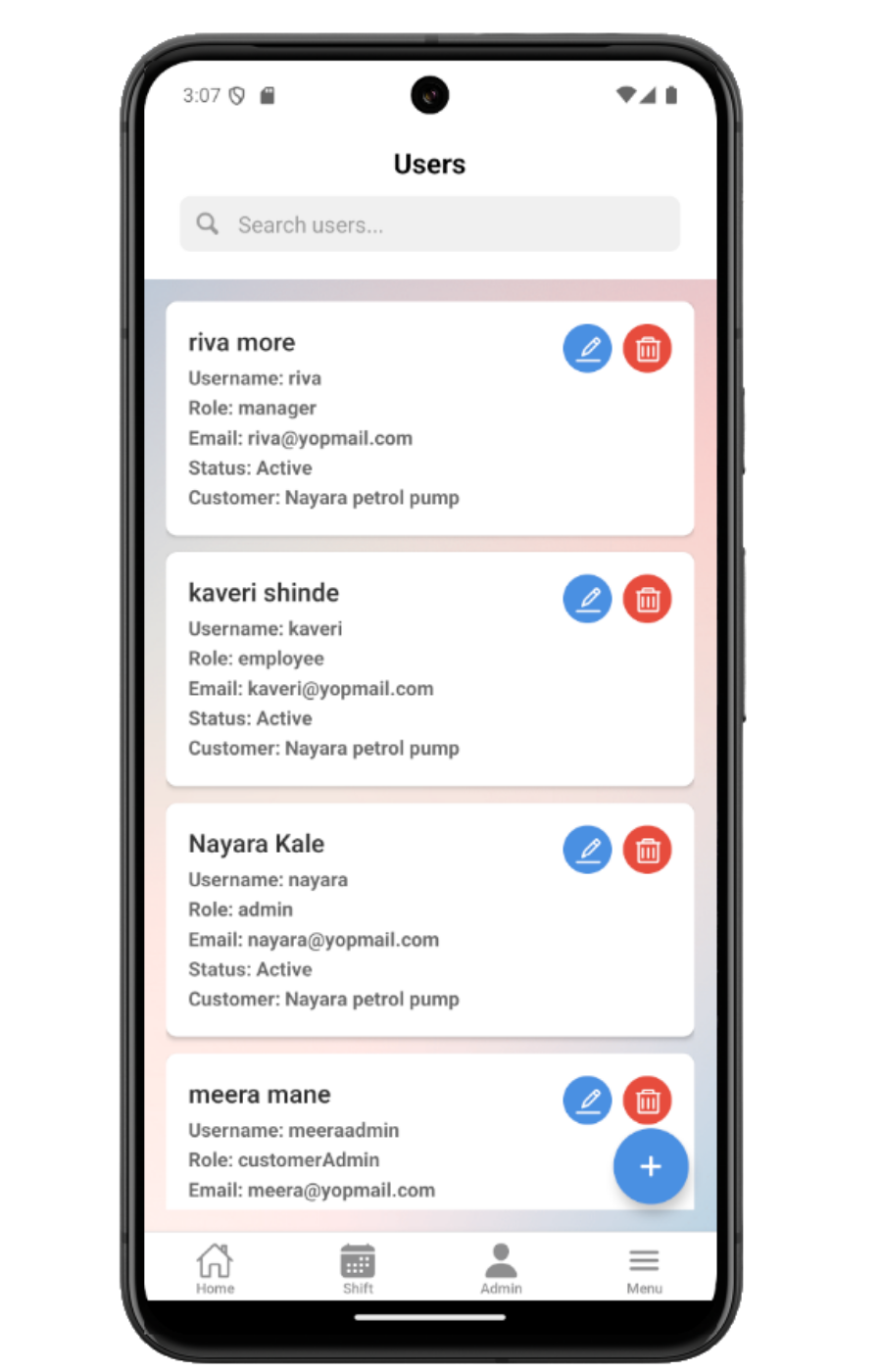
- Uses mobileApp15 from the existing static mobile screenshot set.
Check permissions first
Missing menus and disabled actions usually come from role permissions. Ask an owner or admin to check the user's role, permission groups, and active status before treating it as an app error.
Refresh the current workflow
Many mobile lists support pull-to-refresh, and saved forms often return with a refresh parameter. If a new record is not visible, return to the list and refresh before creating a duplicate.
Resolve upload issues
Uploads need a selected file, stable network, and a supported file response from the device picker. Density reports and user documents should be attached before saving the related record.
Resolve sharing and export issues
Invoice PDF sharing, invoice QR sharing, product barcode Excel export, and cylinder range CSV export depend on file creation, download, and device sharing support. Retry after checking network and device sharing availability.
Use alerts and toasts as confirmation
Toasts confirm common success or failure states, while alerts are used for confirmation or blocking issues such as saving a purchase before opening tanker density.
Mobile troubleshooting checklist
How Petrodweep keeps mobile troubleshooting useful
- Petrodweep groups common mobile issues into one troubleshooting page so end users do not have to search across tiny pages for refresh, upload, toast, or sharing behavior.
- The guide focuses on actions users can take before escalating, especially permission checks and refresh behavior.
- File and sharing issues are documented together because they depend on similar mobile device capabilities.
Frequently asked questions
Why is a menu missing from my mobile app?
Most missing menus are caused by role permissions or inactive user status. Ask an admin to review your role.
Why is my saved record not showing?
Refresh the list or reopen the module. Some flows return with route refresh, but manual refresh confirms the latest data.
Why does sharing fail on mobile?
Sharing can fail if the file cannot be generated or downloaded, the network is unavailable, or device sharing is not available for that file type.