
How to use this documentation
Use this page as an end-user workflow guide. It explains who should use the page, what setup is needed, what steps to follow, what fields matter, and what to check when something looks wrong.
Who should use it
Before you start
- Your role can access Task Manager.
- Assignable users exist and are active.
- You know whether the work is a one-time task or a recurring scheduled task.
- Dates, due dates, and recurrence rules are confirmed before saving.
Step-by-step workflow
- 1
Open Tasks or Scheduled
Use the Tasks tab for one-time work and the Scheduled tab for recurring work.
- 2
Filter task lists
Use task date, due date, and quick range filters to narrow regular tasks.
- 3
Create or edit a regular task
Enter title, description, status, task date, optional due date, and assignees.
- 4
Update status or delete
Change task status when the work state changes, and use delete confirmation for incorrect or unnecessary records.
- 5
Create a scheduled task
Configure start date and time, optional due date and time, assignees, recurrence frequency, repeat interval, weekly or monthly rules, yearly rules, and end conditions.
Important fields
Tasks tab
One-time work items with status, assignees, and due dates.
Scheduled tab
Recurring task setup for repeated work such as daily, weekly, monthly, or yearly responsibilities.
Assignees
Users selected to receive or perform the task. At least one assignee is required.
Due date
Optional deadline that can be cleared when the task should not have a due date.
Recurrence summary
Human-readable summary of the selected scheduled task recurrence pattern.
Common mistakes
- Creating a normal task when the work should repeat automatically.
- Saving without assignees.
- Setting due date before the task date.
- Forgetting weekly days or monthly pattern details for scheduled tasks.
- Deleting a task when a status update would be more appropriate.
Troubleshooting
A task cannot be saved.
Check title, task date, assignees, and due date validation.
A scheduled task cannot be saved.
Check recurrence frequency, repeat interval, weekday or date pattern, end date, occurrence count, and assignees.
A status change reverts.
The app rolls back the visible status if the server save fails. Check network and permission before retrying.
Related documentation
Web dashboard docs
Mobile app equivalents
- Mobile Users and Roles
- Mobile Troubleshooting
- Mobile Dashboard Navigation
Screenshot note
- Uses mobileApp14 from the existing static mobile screenshot set.
Use task and scheduled tabs
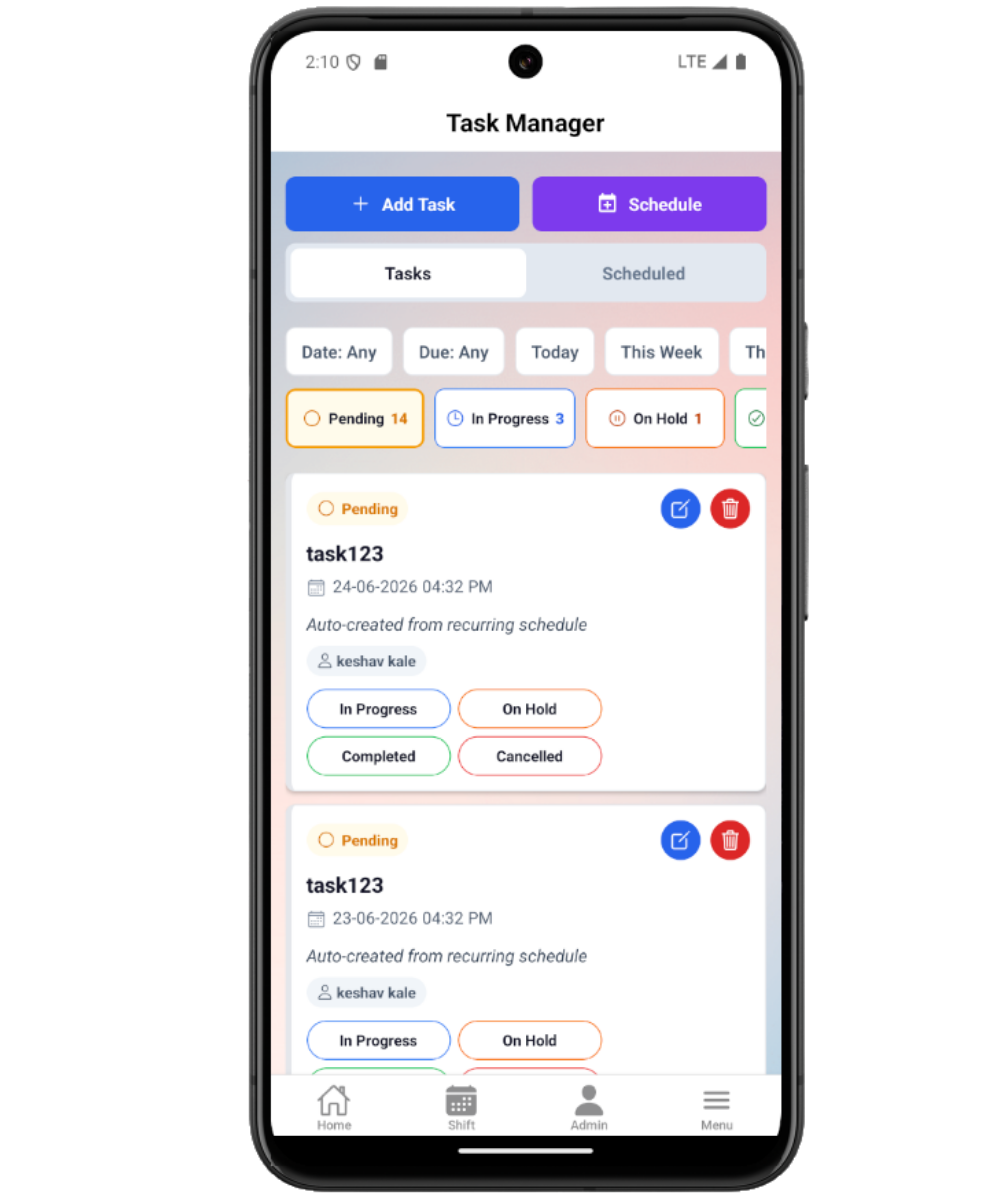
The Task Manager has separate tabs for regular tasks and scheduled tasks. Filters help users narrow regular tasks by task date, due date, or quick date range.
Create or edit regular tasks
Regular task forms capture title, description, status, task date, optional due date, and assignees. At least one assignee and a valid task date are required before saving.
Update task status and delete carefully
Task cards support status changes and delete confirmation. Status updates are applied quickly in the app, and the list is corrected if the save fails.
Create scheduled tasks
Scheduled tasks capture title, description, start date and time, optional due date and time, assignees, and recurrence details.
Configure recurrence
Scheduled task recurrence supports daily, weekly, monthly, and yearly patterns, repeat interval, selected weekdays, monthly day or weekday pattern, yearly date or weekday pattern, and end rules such as never, on date, or after occurrences.
Task manager checklist
How Petrodweep supports mobile task work
- Petrodweep keeps regular task execution and recurring task setup in the same mobile area so managers can handle both daily and repeated work.
- Scheduled task recurrence is documented as part of the task workflow instead of separate pages for every recurrence option.
- Status updates, filters, and delete confirmation are explained as user actions rather than separate documentation topics.
Frequently asked questions
What is the difference between a task and a scheduled task?
A task is one piece of work. A scheduled task is a recurring template that creates or represents repeated work based on recurrence settings.
Why can I not save a scheduled task?
Check title, assignees, start date, due date, recurrence frequency, selected weekdays or dates, and end rule validation.
Should recurrence options have separate pages?
No. They are only useful when creating scheduled tasks, so this guide keeps them inside the scheduled task workflow.