
How to use this documentation
Use this page as an end-user workflow guide. It explains who should use the page, what setup is needed, what steps to follow, what fields matter, and what to check when something looks wrong.
Who should use it
Before you start
- The user has permission to view or manage task manager records.
- Assignable users exist and have the correct role access.
- The team understands whether the work is one-time or recurring.
Step-by-step workflow
- 1
Open Task Manager
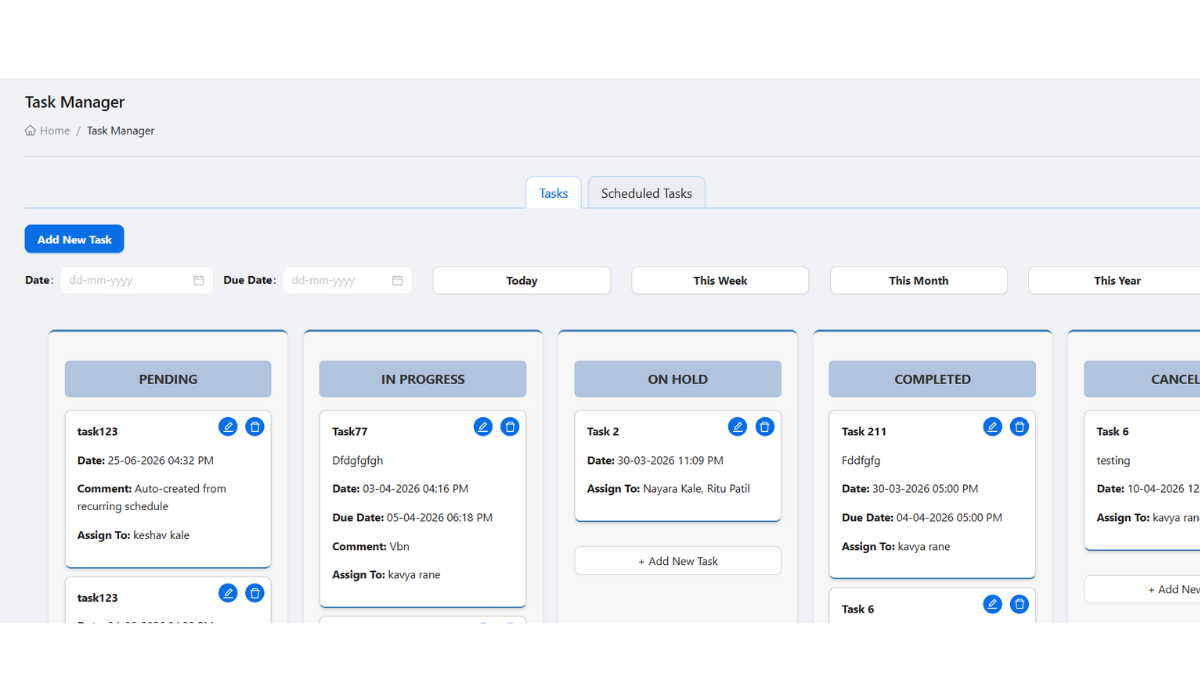
Use /taskmanager to review the task board, current filters, and scheduled task area.
- 2
Create a task
Add a clear title, details, assigned user, due date or schedule context, priority where used, and remarks.
- 3
Use filters and statuses
Filter by status, assigned user, or relevant context before assuming a task is missing.
- 4
Create scheduled tasks for repeat work
Use scheduled tasks and recurrence for operational routines that repeat by day, week, month, or another supported pattern.
- 5
Update or delete carefully
Change status as work progresses and delete only after confirming the correct one-time or scheduled task.
Important fields
Status
Shows whether work is pending, in progress, completed, or otherwise categorized by the task board.
Assigned user
The user responsible for completing or following up on the task.
Scheduled task
A recurring or future task pattern used for repeated operating routines.
Recurrence
A schedule detail inside Task Manager, not a separate documentation page.
Common mistakes
- Creating tasks without an assigned user or clear due context.
- Assuming a task is missing while a filter is active.
- Creating duplicate scheduled tasks for the same recurring work.
- Deleting the wrong task because the one-time and scheduled areas were not checked.
Troubleshooting
A task is not visible.
Clear filters, check status, confirm assignment, and verify the user has task manager permissions.
A recurring task is not appearing as expected.
Review the scheduled task recurrence, start date, end condition, and assigned user.
A user cannot update a task.
Check role permissions and whether the task is assigned or restricted by your operating process.
Related documentation
Web dashboard docs
Mobile app equivalents
- Mobile task manager when available
- Mobile role-based menu visibility
Screenshot note
- Uses the existing task management screenshot from static assets.
Use the task board for daily follow-up
The task board helps users review active work by status. Owners and managers should use it to check what is pending, what is assigned, and what needs attention.
Create tasks with clear ownership
A task should include a clear title, useful details, assigned user, due date or schedule context, priority where used, and any supporting remarks needed to complete the work.
Filter by status and assigned user
Filters help users focus on work relevant to a user, status, date, or operational area. Missing tasks are usually caused by filters or permissions.
Use scheduled tasks for recurring work
Scheduled tasks should be used for repeated activities such as regular checks, reminders, and recurring operational routines. Recurrence belongs inside this workflow, not as a standalone documentation page.
Delete tasks carefully
Task deletion should be reserved for mistakes or obsolete work. Users should confirm they are deleting the right task or scheduled task before continuing.
Task manager checklist
How Petrodweep supports task follow-up
- Petrodweep keeps task board, user assignment, status filters, scheduled tasks, recurrence, and delete behavior in one task manager workflow.
- Scheduled task recurrence is documented as a practical operating detail rather than a separate SEO page.
- Task visibility depends on role permissions and assignment context, which helps teams keep work accountable.
Frequently asked questions
Why can a task disappear from the board?
Check filters, selected status, assigned user, permissions, and whether the task is in the scheduled task area.
Should recurrence have its own page?
No. Recurrence is most useful as part of scheduled task documentation inside the task manager guide.
When should a task be deleted?
Only delete a task when it was created incorrectly or is no longer required.