
How to use this documentation
Use this page as an end-user workflow guide. It explains who should use the page, what setup is needed, what steps to follow, what fields matter, and what to check when something looks wrong.
Who should use it
Before you start
- Your user has permission to view and manage users or roles.
- Role names and required permissions are agreed before new users are created.
- Identity documents are available when the pump process requires document upload.
- Only trusted admins should reset passwords or change user status.
Step-by-step workflow
- 1
Search and review users
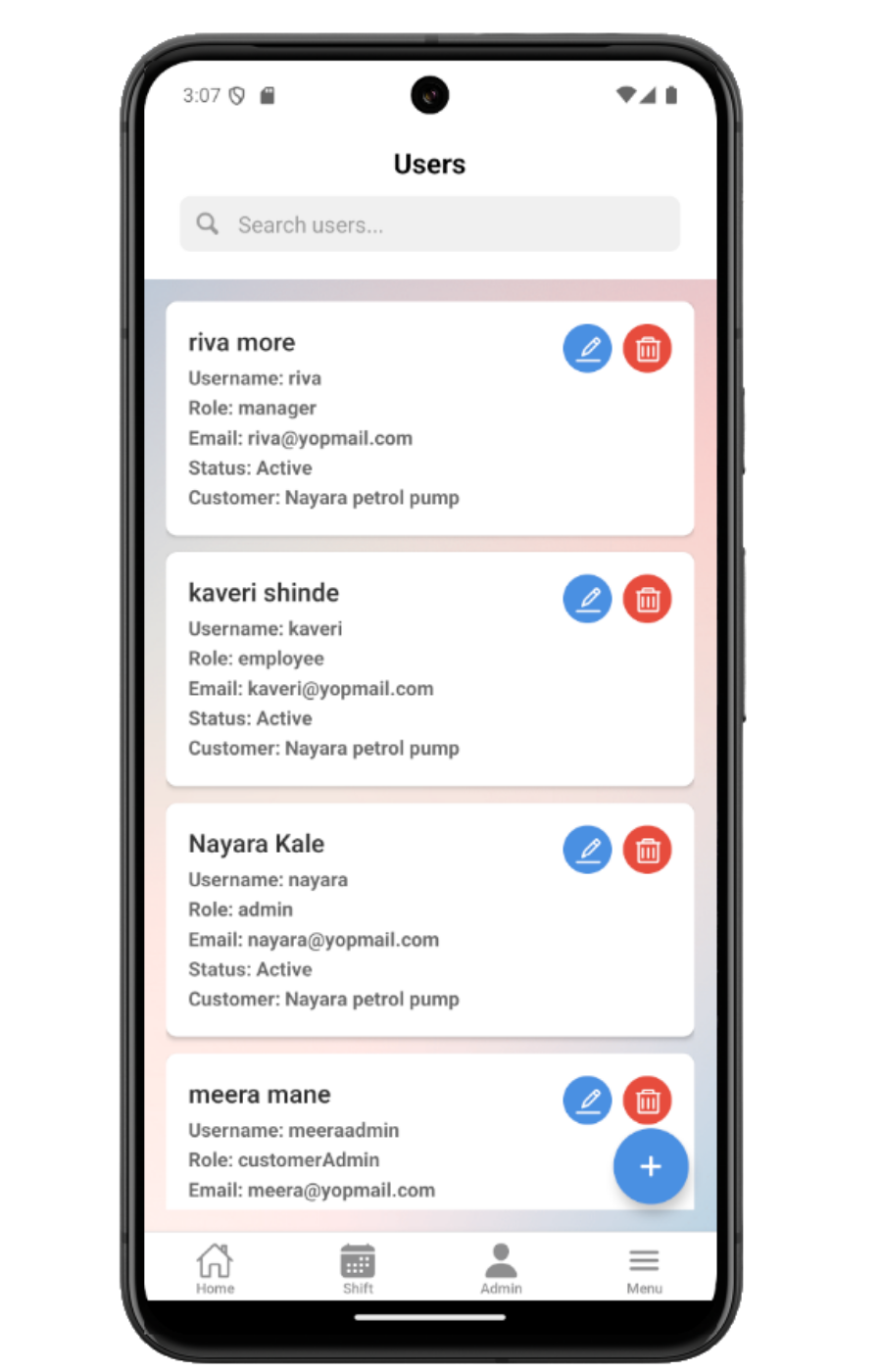
Use the Users list to search by name, username, or email and review role, status, and contact details.
- 2
Create or edit users
Enter role, username, name, phone, email, emergency contact, password on create, status, verification flags where permitted, and required documents.
- 3
Use admin user actions
Update status, reset password, and review accepted agreements only after confirming the selected user.
- 4
Review roles
Use the Roles list to search role name or type, review permission counts, and open editable roles.
- 5
Create or edit permissions
Configure role name, type, permission groups, required base data permissions, shift policy, dashboard variant, and role scope.
Important fields
User status
Controls whether a user should remain active for mobile access.
Verification flags
Admin-controlled indicators for email, phone, PAN, or Aadhar verification when the role allows it.
Documents
PAN, Aadhar, school leaving certificate, and profile image uploads used for user verification.
Permission groups
Grouped permissions that control visible menus and available actions.
Protected roles
Default or system roles that may be locked from deletion.
Common mistakes
- Assigning a broad role when a custom role would be safer.
- Resetting the wrong user's password.
- Expecting a menu to appear without assigning the required permission.
- Trying to delete a protected system or default role.
- Saving a user before required documents or contact details are ready.
Troubleshooting
A user cannot see a module.
Check the user's active status, role type, permission groups, and menu permission.
A role cannot be deleted.
Confirm whether it is a protected system or default role. Create a custom role instead.
Password reset fails.
Confirm the selected user is correct, the admin has permission, and the new password meets the required rules.
Related documentation
Web dashboard docs
Mobile app equivalents
- Mobile Role-based Access
- Mobile Settings
- Mobile Troubleshooting
Screenshot note
- Uses mobileApp13 from the existing static mobile screenshot set.
Review and search users
The Users list supports pagination and search by name, username, or email. User cards show role, email, status, and actions based on permission.
Create or edit user details
The user form captures role, username, name, phone, email, emergency contact, password on create, status, verification flags when permitted, and document uploads such as PAN, Aadhar, school leaving certificate, and profile image.
Use status, reset password, and agreements actions
Admins can update user status, reset a user's password, and open accepted agreements when those actions are available for the selected user.
Create and edit roles
Roles include a role name, type, permission groups, required base permissions, and policy fields such as shift history hours, approval requirement, dashboard variant, and role scope.
Respect protected roles
Default or system roles may be locked from deletion. Create custom roles when the pump needs a different permission set instead of changing protected roles.
Users and roles checklist
How Petrodweep supports mobile access control
- Petrodweep uses roles and permission groups to decide which mobile menus and actions each user can access.
- User documents, verification flags, status, and password actions are kept in the same user workflow for admin review.
- Protected roles are documented so admins understand when to create custom roles instead of deleting defaults.
Frequently asked questions
Why can a user not see a mobile menu?
The user's role may not include the permission needed for that menu or action.
Can I delete every role?
No. System or default roles can be protected. Create a custom role for a new access pattern.
Why are documents listed in the user guide?
Documents are part of user setup and verification, so they belong in the user workflow documentation.