
How to use this documentation
Use this page as an end-user workflow guide. It explains who should use the page, what setup is needed, what steps to follow, what fields matter, and what to check when something looks wrong.
Who should use it
Before you start
- Your user is active and has the required settings permissions.
- The pump owner or admin has confirmed the setup values before live use.
- Fuel names, tanks, nozzles, shift timings, card machines, and tankers should match the real pump setup.
Step-by-step workflow
- 1
Open the required settings screen
Use the Settings or Admin menu to open card machines, fuel types, tanks, nozzles, shift timings, or tankers.
- 2
Maintain card machines
Add, edit, search, or delete card machine names used for payment and settlement workflows.
- 3
Maintain fuel types
Create or edit fuel records with fuel code, family, variant, unit, currency, level, commission where applicable, price, tax, and active status.
- 4
Maintain tanks and nozzles
Create tanks with capacity and fuel type before linking nozzles to the correct tank.
- 5
Maintain shift timings and tankers
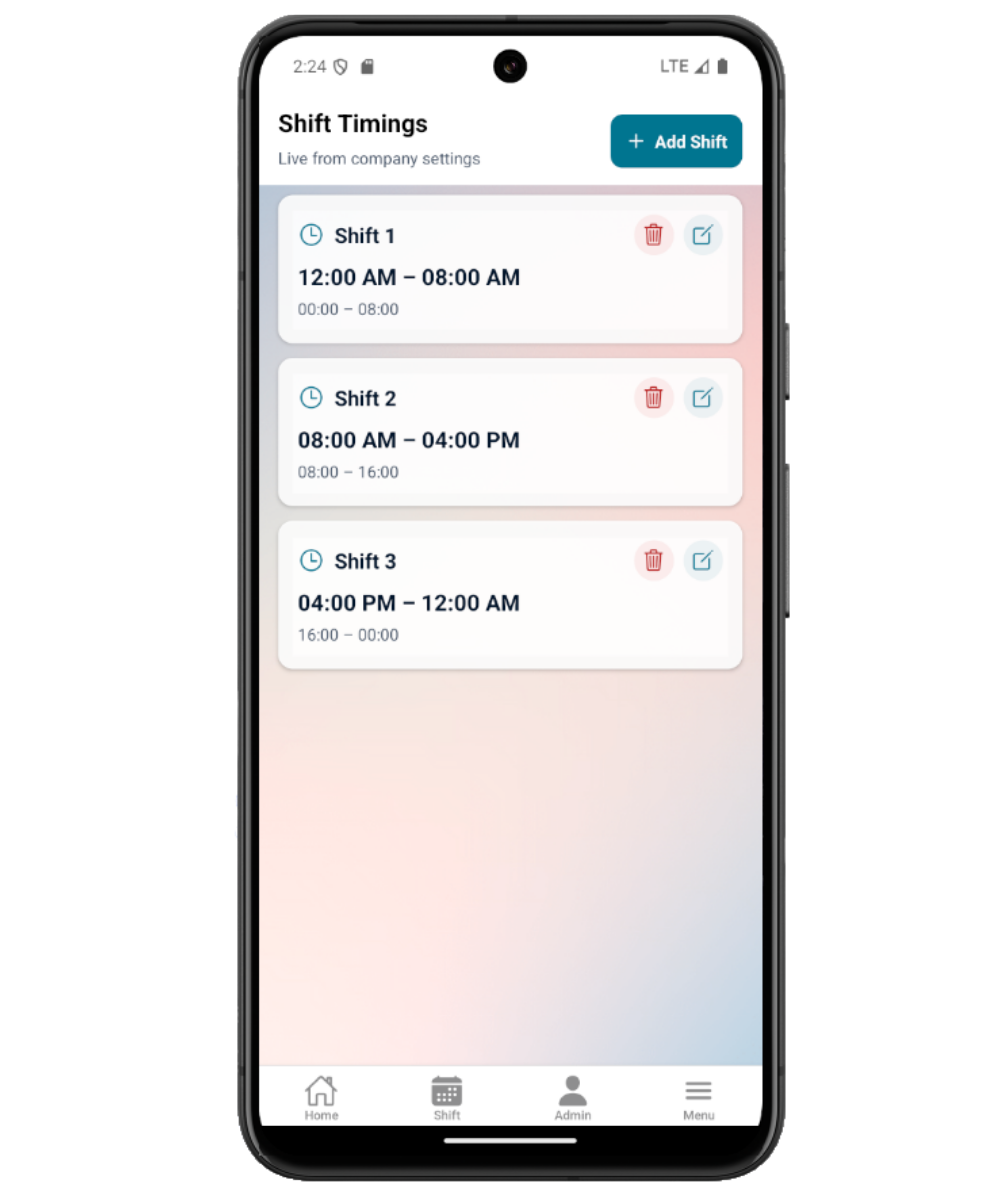
Save real shift timings for daily operations, and keep tanker name, number, capacity, and status ready for receipt workflows.
Important fields
Card machine
Payment device name used during card settlement work.
Fuel type
Fuel master record used by sales, tank, nozzle, purchase, and density workflows.
Tank
Storage tank setup with tank name, capacity, and linked fuel type.
Nozzle
Nozzle setup linked to a tank.
Shift timing
Company shift window used by daily pump operations and review.
Tanker
Tanker setup used for fuel purchase and tanker unloading density.
Common mistakes
- Creating nozzles before the correct tank exists.
- Leaving fuel type tax, price, or active status incorrect.
- Relying on default shifts instead of saving the pump's actual shift timings.
- Forgetting tanker setup before tanker unloading density is used.
- Treating hidden settings pages as missing features instead of checking permissions.
Troubleshooting
A settings page is missing.
Check the user's role permissions for that settings module.
A nozzle cannot be linked correctly.
Create or correct the tank first, then edit the nozzle and select the tank.
Shift timing looks wrong during daily work.
Open Shift Timing and confirm saved start and end times match the pump's real operating shifts.
Related documentation
Mobile app equivalents
- Mobile Users and Roles
- Mobile Fuel Purchase
- Mobile Density Check
Screenshot note
- Uses mobileApp11 from the existing static mobile screenshot set.
Set up card machines
Card Machines supports search, add, edit, and delete for machine names used during payment and settlement work.
Set up fuel types and default fuels
Fuel Types lets admins create and edit fuel records with fuel code, family, variant, unit, currency, current level, tax, pricing, and active status. Default fuel setup can add standard fuels when the pump is being configured.
Set up tanks and nozzles
Tanks store tank name, capacity, and fuel type. Nozzles connect nozzle names to the selected tank, which affects shift, stock, and sales workflows.
Set up shift timings
Shift Timing stores shift name, start time, and end time. The app can show default shifts if no company shifts are configured, but real operating shifts should be saved before live use.
Set up tankers
Tankers store tanker name, tanker number, capacity, and status. This setup supports fuel purchase and tanker unloading density workflows.
Mobile settings checklist
How Petrodweep supports mobile setup
- Petrodweep treats settings as master data because small setup errors affect shift, density, stock, and reporting workflows.
- The mobile app keeps frequently needed setup screens available to admins without requiring the desktop portal for every correction.
- This guide groups settings together because end users need to understand how these records depend on each other.
Frequently asked questions
Why can I not see a settings page?
Your role may not have the required permission for that master setup screen.
Should nozzles be created before tanks?
No. Create tanks first, then link nozzles to the correct tank.
Why should tanker setup be completed before fuel purchase density work?
Tanker unloading density needs the correct tanker record so the receipt check can be traced.