
How to use this documentation
Use this page as an end-user workflow guide. It explains who should use the page, what setup is needed, what steps to follow, what fields matter, and what to check when something looks wrong.
Who should use it
Before you start
- Your mobile user is active and can access Fuel Purchase.
- Fuel types, tanks, and tankers are already configured where your process requires them.
- You have the purchase invoice and receipt readings available before starting.
- Your role can create, edit, or delete fuel purchase records as needed.
Step-by-step workflow
- 1
Open Fuel Purchase
Review the purchase list and use refresh if recent purchase entries are not visible.
- 2
Create or edit the purchase record
Enter invoice date, tanker kilometer readings where used, and the main purchase details. Edit mode loads the existing purchase before corrections.
- 3
Add purchase item rows
Add rows for fuel or item code, rate, volume, taxes, cess, TCS, SSLF, total price, and description.
- 4
Add dip and density rows
Capture dip rows and inline density rows so receipt measurements can be reviewed with the purchase.
- 5
Save before tanker unloading density
Save the purchase first, then open tanker unloading density so the density check can link back to the purchase.
Important fields
Invoice date
The purchase date shown on the list and used for operational review.
Purchase item rows
Line-level fuel or product details such as code, rate, volume, tax, cess, TCS, SSLF, and price.
Dip rows
Measurement rows used to compare received stock and tank readings.
Inline density rows
Density check references displayed from the purchase form so receipt and quality review stay connected.
Tanker unloading density
A linked density check opened from a saved fuel purchase.
Common mistakes
- Opening tanker unloading density before saving the purchase.
- Entering one combined item row when the invoice has multiple fuel or pricing lines.
- Skipping dip or density details when the pump process requires receipt verification.
- Deleting a purchase before confirming it is the wrong record.
Troubleshooting
Tanker unloading density will not open.
Save the fuel purchase first, then open the tanker unloading density action again.
Saved purchase is not visible on the list.
Return to Fuel Purchase and use pull-to-refresh or reopen the module.
A purchase row looks incorrect after save.
Open the purchase in edit mode, correct the item, dip, or density row, and save again.
Related documentation
Web dashboard docs
Mobile app equivalents
- Mobile Density Check
- Mobile Settings
- Mobile Troubleshooting
Screenshot note
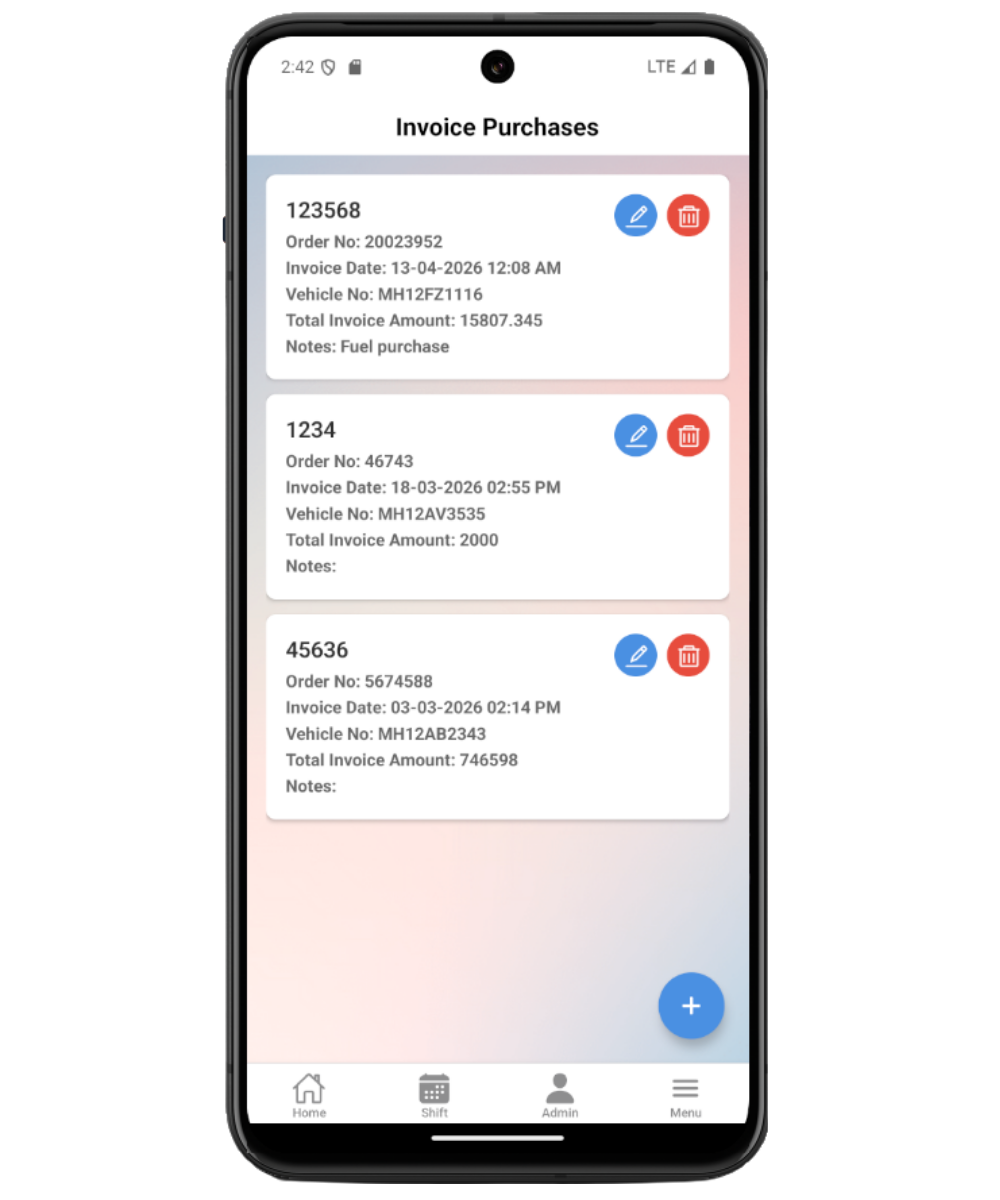
- Uses mobileApp5 from the existing static mobile screenshot set.
Review fuel purchase records
The Fuel Purchase list shows saved purchase invoices with invoice date, fuel details, and actions for edit or delete. Use pull-to-refresh after another user has updated purchases or after returning from a saved form.
Create or edit a purchase
Open Add or Edit to enter the invoice date, tanker kilometer readings, purchase item rows, dip rows, and density rows. Edit mode loads the saved purchase before allowing corrections.
Add purchase item rows
Each purchase item captures the fuel or item code, rate, volume, taxes, cess, TCS, SSLF, total price, and description. Add a separate row when the invoice contains more than one product or pricing line.
Record dip and density rows
Dip rows support tank measurement review, while inline density rows keep density observations visible from the purchase record. These rows help reconcile what was invoiced, received, and checked.
Open tanker unloading density
Save the fuel purchase before opening tanker unloading density from the purchase form. The app links the density check to the fuel purchase so users can return to the purchase with the related density row visible.
Fuel purchase checklist
How Petrodweep supports mobile fuel purchase work
- Petrodweep keeps purchase items, dip readings, and density context inside one mobile workflow so operators do not need separate paper registers.
- The app links tanker unloading density back to the purchase so fuel receipt and quality checks can be reviewed together.
- This documentation keeps fuel purchase as one practical page because row-level actions are only useful inside the full purchase workflow.
Frequently asked questions
Why should the purchase be saved before tanker unloading density?
The density check needs a saved fuel purchase identifier so the app can link the quality check back to the correct purchase.
Can I edit a fuel purchase after saving?
Yes, if your role has access. Open the saved purchase, make corrections, and save the updated record.
Should item rows, dip rows, and density rows have separate documentation pages?
No. They are parts of the same fuel purchase workflow, so they are explained together for end users.