
How to use this documentation
Use this page as an end-user workflow guide. It explains who should use the page, what setup is needed, what steps to follow, what fields matter, and what to check when something looks wrong.
Who should use it
Before you start
- Your role can access product and inventory modules.
- Fuel and master setup are complete where stock workflows depend on them.
- Barcode scanning or sharing permissions are available on the device when barcode work is required.
- Cylinder customers should be created before issue or return transactions.
Step-by-step workflow
- 1
Manage products
Search products, then create, edit, view, or delete product records with name, price, stock, unit, and barcode details.
- 2
Use product detail for barcode units
Open Product Detail to review product-unit records, generate barcode units, filter by batch or status, export barcode sheets, and remove incorrect unit barcodes.
- 3
Record incoming inventory
Add incoming inventory with product, purchase price, quantity, invoice number, date of arrival, remarks, and optional barcode generation.
- 4
Capture supplier details carefully
Use the mobile supplier screen only as a light supplier entry area where available. Operational stock records should still be handled through inventory and purchase workflows.
- 5
Manage cylinder work
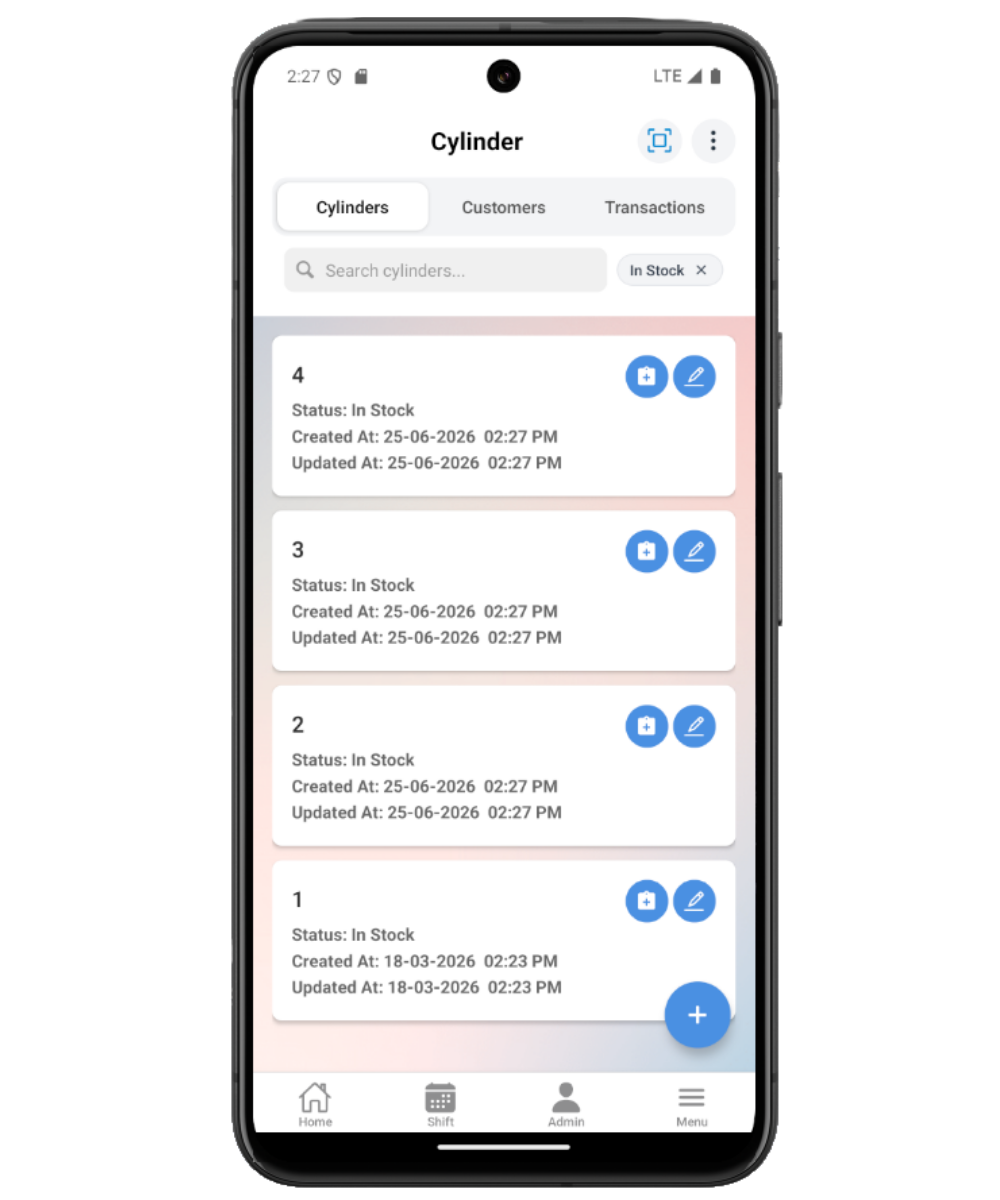
Use Cylinder tabs for cylinder stock, cylinder customers, and cylinder transactions such as issue, return, maintenance, or loss.
Important fields
Product barcode
A code linked to the product. Product detail can generate unit-level barcodes for individual stock items.
Product unit status
Status values such as in stock, sold, damaged, or returned help filter tracked units.
Generate barcodes
Creates traceable barcode units for stock quantity when the pump tracks individual items.
Incoming inventory
Stock arrival record with purchase and invoice details.
Cylinder transaction
A record for cylinder issue, return, maintenance, or loss tied to cylinder and customer details.
Common mistakes
- Creating duplicate products without searching first.
- Generating more barcodes than the stock quantity supports.
- Using supplier entry as a replacement for incoming inventory.
- Recording a cylinder transaction before selecting the correct cylinder or customer.
- Forgetting to export or share barcode sheets before printing is needed.
Troubleshooting
Barcode scanning does not fill the product or cylinder field.
Check camera permission, scan a supported code, and confirm the scanned value belongs to the expected product or cylinder format.
Generated product barcodes are not visible.
Open Product Detail, check status and batch filters, and refresh the list.
Cylinder transaction cannot be saved.
Confirm cylinder, customer, transaction type, issue type when required, and remarks are entered correctly.
Related documentation
Web dashboard docs
Mobile app equivalents
- Mobile Settings
- Mobile Fuel Purchase
- Mobile Troubleshooting
Screenshot note
- Uses mobileApp10 from the existing static mobile screenshot set.
Manage products
The Products list supports search, view, edit, and delete. Create or edit products with name, price, stock, unit, and barcode. Barcode scanning can link a code to the product when supported by the device.
Track product units and barcodes
Product Detail shows product information and product-unit records by status. Users can generate barcode units, filter by batch or status, export barcode sheets, and delete incorrect barcode units when allowed.
Record incoming inventory
Incoming Inventory records product, purchase price, quantity, invoice number, date of arrival, remarks, and optional barcode generation. Use it when new stock arrives and should increase traceability.
Use suppliers carefully
The mobile supplier screen is a light entry area. Use it for simple supplier capture where available, and rely on the main stock and purchase workflows for operational inventory records.
Manage cylinder stock
Cylinder includes tabs for cylinders, customers, and transactions. Users can add cylinder ranges, scan or search cylinder barcodes, create customers, and record issue, return, maintenance, or loss transactions.
Products and inventory checklist
How Petrodweep supports mobile stock work
- Petrodweep keeps product setup, incoming inventory, barcode unit tracking, and cylinder transactions connected around real stock movement.
- The product detail page handles barcode generation and export so barcode work stays close to the product being tracked.
- The supplier screen is documented conservatively because the mobile app currently treats it as a lighter entry area than products, inventory, and cylinder.
Frequently asked questions
When should I generate product barcodes?
Generate barcodes when individual product units need to be tracked, exported, scanned, or reconciled later.
What is the difference between product stock and incoming inventory?
Product stock is the current product setup value, while incoming inventory records a stock arrival with purchase details and optional barcode generation.
Why are cylinder customers and transactions in the same guide?
Cylinder issue and return work depends on cylinder stock and customer selection, so users need the full workflow in one place.