
How to use this documentation
Use this page as an end-user workflow guide. It explains who should use the page, what setup is needed, what steps to follow, what fields matter, and what to check when something looks wrong.
Who should use it
Before you start
- The user has permission to view or manage rental manager records.
- Rental party, item or service, amount, date, and recurrence details are known.
- The user understands whether the record is new, recurring, or a correction to an existing rental.
Step-by-step workflow
- 1
Open Rental Manager
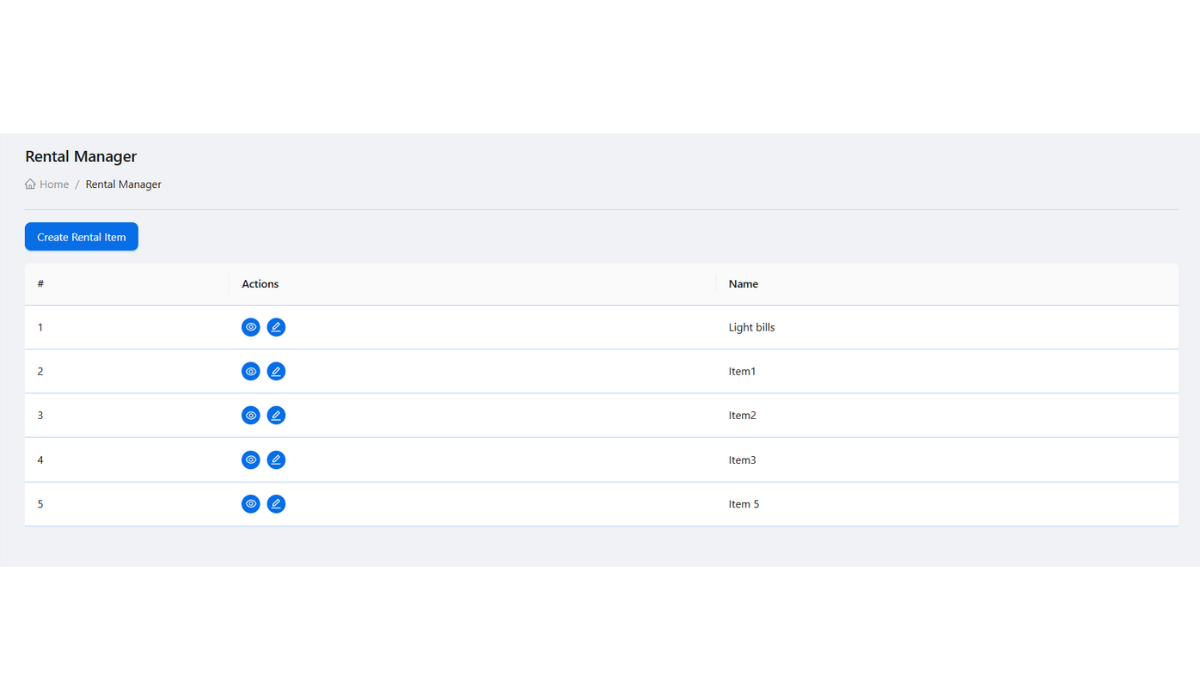
Use the rental manager list to find existing rental records before creating a new one.
- 2
Create the rental record
Enter party or customer context, rental item or service, amount, dates, recurrence where applicable, and remarks.
- 3
Review recurrence before saving
Check recurring rental settings carefully because they affect repeated expectations and follow-up.
- 4
Open the detail page
Use rental detail to verify saved values and review transaction history before answering owner questions.
- 5
Edit only when required
Use edit for corrections or authorized updates, and keep transaction history understandable for review.
Important fields
Rental record
The main record that stores party, rental item, amount, dates, recurrence, and remarks.
Recurrence
A repeat setting inside Rental Manager, documented as part of the rental workflow.
Detail view
The review page for saved rental information and transaction context.
Transactions
The payment or follow-up history connected to a rental record.
Common mistakes
- Creating a duplicate rental record instead of checking the list first.
- Saving recurrence without reviewing dates and amount.
- Editing a rental record without checking the detail and transaction history.
- Treating rental recurrence as a separate workflow from the rental record.
Troubleshooting
A rental record is missing.
Check the rental list filters, role permissions, and whether the record was saved under the expected party or status.
A recurring rental looks wrong.
Review recurrence settings, date range, amount, and transaction history on the detail page.
A user cannot open rental manager.
Check role permissions and whether Rental Manager is enabled for the user.
Related documentation
Web dashboard docs
Mobile app equivalents
- Mobile rental review when available
- Mobile role-based menu visibility
Screenshot note
- Uses an existing operational report image until a dedicated rental manager screenshot is added to static assets.
Use the rental list as the starting point
The rental manager list helps users find rental records, check status, and decide whether to create, edit, or open a detail view.
Create rental records with enough context
Rental records should include item or service context, party or customer details, amount, dates, recurrence where applicable, and remarks that explain the business purpose.
Review recurrence inside the rental workflow
Recurring rental behavior should be checked before saving because it can create repeated expectations or transactions. It does not need its own standalone documentation page.
Use detail and transactions for follow-up
The rental detail view should be used to review saved values and transaction history before making corrections or answering owner questions.
Rental manager checklist
How Petrodweep supports rental records
- Petrodweep groups rental item, recurrence, detail, and transaction guidance in one Rental Manager documentation page.
- The workflow keeps recurring rental behavior connected to the record that owns it.
- Detail and transaction review helps owners understand rental history without opening support chats for basic navigation.
Frequently asked questions
Should rental recurrence be a separate documentation page?
No. It is more useful as a section inside the Rental Manager workflow.
When should a rental record be edited?
Edit when details need correction or an active rental record needs an authorized update.
Why use the detail page?
The detail page helps users verify saved rental information and transaction history before taking follow-up action.