
How to use this documentation
Use this page as an end-user workflow guide. It explains who should use the page, what setup is needed, what steps to follow, what fields matter, and what to check when something looks wrong.
Who should use it
Before you start
- Shift timings, users, nozzles, tanks, fuel types, and card machines are configured.
- The employee exists as a user or staff record in Petrodweep.
- The user performing approval has permission for shift check-in actions.
Step-by-step workflow
- 1
Select date and shift
Choose the operating date and shift before adding employee rows. Do not reuse the wrong date when entering delayed shifts.
- 2
Add the employee
Select the employee who is responsible for that shift work and confirm the row belongs to the correct shift.
- 3
Assign nozzles and card machines
Assign the nozzles and card machines handled by the employee so later readings and settlement are accountable.
- 4
Check opening readings and fuel rates
Confirm opening readings and rates before approving. Wrong opening values can affect the full shift review.
- 5
Approve after verification
Approve the check-in row only after employee, nozzle, card machine, opening reading, and shift details are correct.
Important fields
Date and shift
These two fields decide where the employee entry appears in current shift and daily operations review.
Nozzle assignment
Nozzle assignment links employee responsibility to sales readings and settlement review.
Card machine assignment
Card machine assignment helps compare card sale totals during shift settlement.
Approval
Approval should be treated as a control step, not a routine click before checking the row.
Common mistakes
- Entering a shift under the wrong date.
- Assigning a nozzle to the wrong employee.
- Approving before checking opening readings.
- Leaving card machines unassigned when card sales are expected.
Troubleshooting
An employee is not available in the selector.
Check whether the employee user exists, is active, and has the correct role or pump access.
A nozzle is missing from assignment.
Review nozzle and tank setup, then confirm the nozzle is active for the pump.
Shift totals look wrong later.
Recheck the original check-in row for date, shift, nozzle assignment, card machine assignment, and opening readings.
Related documentation
Web dashboard docs
Mobile app equivalents
- Mobile shift check-in
- Mobile current shift review
Screenshot note
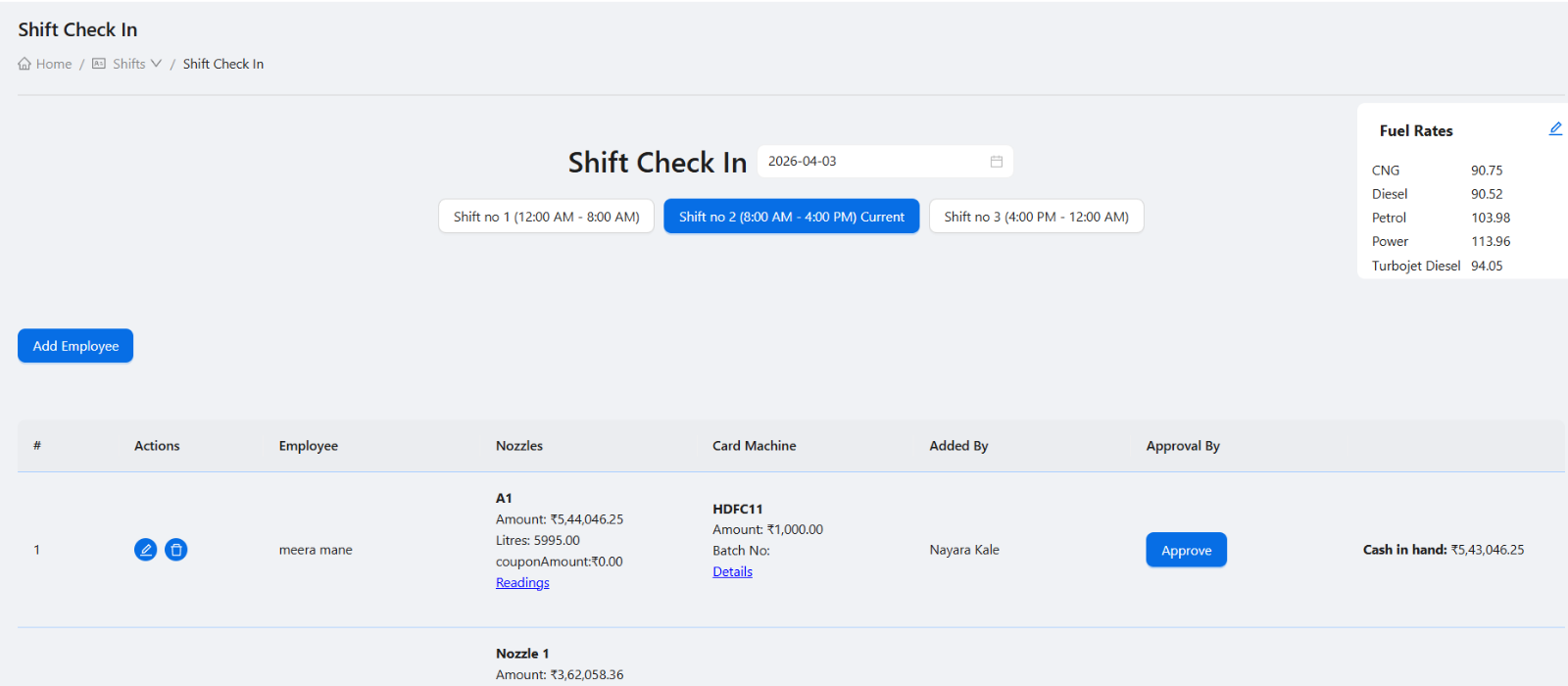
- Uses the existing shift check-in screenshot from the static image library.
Select the correct date and shift
Managers should begin by selecting the shift date and shift number. The selected date and shift decide which employees, readings, fuel rates, and settlement details will be reviewed later.
Add employees to the shift
Each employee added to the shift should be linked to the operational responsibility they actually handled. The check-in record becomes the base for nozzle assignment, card machine assignment, approval, and later review.
- Choose the employee for the selected shift.
- Assign the nozzles handled by that employee.
- Assign card machines where card sales are handled.
- Confirm opening readings before sales begin.
Approve check-in rows
Approval gives managers a control point before shift data is treated as final. Managers should approve only after confirming that the employee, nozzles, readings, and card machine details are correct.
Keep check-in aligned with shift close
The quality of shift close depends on check-in accuracy. Wrong nozzle assignment, missing card machines, or incorrect opening readings can create settlement issues at the end of the shift.
Shift check-in checklist
How Petrodweep handles shift check-in
- Petrodweep connects employee check-in with nozzle assignment, card machine assignment, approvals, and current shift review.
- Check-in data feeds downstream shift readings, cash review, card sales, coupons, expenses, and reports.
- Permission-based access lets managers control who can manage or approve shift entries.
Frequently asked questions
Why assign nozzles during check-in?
Nozzle assignment connects employee responsibility to opening and closing readings, litres sold, and shift settlement.
Who should approve a shift check-in?
A manager or authorized user should approve check-in after confirming employee, nozzle, reading, and card machine details.
Can an employee check in only for themselves?
Yes, restricted check-in flows can allow employees to check in for themselves while managers retain broader shift management permissions.