
How to use this documentation
Use this page as an end-user workflow guide. It explains who should use the page, what setup is needed, what steps to follow, what fields matter, and what to check when something looks wrong.
Who should use it
Before you start
- The user is active and has shift check-in access.
- Shift timings, nozzles, card machines, fuel types, and users are configured.
- The correct shift date and shift number are known before entry.
Step-by-step workflow
- 1
Select date and shift
Open Shift Check In, confirm the date, and select the correct shift before opening the check-in detail screen.
- 2
Add or edit an employee
Add the employee check-in or edit an existing record when the user has permission and the shift is not locked.
- 3
Add nozzle readings
Select the nozzle and enter opening reading, closing reading, and testing litres. Opening can use previous closing reading where available.
- 4
Add card machine details
Select the card machine and enter amount and batch number for card sales captured during the shift.
- 5
Approve, checkout, and close
Approve check-ins where required, check out employees after review, and close the shift only when entries are final.
Important fields
Shift date
The operating date used for all check-in, nozzle, card machine, and close actions.
Nozzle reading
Opening, closing, and testing litre values used to calculate fuel sale output.
Card machine
Card sales entry with amount and batch number for a selected machine.
Close Shift
Locks the shift after review. Reopen is available only to users with higher permission.
Common mistakes
- Selecting the wrong date before adding an employee.
- Skipping testing litres or entering non-numeric readings.
- Adding duplicate employee check-ins for the same shift.
- Closing a shift before checking nozzles, card machines, approvals, and checkout status.
Troubleshooting
Check In button is not visible.
Check shift permissions, active user status, whether the user is already checked in, and whether the shift is locked.
Nozzles or card machines are not available.
Confirm setup is complete and the item is not already assigned to another employee entry.
The shift cannot be reopened.
Only users with admin-level check-in permission can reopen a closed shift.
Related documentation
Web dashboard docs
Mobile app equivalents
- Mobile Current Shift
- Mobile Daily Sales Report
- Mobile Attendance
Screenshot note
- Uses mobileApp4 from the existing static mobile screenshot set.
Select shift date and shift number
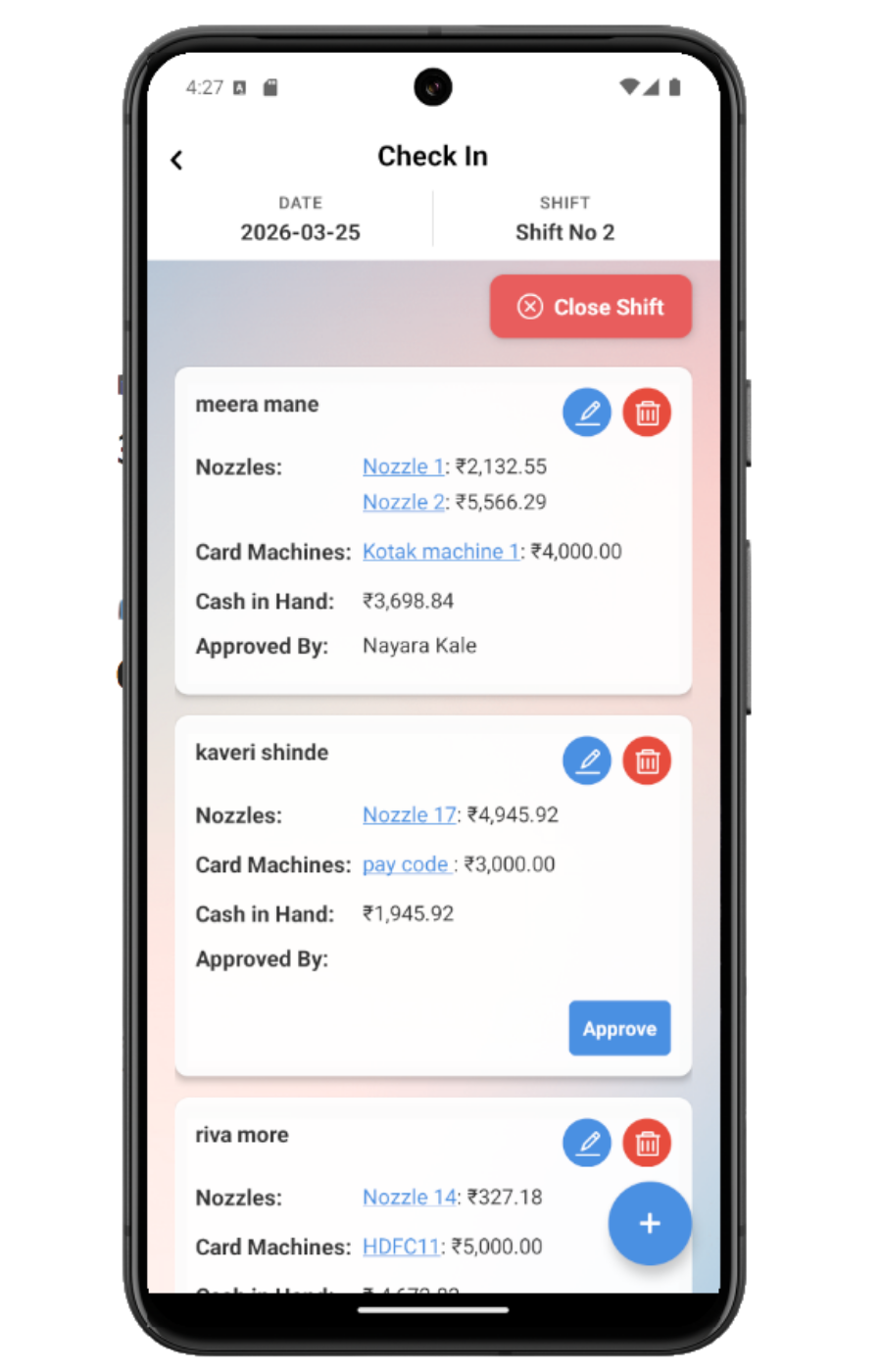
The Shift Check In screen starts with date selection and shift cards. The app can highlight the current active shift, but users should confirm the date and shift before adding entries.
Add or edit the employee check-in
Employees can check in for themselves where allowed. Managers or admins can add other employees when their permissions allow it. Existing check-ins can be edited until the shift is locked or permission rules prevent changes.
Assign nozzles and card machines
Nozzle entries include selected nozzle, opening reading, closing reading, and testing litres. Card machine entries include machine, amount, and batch number. These values feed shift totals and reports.
Approve and check out employees
Authorized users can approve check-in records. Employees can check out after approval, and checkout warns that the shift data will no longer be available to that user for further changes.
Close or reopen the shift
Close Shift locks the shift after review. If a correction is needed, users with admin-level permission can reopen the shift, make authorized changes, and close it again.
Shift check-in checklist
How Petrodweep supports mobile shift check-in
- Petrodweep keeps employee, nozzle, card machine, approval, checkout, close, and reopen actions in one mobile shift workflow.
- Nozzle reading and card machine modals are documented as parts of shift check-in instead of separate pages.
- Shift close and reopen are explained as correction controls, not standalone documentation topics.
Frequently asked questions
Why can I not edit a shift check-in?
The shift may be closed, the check-in may need approval, or your role may not have permission to edit that entry.
Should close shift be a separate page?
No. It belongs inside the shift check-in workflow because users close the shift after reviewing the same entries.
Why is opening reading filled automatically for a nozzle?
The app can use the previous closing reading as the next opening reading when available.