
How to use this documentation
Use this page as an end-user workflow guide. It explains who should use the page, what setup is needed, what steps to follow, what fields matter, and what to check when something looks wrong.
Who should use it
Before you start
- Fuel types, tanks, nozzles, and tankers are configured.
- The purchase invoice and receipt readings are available.
- Density readings and report files are ready where required.
- Users have fuel purchase, density, inventory, and report permissions as needed.
Step-by-step workflow
- 1
Prepare setup before receipt
Use web for master setup and review. Mobile settings can be used for permitted admin corrections near the operation.
- 2
Record fuel purchase
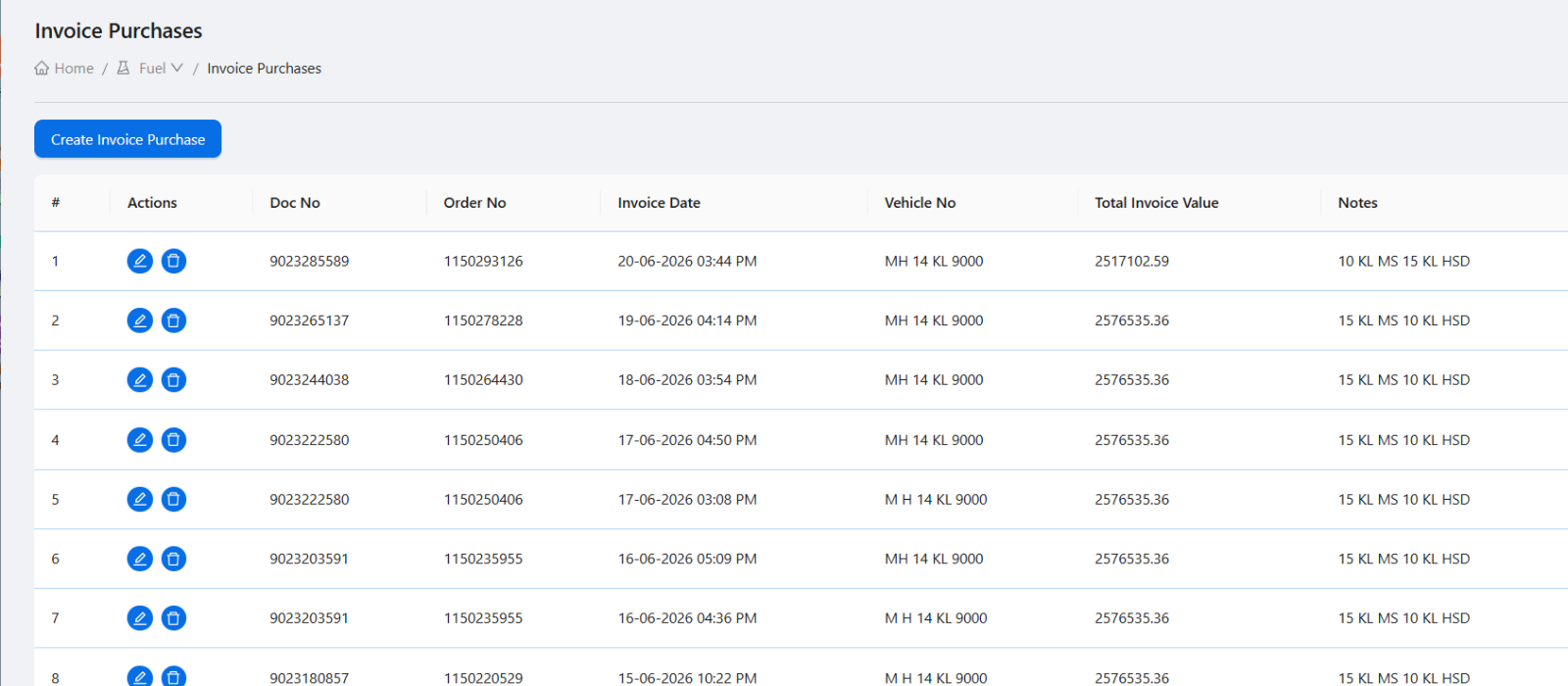
Enter the purchase invoice, item rows, tanker kilometer readings, dip rows, and inline density rows from mobile or web.
- 3
Capture tanker unloading density
Save the purchase first, then record linked tanker unloading density with sections, compartments, final reading, variation, checked-by details, remarks, and report uploads.
- 4
Review stock impact
Use web inventory and reports to review purchase history, stock movement, density history, and reconciliation gaps.
- 5
Escalate exceptions
Create tasks for missing reports, unusual variation, stock mismatch, or incomplete receipt records.
Important fields
Best on mobile
Receipt readings, tanker density, compartment details, remarks, and file uploads.
Best on web
Master setup, fuel purchase review, density review, stock reconciliation, and reports.
Downstream records
Fuel purchase, item rows, dip rows, density checks, stock records, reports, and tasks.
Owner review
Purchase totals, density variation, missing reports, stock movement, and receipt exceptions.
Common mistakes
- Opening tanker unloading density before saving the purchase.
- Skipping tanker or tank setup before receipt work.
- Not uploading density reports when the process requires evidence.
- Reviewing stock without checking density and purchase context.
Troubleshooting
Tanker density is not linked to the purchase.
Open tanker unloading density from the saved fuel purchase instead of creating an unrelated density check.
Stock review does not match receipt expectation.
Check purchase item rows, dip rows, density checks, stock filters, and whether the receipt has been saved correctly.
Density report upload fails.
Check network, file selection, supported file type, and whether the report is attached before saving.
Related documentation
Web dashboard docs
Mobile app equivalents
- Mobile Fuel Purchase
- Mobile Density Check
- Mobile Products and Inventory
Screenshot note
- Uses fuelPurchase from the existing static image set.
Prepare fuel and tanker setup
Before receipt work starts, confirm fuel types, tanks, nozzles, and tankers are configured. Web is usually best for first-time setup; mobile can handle admin corrections when permitted.
Record purchase and receipt readings
Use mobile near the tanker to enter purchase items, tanker kilometer readings, dip rows, inline density rows, and receipt observations. Use web when office users need a broader purchase review.
Capture tanker unloading density
Save the purchase before opening linked tanker unloading density. Record tanker sections, compartments, final density, variation, checked-by details, remarks, and report uploads.
Review stock and inventory impact
Use web reports and inventory views to check stock movement, fuel purchase history, density history, and any reconciliation gaps after receipt.
Owner checks fuel exceptions
Owners should review density variation, missing reports, purchase totals, stock changes, and unresolved receipt issues after every tanker receipt.
Fuel receipt workflow checklist
How Petrodweep connects fuel receipt and stock
- Petrodweep links fuel purchase, density, tanker setup, stock review, and reports so receipt work does not remain isolated.
- Mobile supports readings and uploads at the receipt location; web supports reporting, reconciliation, and owner review.
- This workflow is grouped because purchase rows, density rows, and stock review only make sense as a connected receipt process.
Frequently asked questions
Why should tanker density be opened from fuel purchase?
Opening it from the saved purchase links the quality check to the correct receipt record.
Which reports should owners check?
Owners should check fuel purchase, density, inventory or stock, daily operations, and exception reports related to receipt work.
Should stock review happen only on mobile?
No. Mobile is useful during receipt, but web is better for stock review, reporting, and reconciliation.