
How to use this documentation
Use this page as an end-user workflow guide. It explains who should use the page, what setup is needed, what steps to follow, what fields matter, and what to check when something looks wrong.
Who should use it
Before you start
- Daily shift and sales data has been entered.
- Invoices, payments, bills, vouchers, stock, and density entries are current for the review period.
- The owner has report and dashboard permissions.
- Tasks are available for assigning follow-up work.
Step-by-step workflow
- 1
Start with quick mobile status
Use mobile dashboard, reports overview, current shift, invoices, and task manager for a quick check when away from the desk.
- 2
Open web for detailed review
Use the web dashboard for daily operations, DSR, shift readings, invoice detail, reports, stock, density, customer outstanding, and task review.
- 3
Review money movement
Check cash, card, UPI, coupons, invoices, payments, bills, vouchers, and outstanding balances.
- 4
Review fuel, stock, and density
Check purchase activity, density variation, inventory movement, product units, and stock-related exceptions.
- 5
Assign follow-up
Create or update tasks for unresolved payments, missing data, stock issues, customer follow-up, or staff action items.
Important fields
Best on mobile
Quick status, current shift glance, invoice check, and task update.
Best on web
Detailed reports, reconciliation, invoice review, stock review, and audit.
Downstream records
Daily operations, DSR, invoices, payments, stock, density, reports, and tasks.
Owner review
Exceptions, unresolved balances, missing entries, unusual stock movement, and overdue tasks.
Common mistakes
- Making owner decisions from summary cards without checking detailed reports.
- Reviewing financial numbers before all shift entries are complete.
- Ignoring stock and density exceptions during daily review.
- Leaving follow-up work informal instead of creating tasks.
Troubleshooting
Dashboard numbers look different from report numbers.
Check date filters, shift completion, missing entries, invoice status, and report period.
Outstanding balance looks wrong.
Review invoices, payments, undone invoices, customer filters, and pending coupon or billing records.
Owner review cannot be completed.
Create tasks for missing data or unresolved exceptions, then return after staff corrections.
Related documentation
Web dashboard docs
Mobile app equivalents
- Mobile Dashboard Home
- Mobile Reports
- Mobile Task Manager
Screenshot note
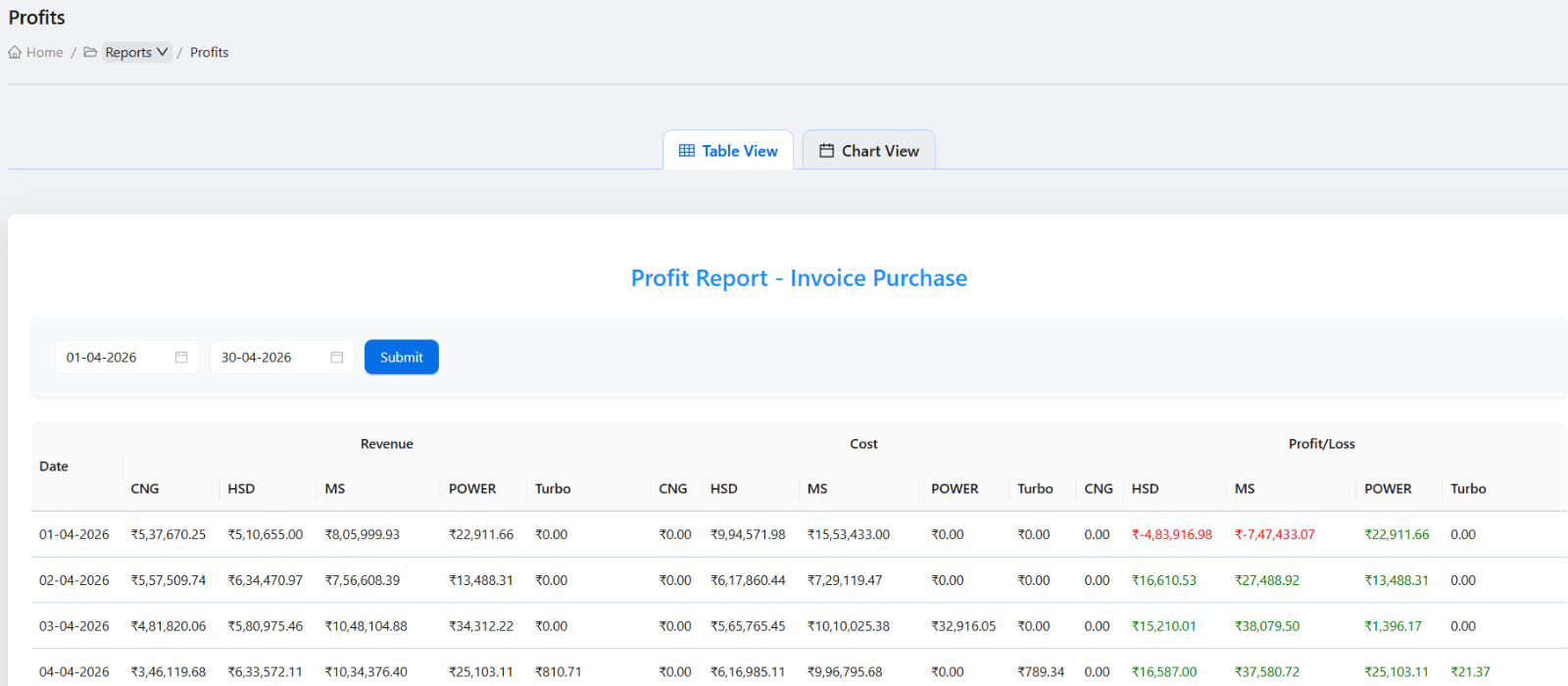
- Uses reports from the existing static image set.
Start with quick mobile checks
Use the mobile dashboard, reports overview, current shift, invoices, and task manager for quick status when the owner is away from the desk.
Use web for detailed review
Open the web dashboard for detailed daily operations, DSR, shift readings, invoice detail, reports, stock, density, customer outstanding, and task review.
Check money movement
Review cash, card, UPI, coupon, invoice, payment, bill, voucher, and outstanding balances before considering the day closed.
Check stock and fuel exceptions
Review fuel purchase, density variation, inventory, product unit tracking, and stock-related reports when receipt or stock movement happened that day.
Assign follow-up tasks
Create or update tasks for missing readings, unresolved payments, customer follow-up, density issues, stock mismatch, or staff action items.
Owner daily review checklist
How Petrodweep supports owner review
- Petrodweep gives owners mobile visibility for quick checks and web dashboard depth for financial and operational review.
- The daily review workflow connects shifts, billing, stock, density, and tasks because owner decisions need all of that context.
- This page is useful for SEO and end users because owners search for dashboard and daily review outcomes, not individual report widgets.
Frequently asked questions
Can an owner review everything from mobile?
Mobile is useful for quick checks, but detailed review is better on the web dashboard because reports and reconciliation need more screen space.
What should owners check every day?
Check shifts, DSR, daily operations, payments, invoices, outstanding, stock, density, and unresolved tasks.
When should a task be created?
Create a task when an exception needs follow-up, such as missing data, unpaid customer balance, stock mismatch, or density issue.